The Asendar Prescription Module lets a prescriber send a prescription from a patient's chart to a partner compounding pharmacy, and lets the patient follow each fill and ask for refills from their own Asendar account. Status from the pharmacy flows back to both of them. Voshell's Pharmacy, a compounding pharmacy in Baltimore, is the first pharmacy partner, so the screens and examples in this guide name Voshell's.
This guide has two parts. Go straight to yours:
| You are | Read |
|---|---|
| A prescriber, or clinic staff who work with prescriptions | Part 1: Prescriber |
| A patient | Part 2: Patient |
Every screen in this guide comes from the Asendar staging site, connected to the Voshell's sandbox, with a synthetic demo clinic: Voshell's Demo Clinic, the prescriber Dana Demoprescriber and the patient Avery Testpatient. No real patient, prescriber or order appears anywhere in it.
Before you start
- Your clinic turns the module on. A clinic connected to Voshell's shows Connected to Voshell's Pharmacy on every patient's Prescriptions tab. Without it, prescriptions are written and tracked in Asendar as before, with no pharmacy sending.
- Pharmacy details are needed once. Voshell's needs the prescriber's NPI and practice address, and the patient's legal name, date of birth and shipping address. If they are already on file, Asendar does not ask again.
- A sent prescription is locked. Once sent, it cannot be edited or deleted. A change is a new prescription.
Part 1: Prescriber
1. Open a patient's prescriptions
- Sign in to Asendar.
- Open Patients (or Clinic Patients) from the menu and choose the patient.
- Select the Prescriptions tab.
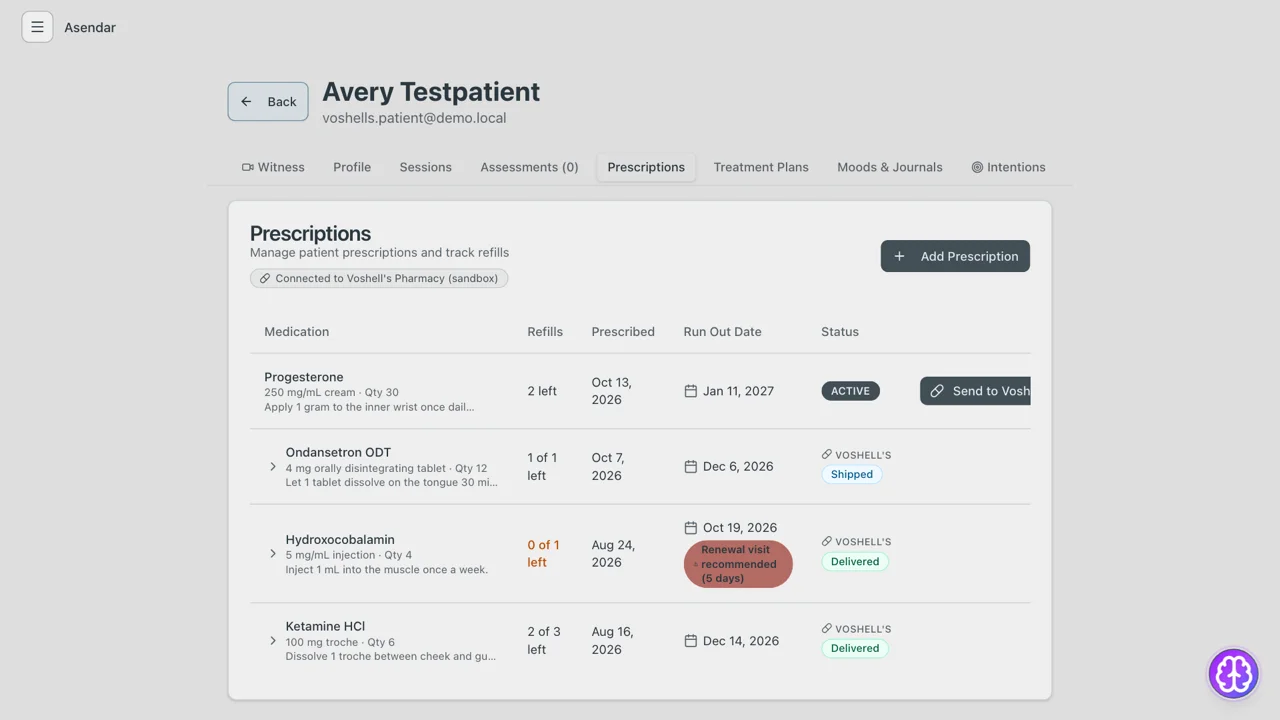
The tab lists every prescription with its Refills, the date it was Prescribed, its Run Out Date and its Status. A prescription filled through the pharmacy carries a VOSHELL'S mark over its status. A prescription written but not yet sent shows ACTIVE and a Send to Voshell's button.
2. Read a prescription's status and timeline
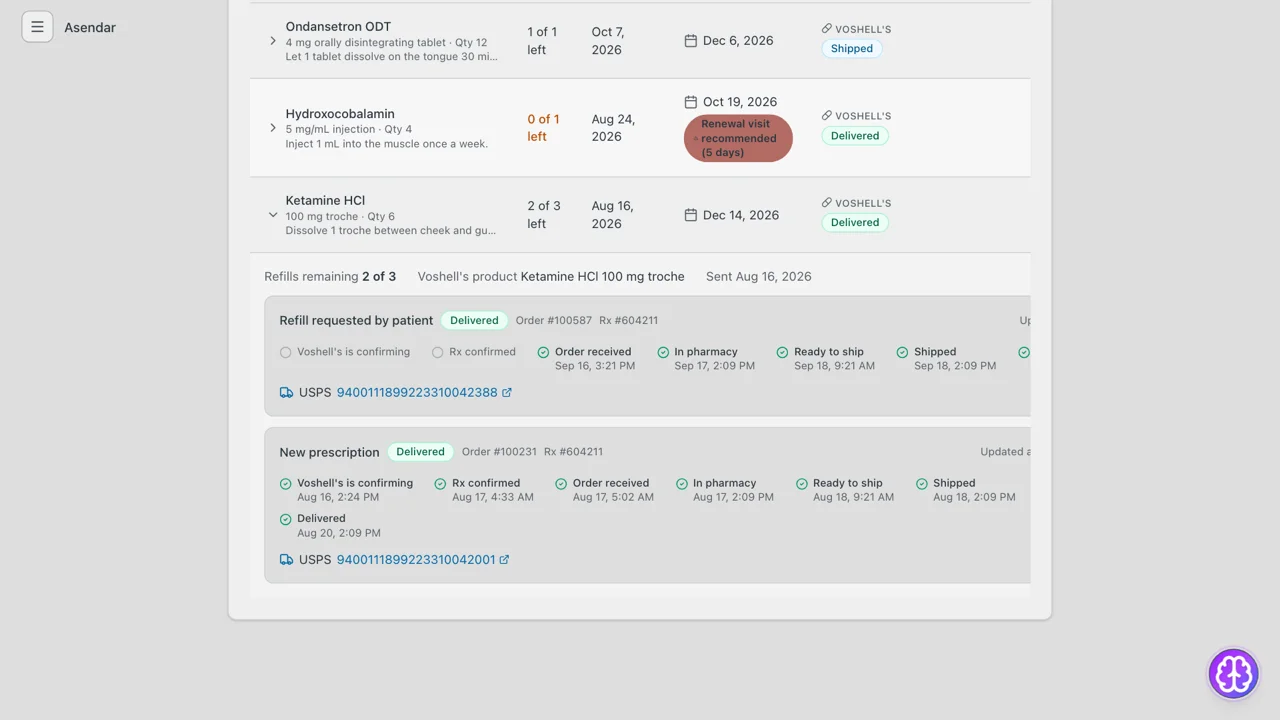
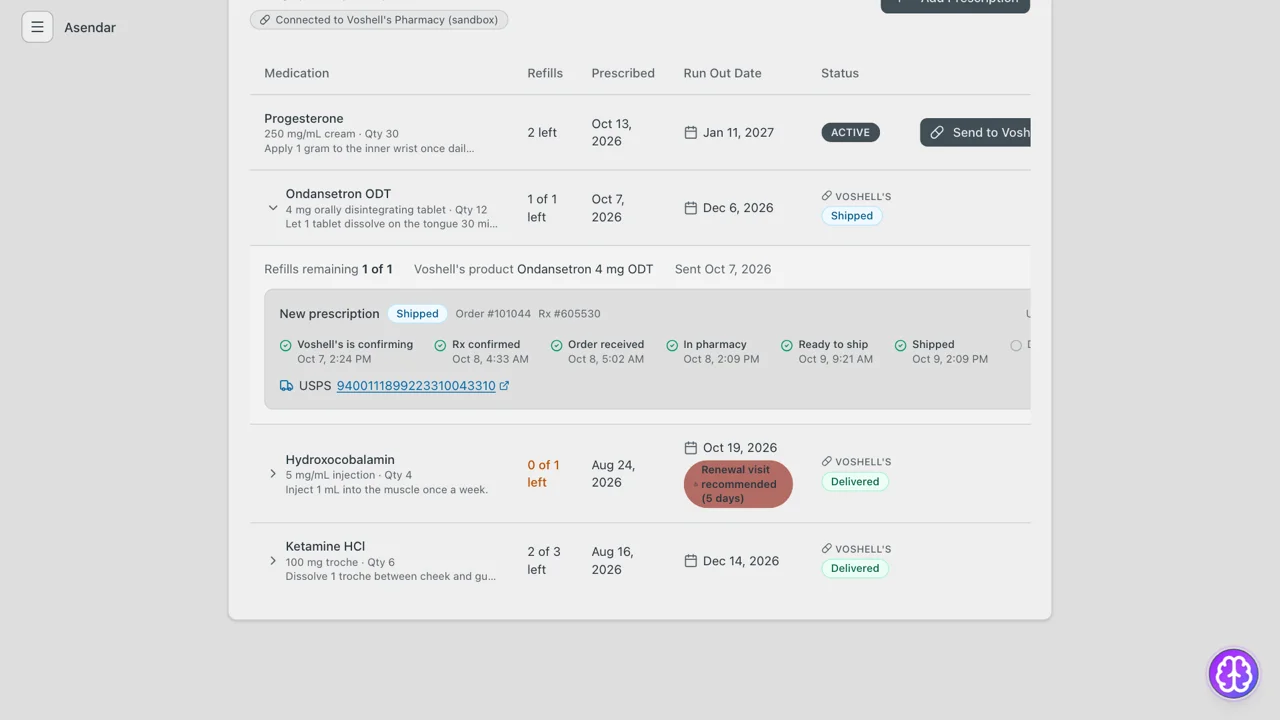
Select the arrow next to a sent prescription to open it. The top line shows Refills remaining, the Voshell's product and the date it was Sent. Below that, each fill (the New prescription and each Refill requested by patient) has its own order number, Rx number and timeline:
- Voshell's is confirming
- Rx confirmed
- Order received
- In pharmacy
- Ready to ship
- Shipped
- Delivered
Each step shows the date and time Voshell's reported it.
Once a fill ships, the carrier and tracking number appear under its timeline. Select the tracking number to open the carrier's tracking page.
Note. You do not need to refresh anything. Voshell's notifies Asendar as each step happens, and Asendar also checks for updates when you open the page.
3. Write a new prescription for the pharmacy
- On the patient's Prescriptions tab, select Add Prescription.
- Under Fill through Voshell's Pharmacy, choose the product from the Voshell's product list (the Voshell's catalog) and check the Dispense unit. Asendar fills in Medication Name, Strength and Form from the catalog product.
- Check Strength and Form and correct them to read the way you want the patient to see them, for example 250 mg/mL and cream. See Open items.
- Enter the Quantity (for example 30), the Dosage Instructions (SIG), the Refills and the Days Supply (for example 30).
- Save the prescription.
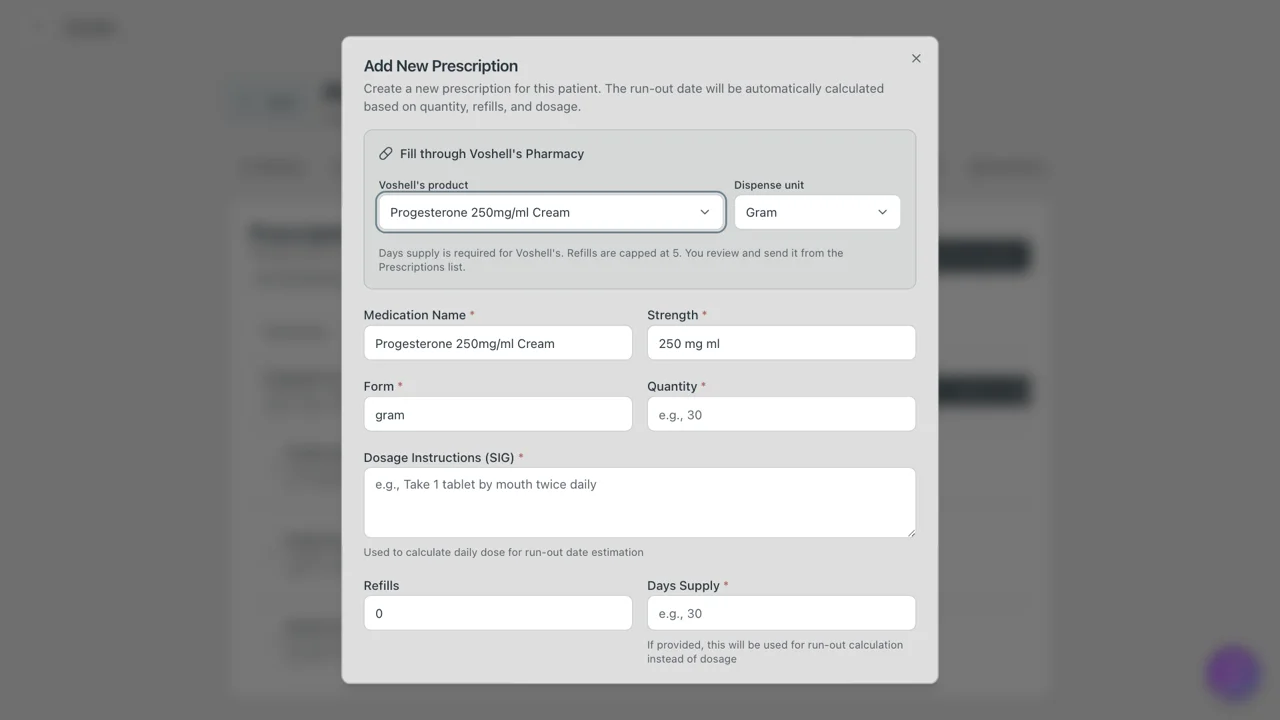
Note. Days Supply is required for Voshell's, and refills are capped at 5. Saving does not send anything to the pharmacy. You review and send it from the Prescriptions list (step 4).
Asendar confirms Prescription Created, and the new prescription appears on the list as ACTIVE, with a Send to Voshell's button.
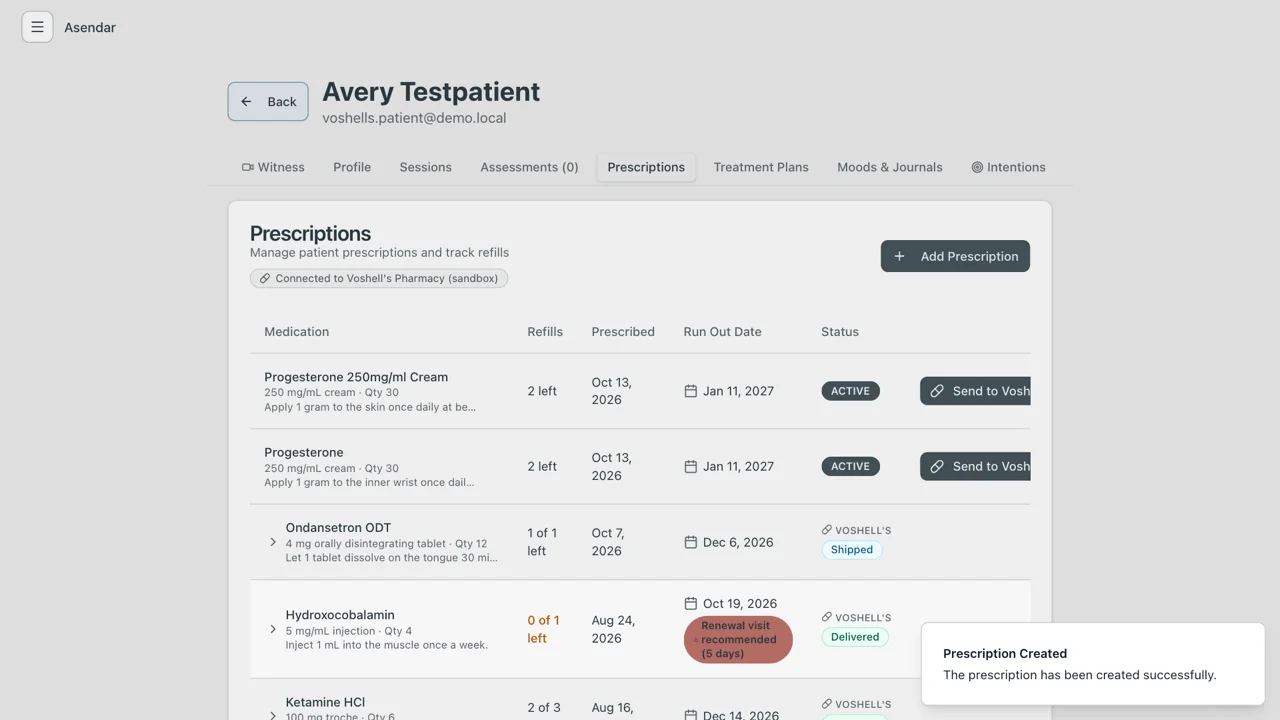
4. Review and send it
Sending is confirm first: nothing goes to the pharmacy until you have seen exactly what it will receive and attested to it. The prescriber who wrote the prescription is the one who sends it.
- On the new prescription, select Send to Voshell's.
- The review screen, Send to Voshell's Pharmacy, shows exactly what Voshell's will receive:
- Prescription: the Product, the Quantity with its dispense unit (for example 30 grams), the Days supply, the Refills and the Directions.
- Patient and shipping: the patient's name, date of birth, sex, phone and shipping address. Select Edit to correct them.
- If any of your own or the patient's pharmacy details are missing, the review screen asks for them here.
- Read it through. If anything in the prescription is wrong, select Cancel, correct the prescription and send again.
- Tick the attestation: I am the prescriber, I reviewed this prescription, and I authorize Voshell's Pharmacy to fill it.
- Select Send to Voshell's.
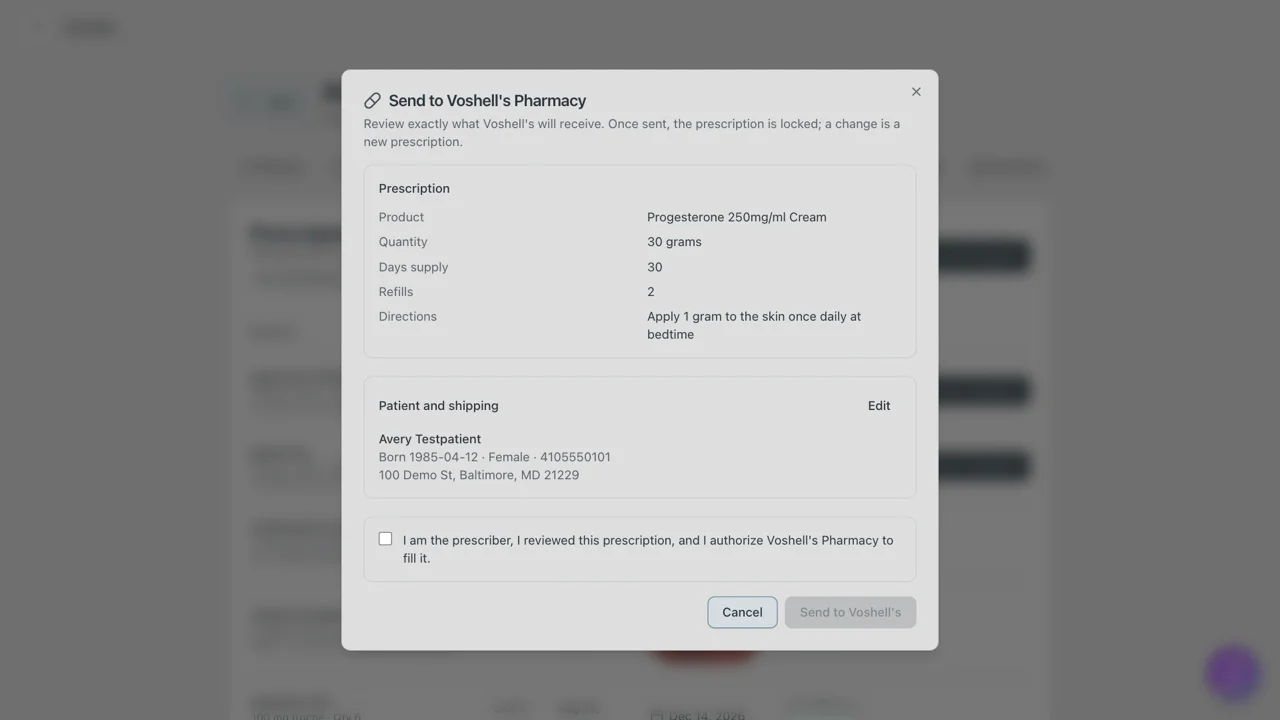
Important. Once sent, the prescription is locked. It cannot be edited or deleted. A change is a new prescription.
5. After you send
Asendar confirms Sent to Voshell's Pharmacy, and the prescription's status reads Voshell's is confirming. As the Voshell's team confirms and fills it, each step of the timeline (section 2) comes back to Asendar on its own, on your Prescriptions tab and on the patient's Medicines page.
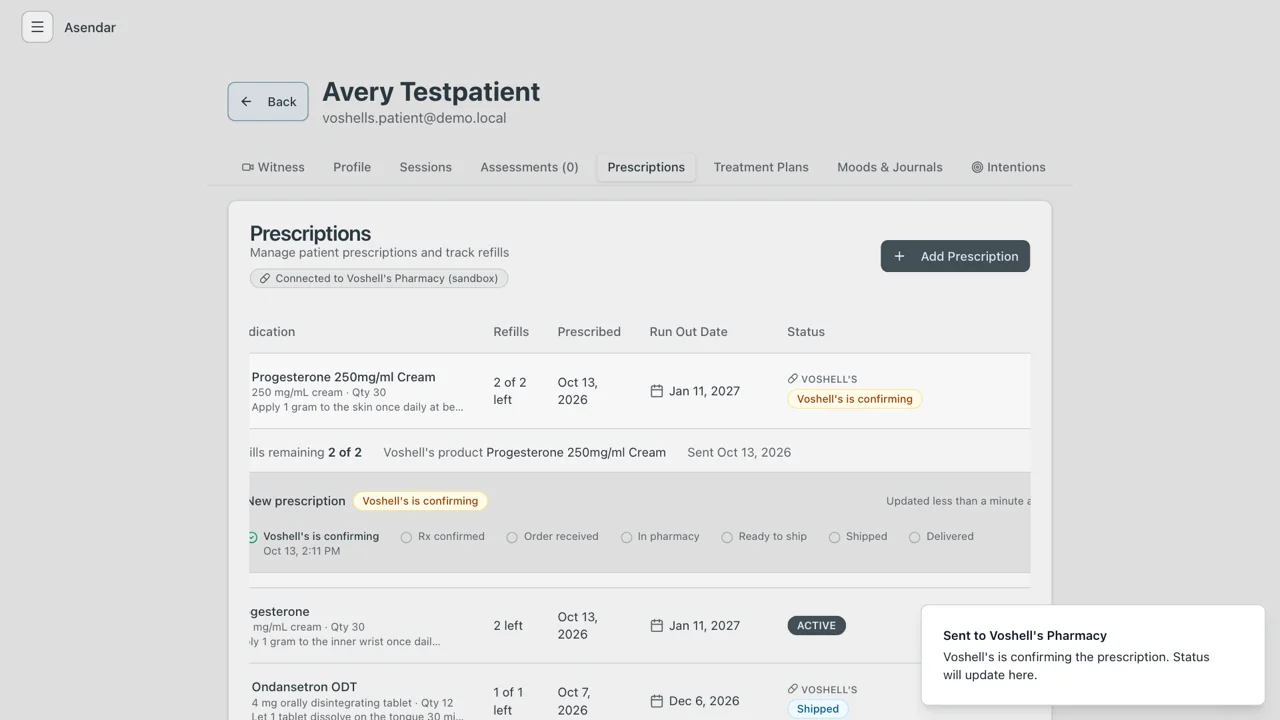
6. Approve or decline a refill request
A patient with refills left requests the next fill straight from their Medicines page. It goes to Voshell's with no step for you, and the refill count goes down by one.
A patient with no refills left can ask you for more. You then get a notice:
- A dot on the menu button means a notice is waiting. Open the menu: Notifications shows how many are unread. The notice reads Refill request needs your approval, and it opens the patient's Prescriptions tab.
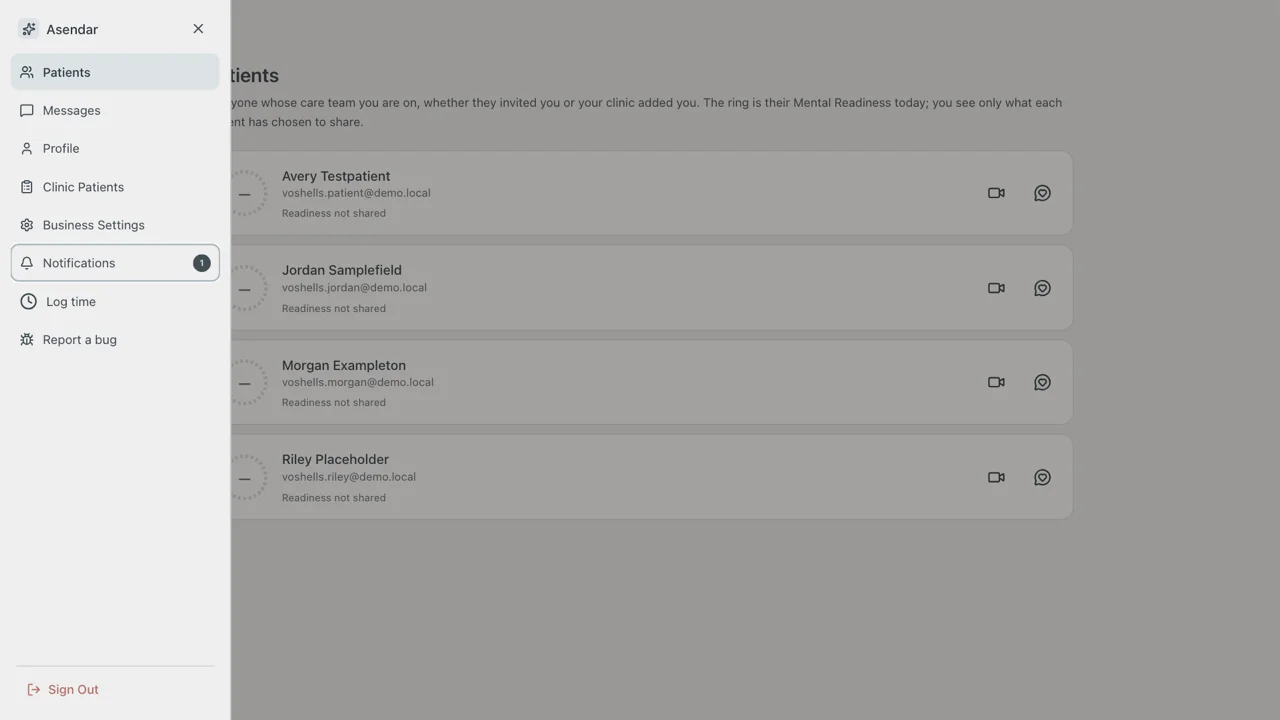
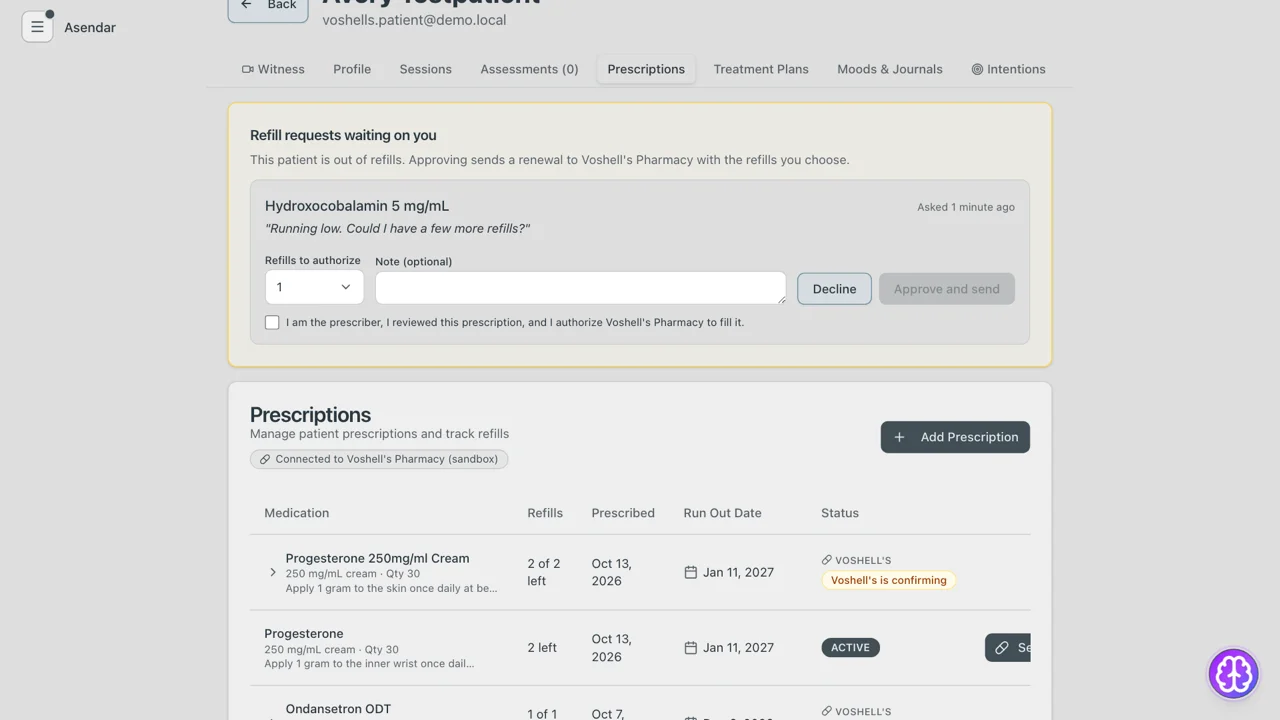
The notice in the menu. - At the top of the patient's Prescriptions tab, Refill requests waiting on you shows the medicine, the patient's note and when they asked.
- Choose Refills to authorize and add a Note if you want one.
- Tick the attestation: I am the prescriber, I reviewed this prescription, and I authorize Voshell's Pharmacy to fill it.
- Select Approve and send, or select Decline.
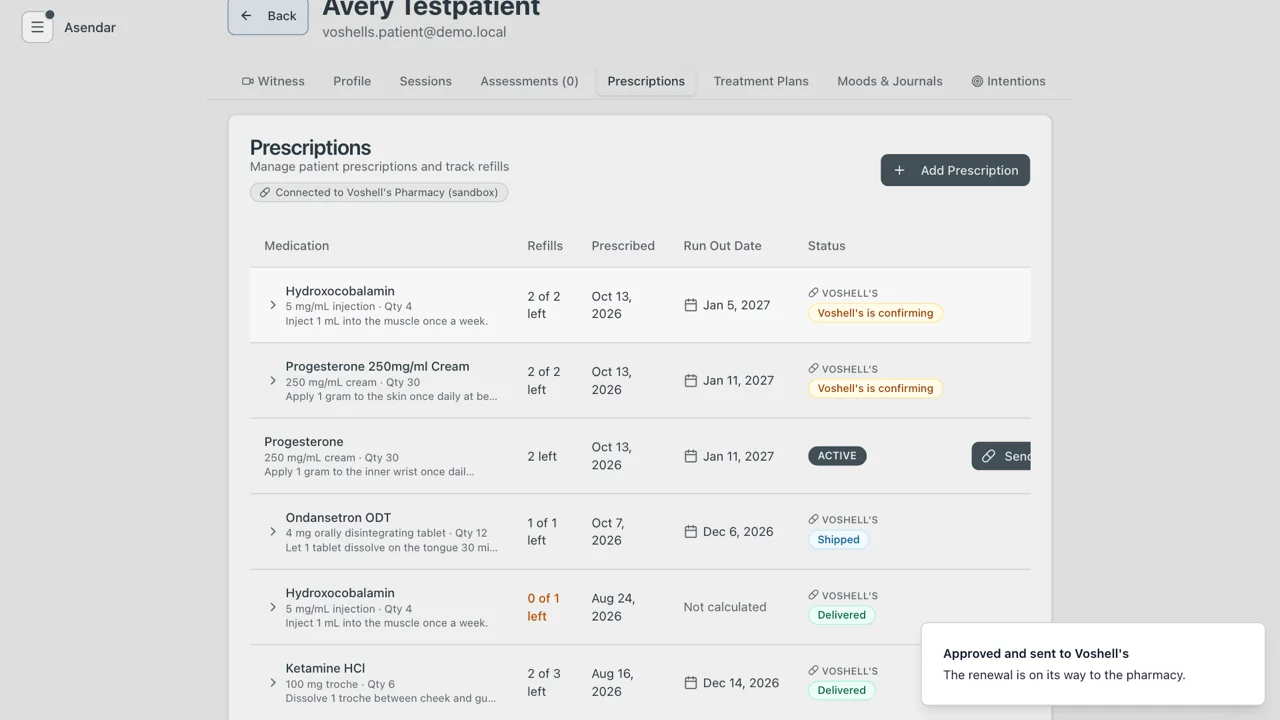
Approving writes a renewal: Asendar sends it to Voshell's as a new prescription with the refills you chose, and closes the old one. Asendar confirms Approved and sent to Voshell's, and the renewal starts at Voshell's is confirming, the same as any new prescription (section 5).
7. Prescriber troubleshooting
| What you see | What to do |
|---|---|
| No Fill through Voshell's Pharmacy on Add Prescription, and no Connected to Voshell's Pharmacy on the tab | Your clinic is not connected to Voshell's. Ask your clinic Owner or Clinic Admin |
| Send to Voshell's is greyed out on the review screen | Tick the attestation first |
| The review screen asks for NPI, practice address or patient details | Voshell's needs them once. Fill them in; they are kept for next time |
| A sent prescription cannot be edited | That is by design. Write a new prescription for the change |
| The status has not moved past Voshell's is confirming | The Voshell's team has not confirmed it yet. Each step shows up on its own as they work |
| Strength or Form reads oddly after choosing a catalog product | Correct them before you save (section 3) |
| Anything else | Email support@asendar.com |
Part 2: Patient
1. Open your Medicines page
- Sign in to your Asendar account.
- Open the menu and select Medicines.
The page holds everything your prescriber has written for you, in one place. When Voshell's Pharmacy fills a prescription, you can see where it is, how many refills are left, and ask for the next one here.
2. Read a medicine card
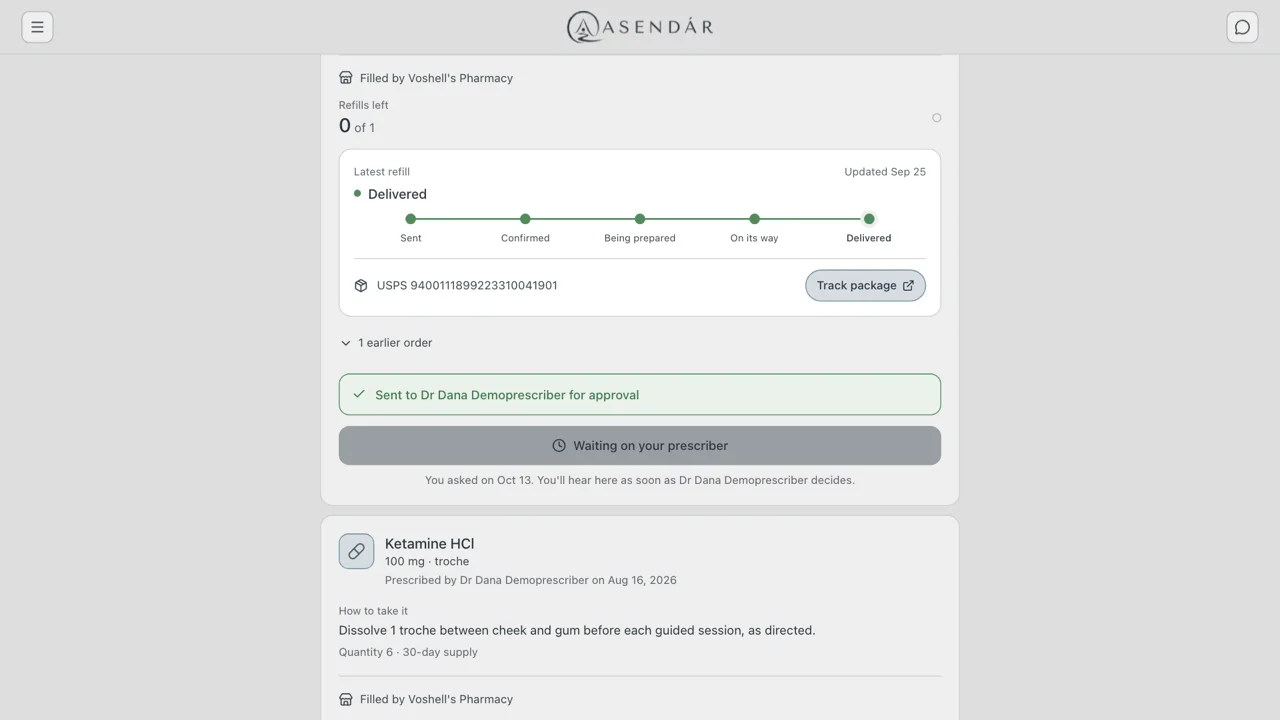
Each prescription has its own card, in plain words:
- What it is: the medicine, its strength and its form.
- Who prescribed it, and when.
- How to take it, with the quantity and the days it lasts.
- Filled by Voshell's Pharmacy, when the pharmacy fills it.
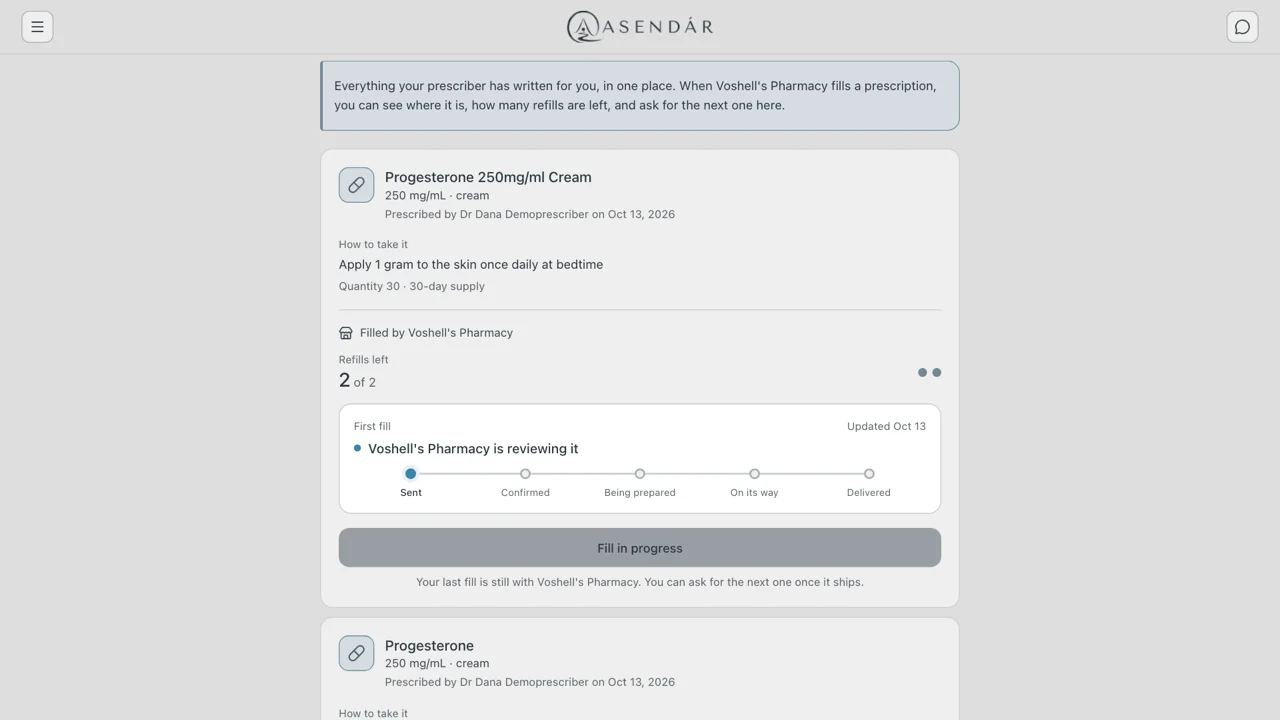
- Refills left, for example 2 of 2.
Prices and clinical detail are not shown on this page.
3. Follow your order
Under Refills left, the card shows the latest fill (First fill or Latest refill) and where it is now, on a five-step track:
- Sent
- Confirmed
- Being prepared
- On its way
- Delivered
Once it ships, the tracking number appears with a Track package button that opens the carrier's tracking page. Select 1 earlier order (or however many there are) to see the fills before this one. Asendar also sends you a notice when your order is being prepared, when it ships and when it is delivered. Notices do not name your medicine.
4. Request a refill
When a prescription has refills left and the last fill has shipped, the card's button reads Request a refill.
- Select Request a refill.
- The request goes straight to Voshell's Pharmacy. Asendar confirms it was sent and shows how many refills are left.
While a fill is still with Voshell's, the button reads Fill in progress, with Your last fill is still with Voshell's Pharmacy. You can ask for the next one once it ships. Voshell's works on one fill at a time for each prescription, so you can ask for the next one as soon as this one ships. The card in section 2 shows this state.
5. Ask your prescriber for more refills
When a prescription has no refills left, the button reads Ask my prescriber for more refills.
- Select Ask my prescriber for more refills.
- Add a note if you want one, for example Running low. Could I have a few more refills? The screen shows who the request goes to.
- Send it.
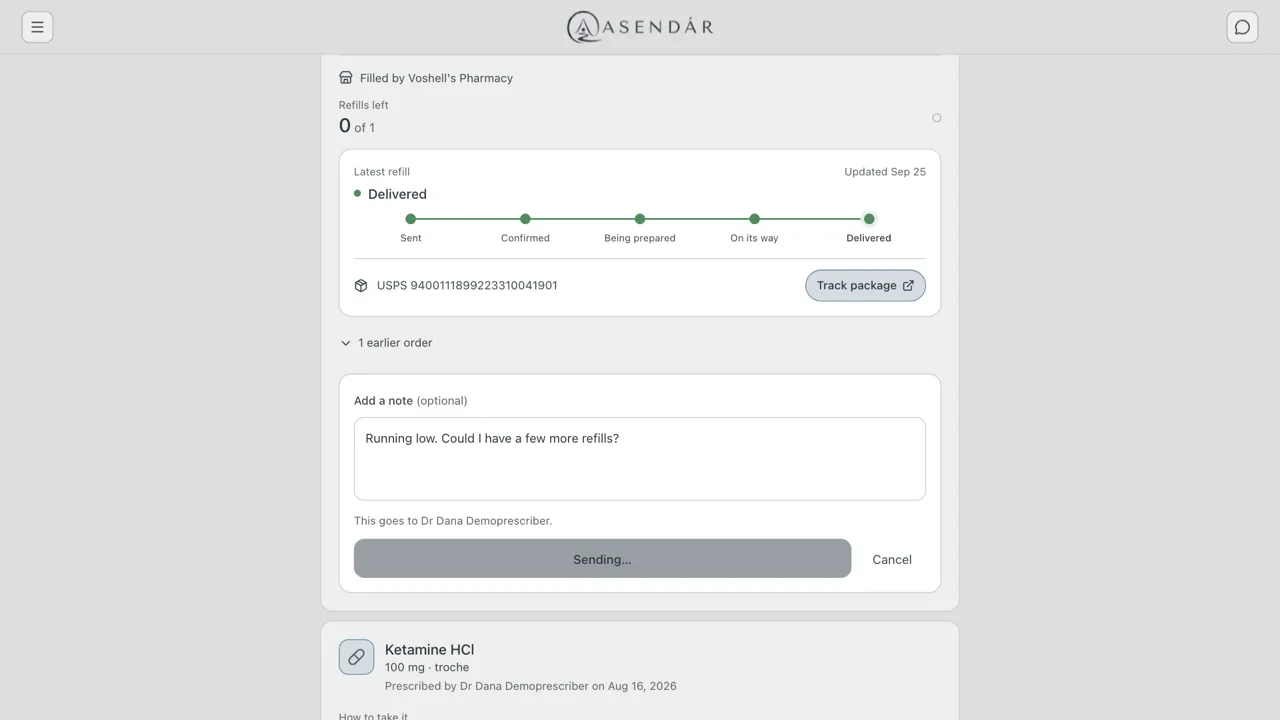
The card then shows Sent to your prescriber for approval, and the button reads Waiting on your prescriber. You will see the answer on this card as soon as your prescriber decides. If they approve, a new prescription goes to Voshell's and appears on your Medicines page, and you can follow it the same way (section 3).
6. Patient troubleshooting
| What you see | What to do |
|---|---|
| The button reads Fill in progress | Your last fill is still with Voshell's. You can ask for the next one once it ships |
| The button reads Waiting on your prescriber | Your request is with your prescriber. The answer appears on the card |
| The card reads Refill through Voshell's instead of a refill button | Contact Voshell's Pharmacy directly for this prescription |
| A prescription is missing from Medicines | Ask your prescriber. The page shows prescriptions written for you in Asendar |
| Anything else | Email support@asendar.com |
Open items
These are not finished yet. This guide will be updated as each one closes.
| Item | Where it stands |
|---|---|
| Live ordering with Voshell's | The module runs against the Voshell's sandbox on staging. Production ordering is turned on per clinic when your go-live plan with Voshell's says so. |
| Pharmacy-Id | The pharmacy identifier Asendar sends with each order is pending from SiCompounding, Voshell's ordering system. |
| 30 grams on the review screen | Fixed and verified on staging. The fix reaches production with the next app promotion. |
| Catalog prefill for Strength and Form | Choosing a catalog product prefills Strength as "250 mg ml" and Form as the dispense unit ("gram"), which reads oddly on the patient's card. Correct them by hand before saving (Part 1, section 3) until a product decision is made. |
| Wide timelines | On a screen around 1440 pixels wide, an opened pharmacy timeline can run past the right edge of the table, so the last step and its Updated time are cut off. Scroll the table sideways. |
| Status timing | The Voshell's sandbox can move an order along within minutes, so a live session may already be further along than Voshell's is confirming. |
Questions about this guide or the Prescription Module: support@asendar.com.