How Asendar thinks
Asendar is built on one continuous health record that belongs to the individual and travels with them, from clinic to clinic and from one part of their life to the next. A provider joins that record only when the individual invites them in, or when they come to your clinic as a patient, and the individual can withdraw that access at any time.
Integration is the spine. Asendar follows a person through preparation, the session itself and the time after it, because that is where change is made or lost. Most of what shapes an outcome happens between visits.
What this means for you:
- You see what the patient has chosen to share with you. They choose by category: identity, medical history, intentions, mood logs, journal entries and integration check-ins. A journal entry stays private unless they share that entry.
- The patient's own details, such as their name and health profile, come from their account. You can read them but not change them.
- The clinical record you create, such as session notes, stays with your clinic, even if the patient later removes you from their care team.
- If a patient removes you, your access to what they shared ends straight away.
Why it builds trust: people share more, and more honestly, when they know they hold the keys. A patient who can see exactly what you see, and can change it, has a reason to keep sharing between visits. That ongoing sharing is the information you need.
1. Your first sign-in, your clinic and your team
What you do
- Sign in with the email address your clinic invited, or the one you signed up with.
- The first time, Asendar asks you to accept three agreements: the Terms of Service, the Privacy Policy and the HIPAA Business Associate Agreement. Tick each one and select Accept & Continue.
- Asendar opens on the page that holds your patients. That is your Collaborative Care caseload if your clinic runs Collaborative Care, your Patients list if patients have invited you, and otherwise your clinic's patient list.
- If you run the clinic (Owner or Clinic Admin):
- Open Business Settings. On Business Hours, set the days and hours the clinic is open; on Office Hours, select Add Availability to set when providers can be booked; on Rooms, add the rooms you book.
- Open Employees and select Invite Employee. Enter the person's Email Address, choose their Roles and select Send Invitation. Only the Owner can invite someone who does not have an Asendar account yet; a Clinic Admin can invite people who already have one.
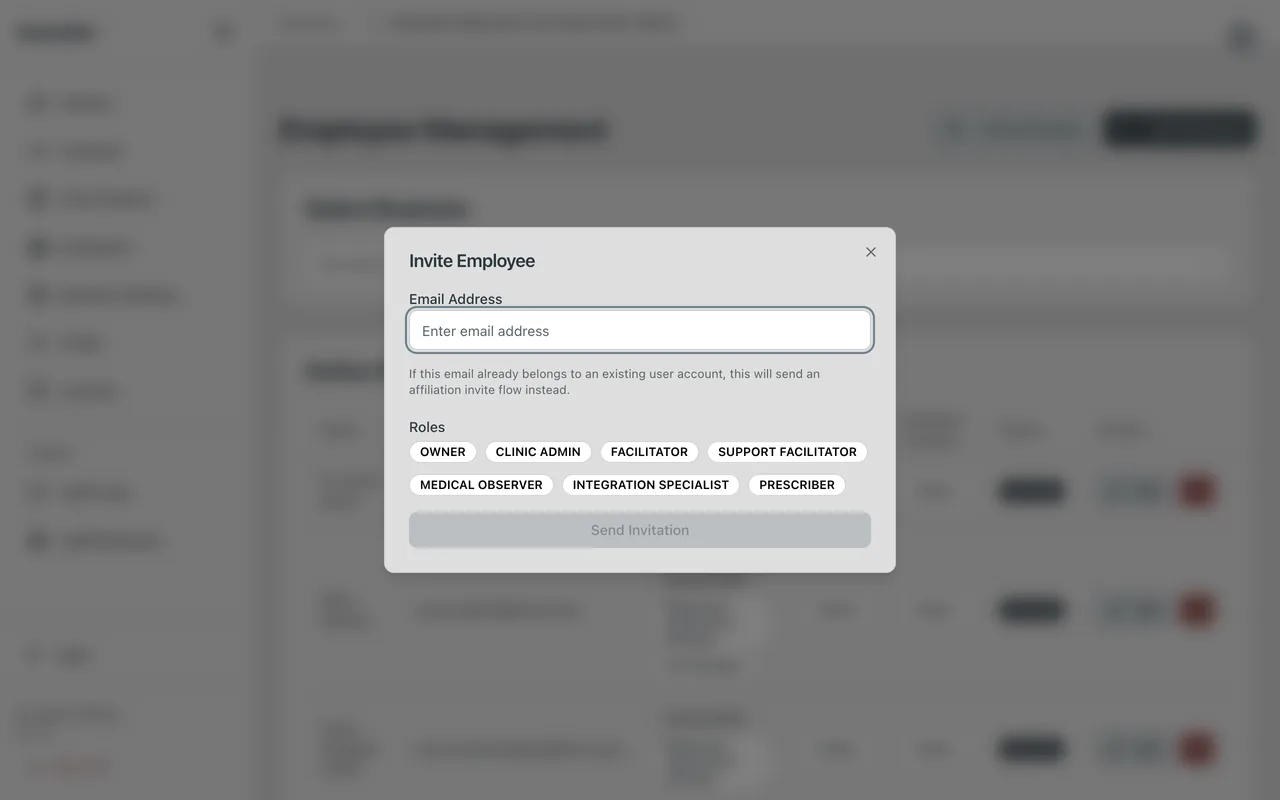
Why it matters. The agreements are what let you see protected health information lawfully. Roles decide what each person can see and do. Owners and Clinic Admins see every patient at the clinic. A Facilitator, Prescriber or Medical Observer sees the patients assigned to them or seen in their sessions.
How it supports your work. Set the hours and rooms once and scheduling runs smoothly: a session booked outside the clinic's hours or a provider's availability asks for a written reason first. With the right role from the start, each person sees the patients they care for, and no more.
2. Getting a patient connected
What you do. A patient reaches you in one of two ways.
- Your clinic adds them (an Owner, a Clinic Admin, or a solo practitioner): open Clinic Patients, select Add Patient, and fill in First Name, Last Name and Email. The other fields are optional. Tick Send the patient an invite email if they should set up their own Asendar account now; you can send it later from their record with Send invite.
- They invite you. An individual already using Asendar can invite you from their Care Team page by your email address. You get a link, accept the agreement and join their care team. They then appear on your Patients list.
Once connected, the patient chooses what to share with you, category by category, on their Care Team page.
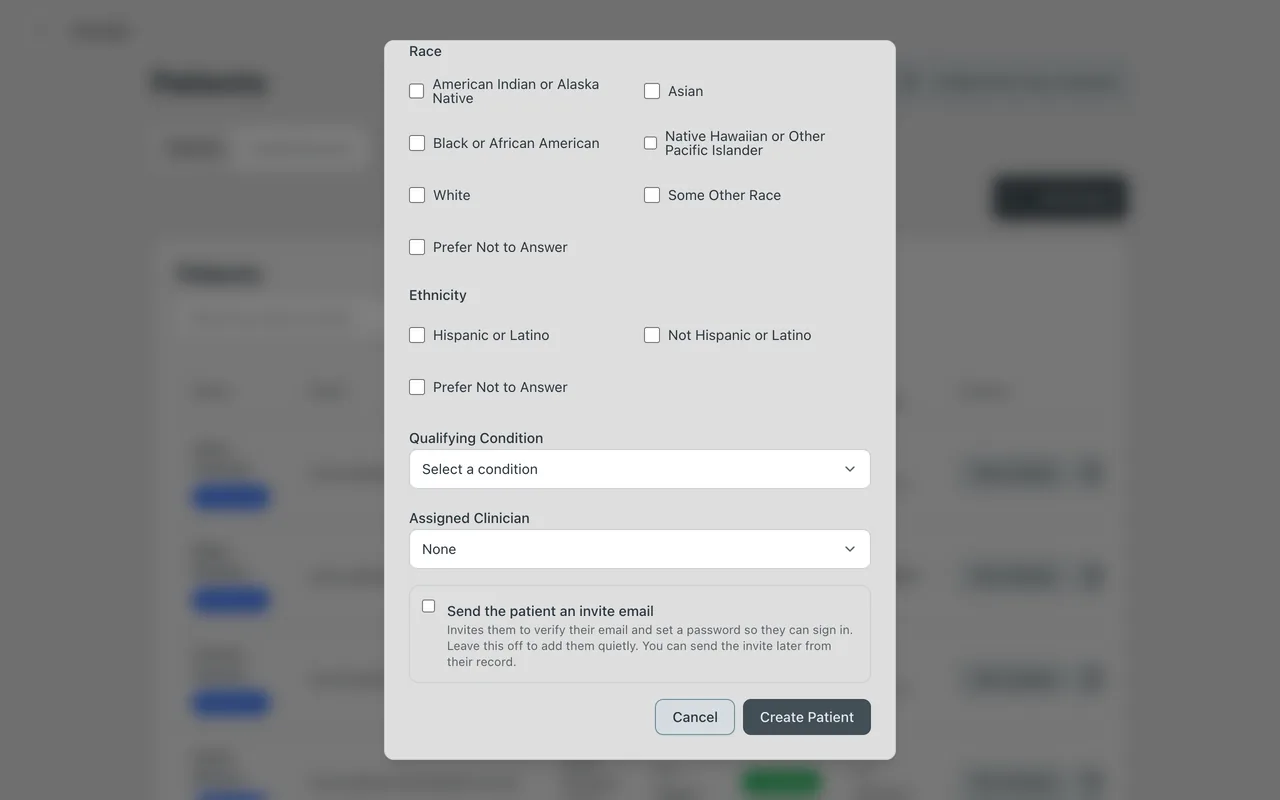
Why it matters. The invitation and the patient's own choices are the consent. Nothing they keep private reaches you, and they can see who on their care team sees what.
How it supports your work. You can start working a chart the moment a patient is added; they do not need to sign in first. Once they set up their account, what they share between visits (mood, journal entries, intentions and check-ins) flows to you without anyone re-entering it.
3. The patient chart
What you do. Open Clinic Patients and select View Details on the patient's row. The chart has tabs, among them:
- Profile: the patient's own health profile, read-only to you, and the clinic's clinical record;
- Sessions: their sessions with your clinic;
- Assessments: assigned questionnaires and their scores;
- Prescriptions and Treatment Plans;
- Moods & Journals: their mood logs, and the journal entries they shared;
- Intentions and Integration;
- Care Team Chat.
Patients who invited you are also on Patients in your menu. Opening one there shows only what they have shared with you, section by section.
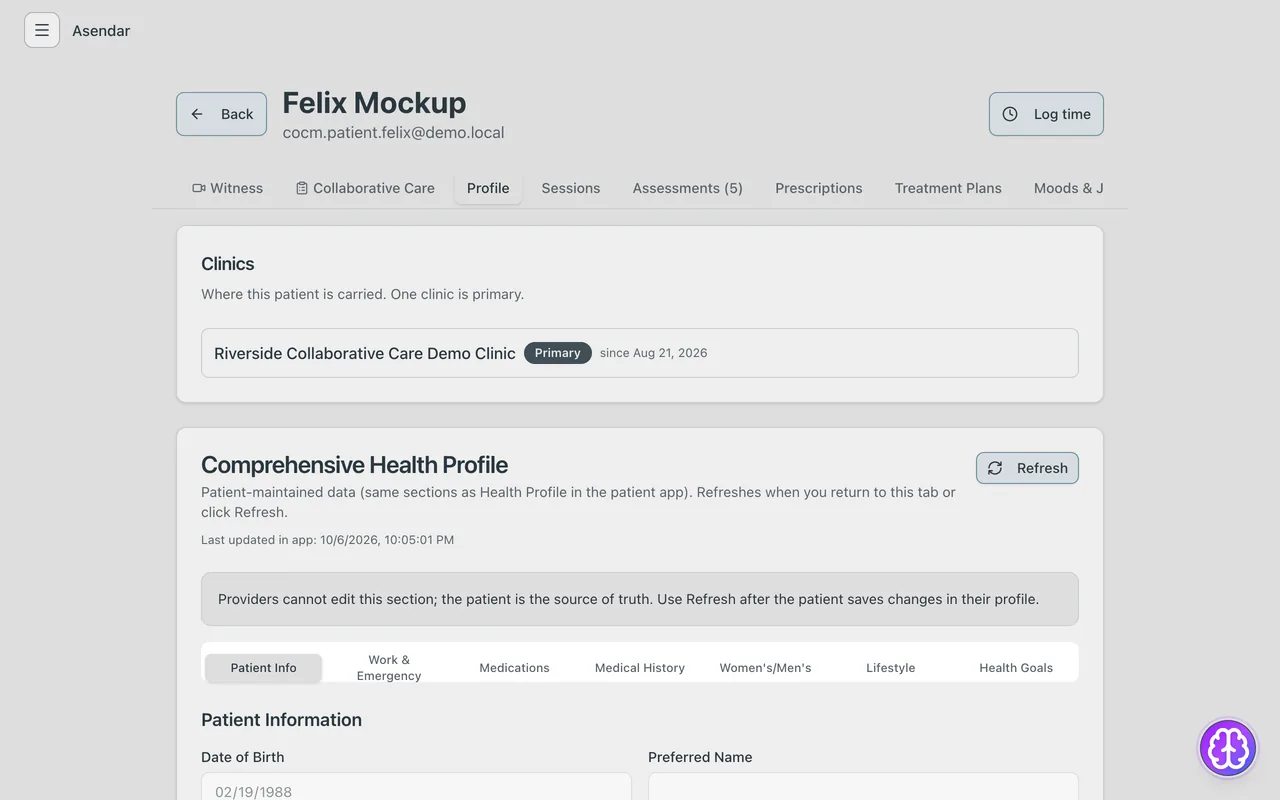
Why it matters. The chart puts the clinic's record and the patient's own shared record side by side, without blurring whose is whose. The patient's own sections say plainly that providers cannot edit them.
How it supports your work. You walk into a visit already knowing the history the patient chose to give you, and the questions you would otherwise spend the first minutes asking are answered.
4. Before a session
What you do
- Schedule it. In Clinic Patients, select Schedule Session on the patient's row. Choose the Lead Provider, the Start Time and End Time, and a Room, and select Schedule Session. If the time is outside your clinic's hours or your availability, Asendar asks for a short reason before it books.
- See what they are bringing. On Patients, open the patient to read the intentions they have shared, and their recent mood and journal entries.
- Get a baseline. On the chart's Assessments tab, select Assign Assessment, choose the PHQ-9, GAD-7 or PCL-5, and select Assign. The patient sees it on their home screen and takes it in a few minutes.
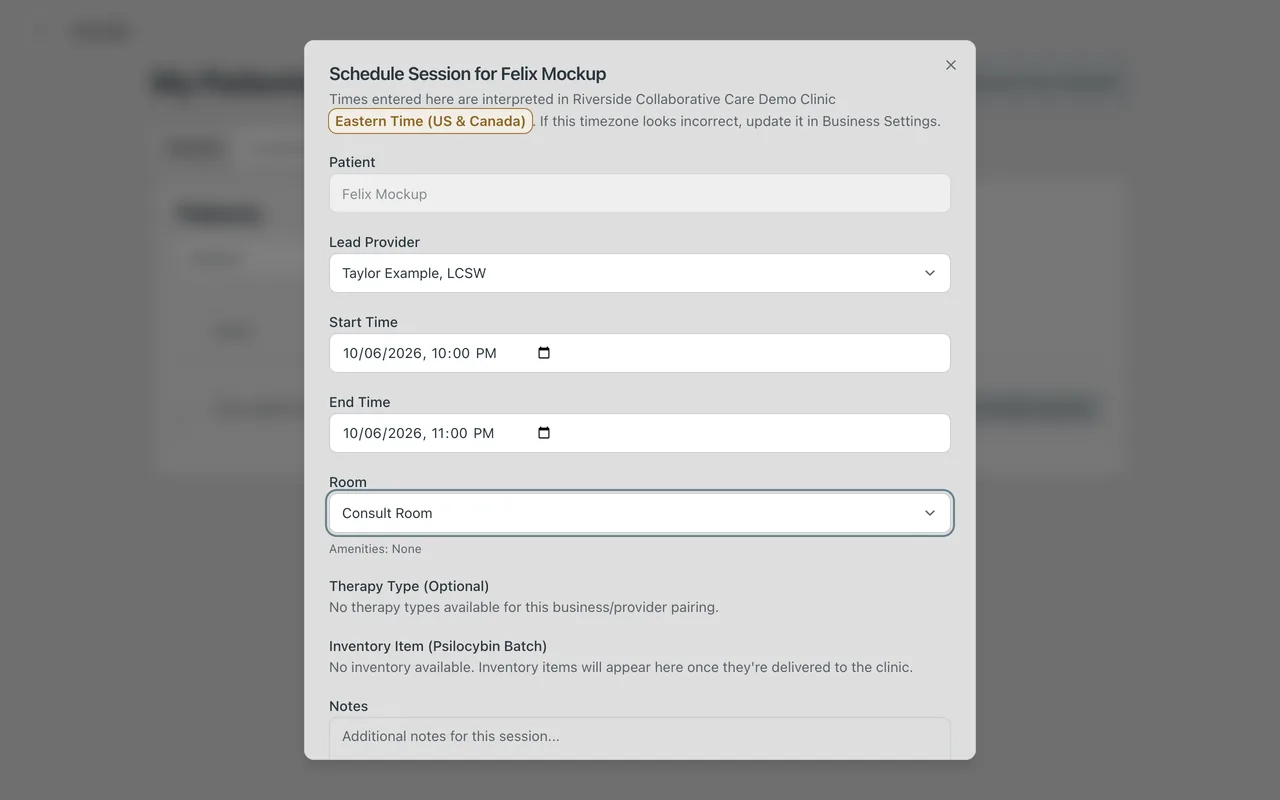
Why it matters. A baseline score taken before care starts is the only way to know later whether things have changed, and by how much. An intention the patient set in their own words tells you what matters to them, before you ask.
How it supports your work. The questionnaire is done before the visit, not during it. The score lands on the chart with its date, and you get a notification when it is complete.
5. The session and your notes
What you do
- Open the session: on the chart's Sessions tab, select View. This is Manage Session.
- When the session starts, select Mark In Progress.
- Under Session Notes, write in Add Note and select Add Note to save it. You can add as many notes as you need.
- Use the tabs (Patient Info, Pre-Treatment, Treatment, Vitals, Assessment and Adverse Event) to record the session, and select Save Progress as you go.
- To close the session, type your name in Provider E-Signature on the Assessment tab, then select Complete Session. Asendar offers to add a final note.
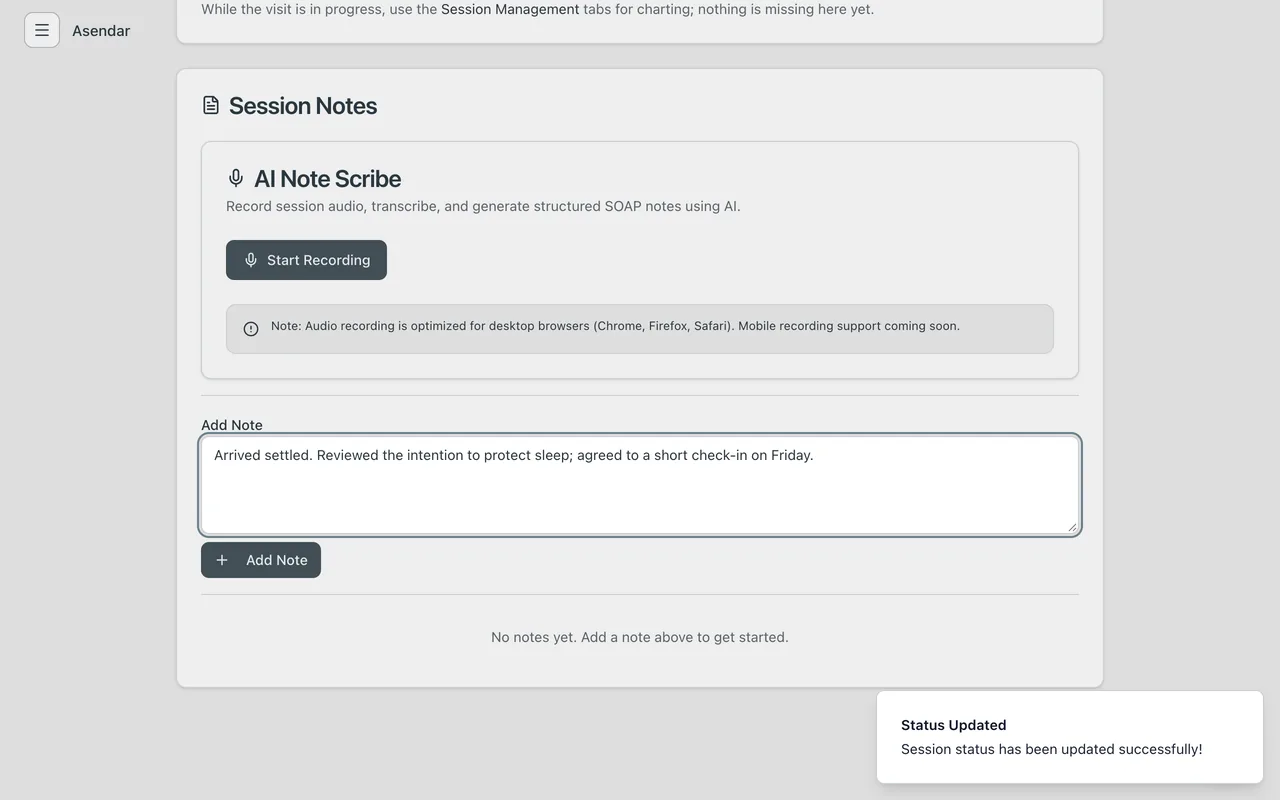
Why it matters. A dated, signed record of what happened in the session is the clinical and legal backbone of care. Asendar will not complete a session without the signature.
How it supports your work. Notes and the session record live in one place, tied to the patient and the session, so the next clinician (or you, next month) can see what happened and when. The clinic keeps these records even if the patient later leaves your care team.
6. After the session
What you do
- When a session is completed, Manage Session shows Post-session integration. It waits for the patient's post-session check-in.
- Copy patient check-in link gives you a link to send the patient. If they cannot complete the check-in, an Owner or Clinic Admin can record a Clinician override with the reason, for example a check-in done by phone.
- Once the check-in is in, an Owner or Clinic Admin selects Create integration plan draft. The draft lays out the patient's daily prompts, actions and reflections. Review the steps and select Activate plan, which releases them to the patient.
- The patient sees Your plan is Active on the Integration page of their Asendar app.
- Between visits, read what they share: on Patients, or on the chart's Moods & Journals tab.
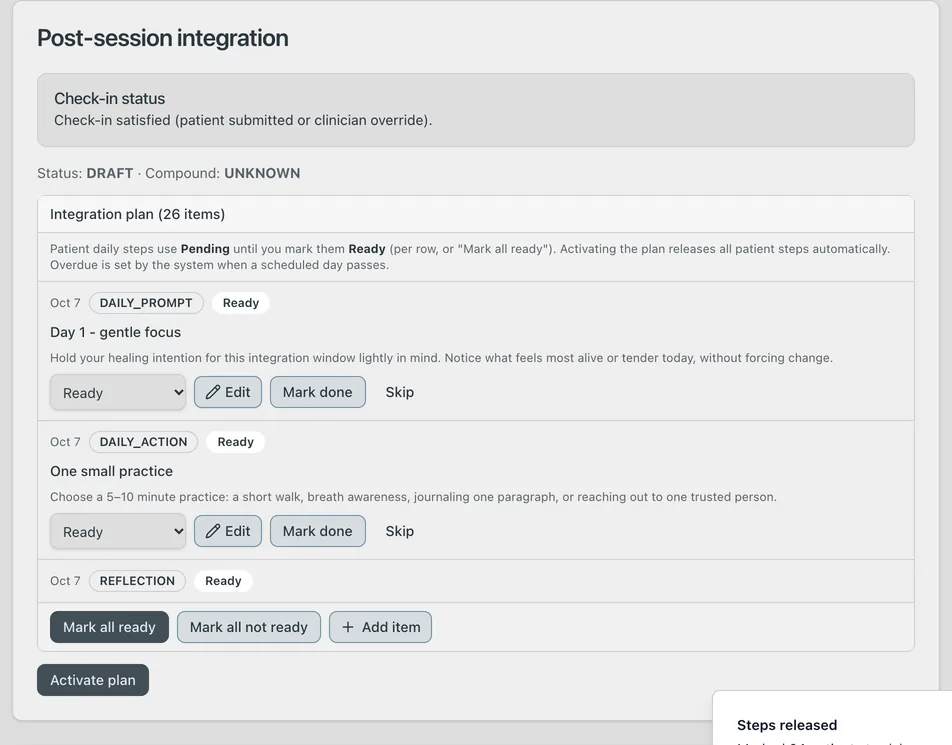
Why it matters. The days after a session are when an insight either takes hold in everyday life or fades. Small, specific daily steps, agreed with the patient, are how it takes hold.
How it supports your work. The plan keeps working between visits without a phone call. When you next meet, you can see what they did and what they said about it, instead of starting cold.
7. Measuring progress
What you do
- Assign the same questionnaire again at regular intervals: monthly is common.
- On the chart's Assessments tab, Assessment Trends plots each score over time; Completed Assessments lists every one with its date and score, and View opens the answers.
- If a patient shares their mood and health data with you, the ring beside their name on Patients shows their Mental Readiness today, once there is enough to read.
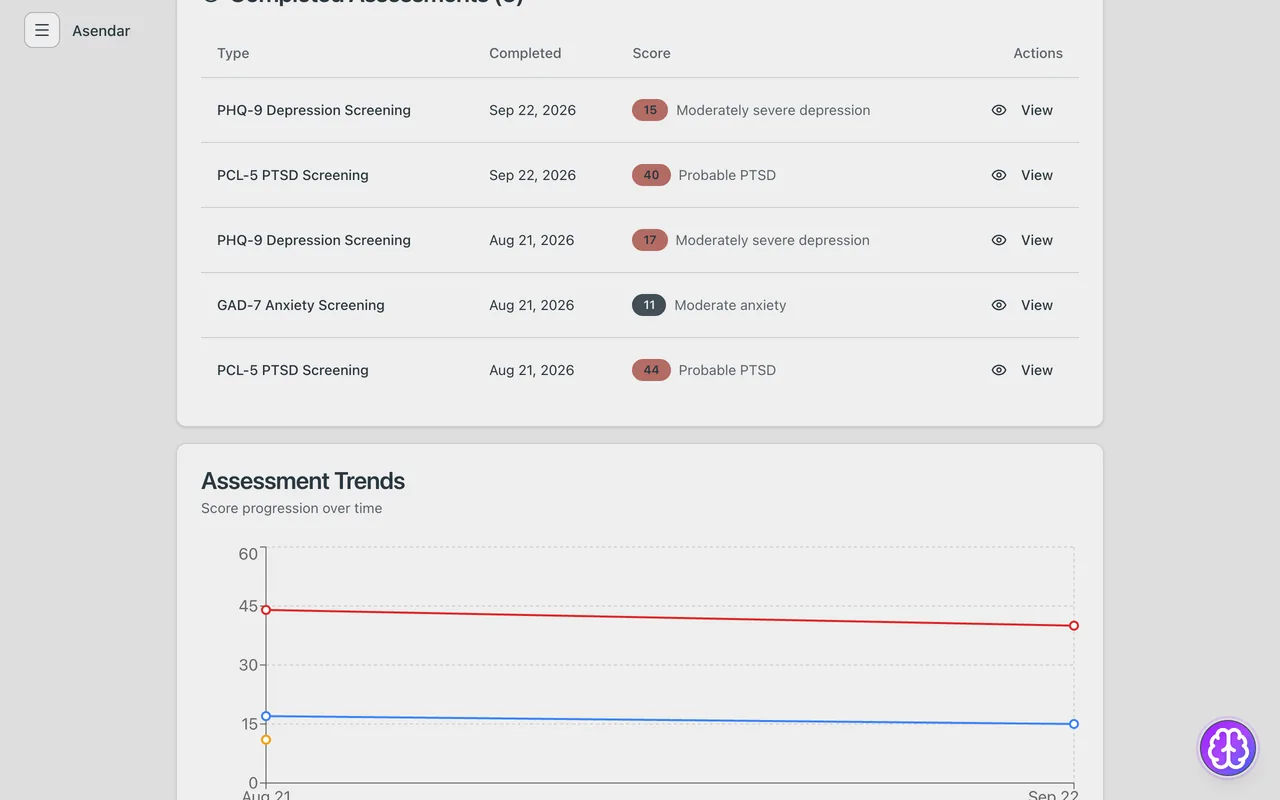
Why it matters. Repeated, validated measures turn "I think they're doing better" into a number you can show, discuss and act on. A score that is not moving is a reason to change the plan.
How it supports your work. The trend is drawn for you, from the scores the patient enters and the ones you record. Where your clinic bills measurement-based care, the dated scores are the evidence.
8. Working with the care team
What you do
- On the chart, open Care Team Chat and select Start Conversation. This opens the patient's care team conversation, which includes the patient and the members of their care team.
- For a conversation among clinicians only, select + beside Threads, give it a Title, choose Provider Only and select Create Thread.
- Inside a thread, use topics to keep subjects apart.
- Watch Notifications in your menu: a completed assessment, a recorded consult and other notices for you appear there.
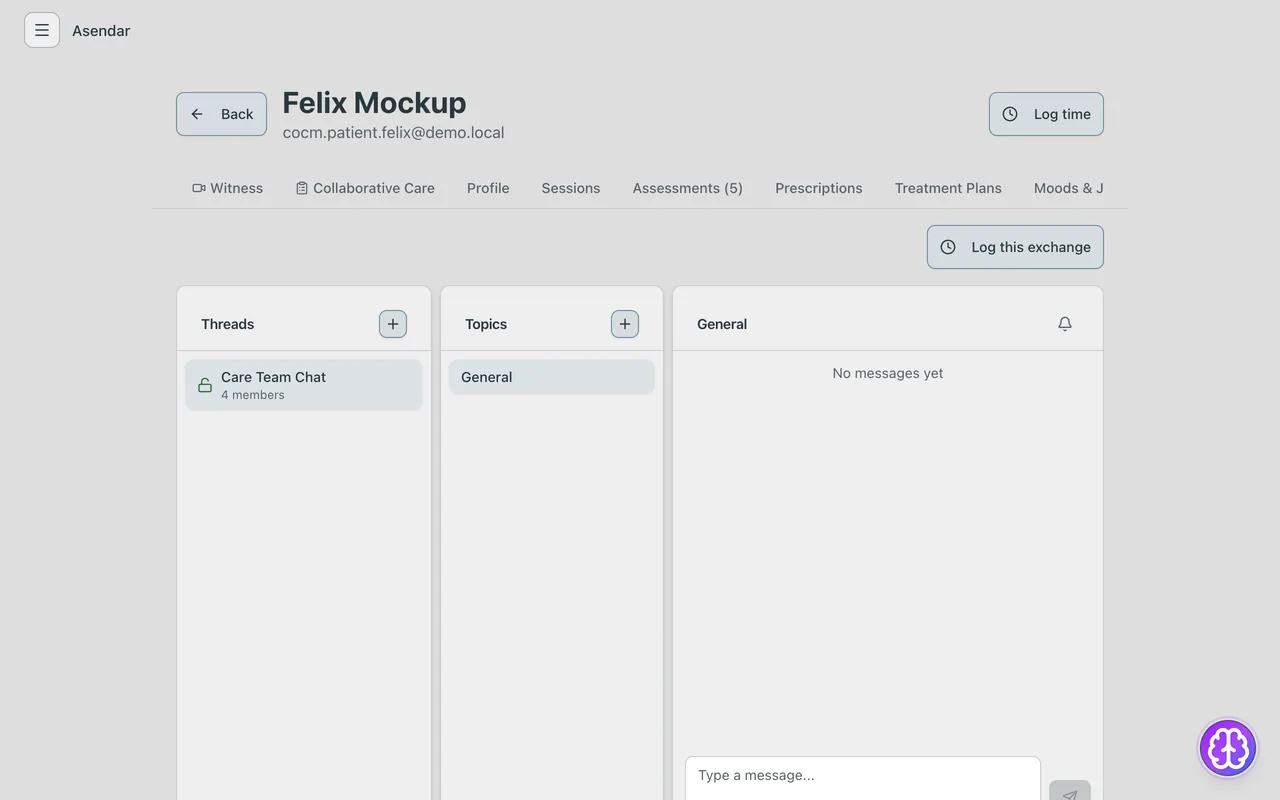
Why it matters. Care for one person is often shared across a therapist, a prescriber and a primary care provider. Each of them needs the same picture, and the patient deserves to know who is talking about their care.
How it supports your work. Conversations stay with the patient's record instead of in personal email or text messages. Anyone on the care team can pick up where the last person left off.
9. Privacy, consent and revocation in practice
What you do
- Respect the patient's choices. What they have not shared with you does not appear. If something you need is missing, ask them; do not work around it.
- If a patient removes you, their chart no longer opens for you and they leave your Patients list straight away. On Clinic Patients, their View Details and Schedule Session buttons are greyed out. Under Clinic Patients, Locked Records then lists a read-only archive of the records you created while you had access, with how long the clinic must keep them.
- If you run the clinic, Audit Logs shows every read and change of patient data and every sign-in.
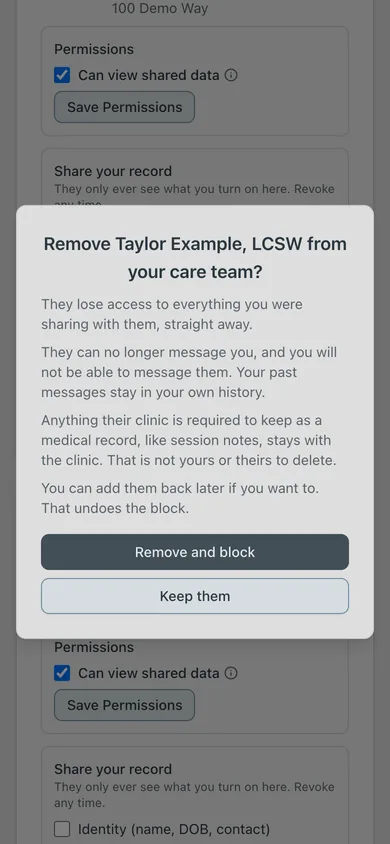
Why it matters. The patient can remove a clinician with one tap, and the confirmation tells them exactly what happens: the clinician loses access straight away, messaging is blocked both ways, and the clinic keeps the medical record it is required to keep.
How it supports your work. Clear rules protect you as much as the patient. You keep the record you are obliged to keep, you are never exposed to data the patient withdrew, and the audit trail shows that access followed consent.
10. If your clinic runs Collaborative Care
Collaborative Care (CoCM) clinics have more: the caseload with its reminders, contacts and minutes, the psychiatric consultant's case review, the quality reports and the monthly billing packet. All of it is in the Asendar Collaborative Care User Guide. If your clinic is moving from the AIMS Caseload Tracker, also read Switching from AIMS to Asendar.
11. Getting help
- Report a problem or ask for a feature. On the sidebar layout, open the account menu at the top right and select Report a bug. It opens Feedback & Feature Requests, where New Feedback sends your report to the Asendar team.
- Email support at support@asendar.com. Do not put patient details in an email.
- Your patients have help too. Help in their Asendar menu explains each part of the app in plain language, including how to take an assessment.
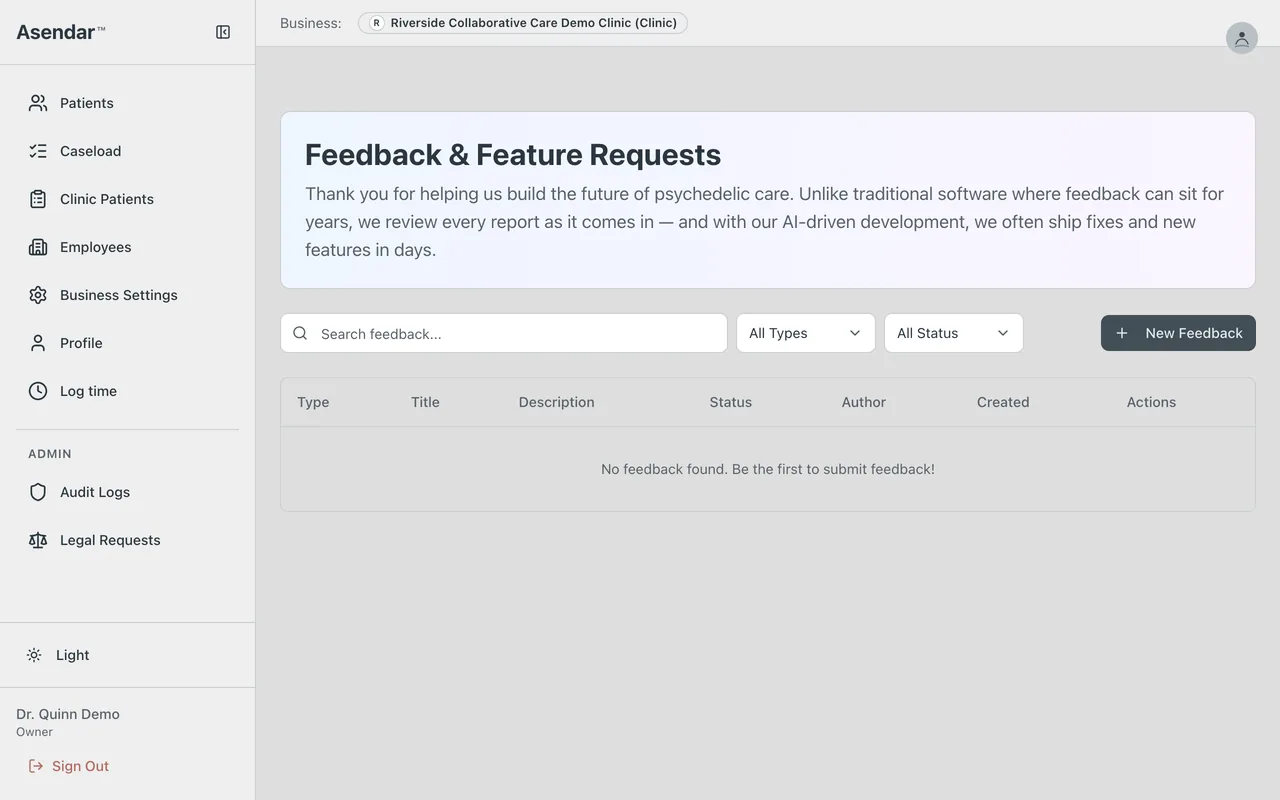
Screens shown are from a synthetic demo clinic. No real patients appear in this guide. Questions: support@asendar.com.