1. Introduction
Asendar keeps your Collaborative Care registry inside each patient's chart. It tracks the dated contacts your care managers make and the minutes each one took, the PHQ-9, GAD-7 and PCL-5 scores, the psychiatric consultant's case reviews, and who is due for follow-up. From those records it builds the caseload, the reminders, the quality reports, the monthly time tracker and a monthly billing packet.
Asendar submits nothing to your state Medicaid program or any other payer. It gives you the packet your claim is keyed from and the record you produce on audit.
This guide is for care managers, psychiatric consultants, primary care providers, clinic administrators and practice owners. What you see depends on your role (section 3).
2. Signing in
Web browser
Asendar runs in any current web browser on a computer, tablet or phone: Google Chrome, Microsoft Edge, Safari or Firefox. The caseload and Log time are laid out for a phone first, so a care manager can log a contact between visits. You need an internet connection.
Signing in
- Go to the Asendar sign-in page.
- Enter your Email and Password. Tick Show password to check what you typed.
- Select Sign In.
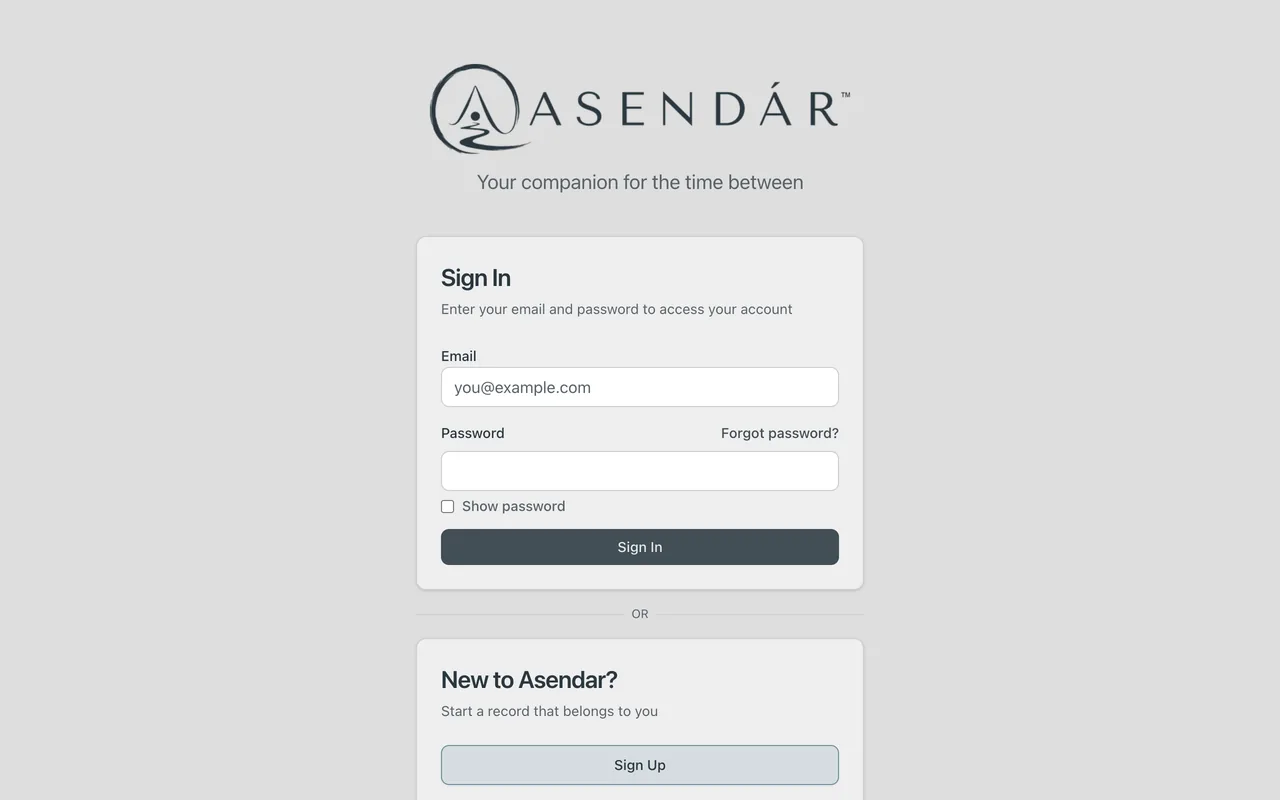
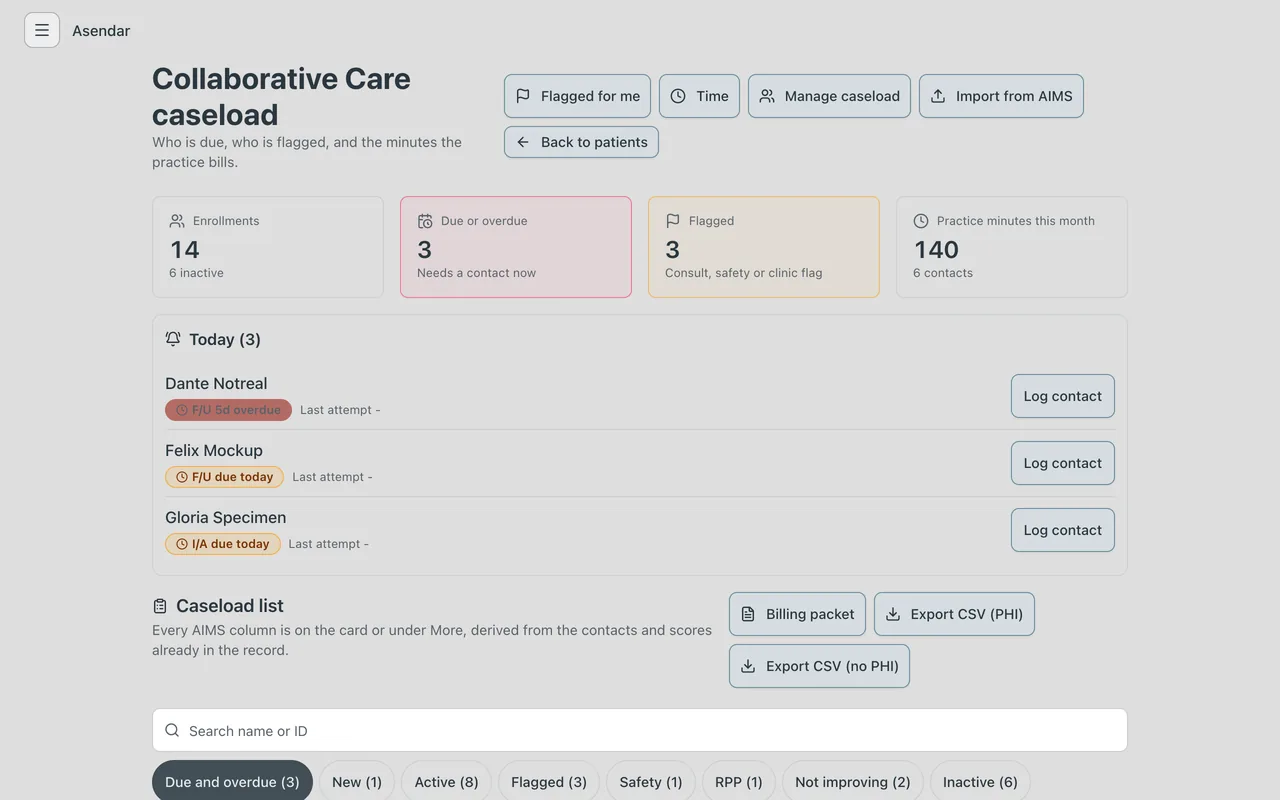
Care managers, psychiatric consultants, PCPs, clinic administrators and owners of a Collaborative Care clinic land on the Collaborative Care caseload, with Today (your reminders) at the top. If you opened a link to a page in Asendar while signed out, such as Read the recommendation in a consult email, you land on that page instead.
Account security
- Forgot your password? Select Forgot password? on the sign-in page. Asendar emails you a link to set a new one.
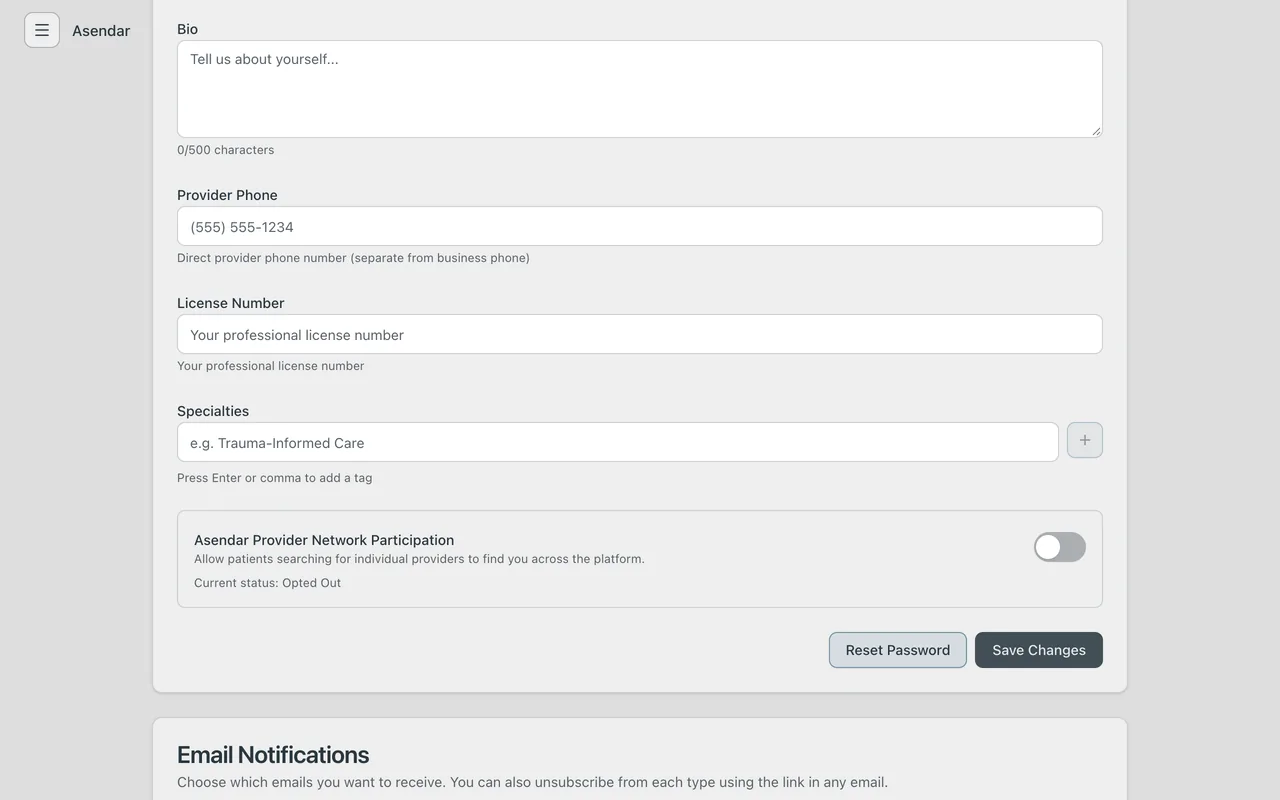
- Change your password while signed in: open the menu, select Profile, then Reset Password. Asendar emails a reset link to the address on your profile.
- A clinic Owner or Clinic Admin can send you a reset email from Employees (section 12). They never see or set your password.
- Idle sign-out. Asendar signs you out after a period with no activity, with a warning two minutes before. The default is 30 minutes. Your clinic sets it between 5 and 240 minutes (section 11). A Log time entry you had not saved is kept and offered back when you sign in again.
- Sign Out is at the bottom of the menu. Use it when you leave a shared computer. Each person has their own account; never share a sign-in.
Preferences
The caseload remembers your filter, sort order, Reverse, Report for choice and Cards or List view for you on the device you use. Two people who share a computer do not inherit each other's view. A new device starts from the defaults.
Business continuity (downtime)
If Asendar is unavailable, keep seeing patients and write each contact on paper or in your EHR: the patient, the date, the minutes, the contact type, how it was delivered, who delivered it, and any scores with the date each was taken.
When Asendar is back, enter each contact in Log time with Date set to the day it happened. Asendar accepts any past date and refuses a future one, and minutes count toward the month of the service date, so a back-entered contact lands in the right billing month. If something went in wrong, Amend it (section 6). Do not enter it a second time: a duplicate adds minutes to the month.
3. Account types and roles
Access in Asendar comes from a person's role at the clinic, set on the Employees page (section 12). The roles are Owner, Clinic Admin, Facilitator, Support Facilitator, Medical Observer, Integration Specialist and Prescriber. A person can hold more than one.
On top of the role, an Owner or Clinic Admin can add a Collaborative Care care team role label, such as Behavioral Health Care Manager or Psychiatric Consultant. It is a label for Collaborative Care billing and reports, and the name the care team card and the reports use. It grants nothing beyond the roles underneath it, and only the labels that fit the person's roles are offered.
| On the care team | Role in Asendar | Care team role label |
|---|---|---|
| Behavioral health care manager | Facilitator | Behavioral Health Care Manager |
| Psychiatric consultant | Prescriber | Psychiatric Consultant |
| Primary care provider | Prescriber or Medical Observer, or a PCP listed in the clinic's directory with no login (section 9) | Primary Care Provider (treating and billing practitioner) |
| Site manager | Clinic Admin | Site Manager |
| Practice owner or account administrator | Owner | none needed |
| Data manager | Support Facilitator. Data exports are run by an Owner or Clinic Admin (section 14); the label does not grant them | Data Manager |
| Someone who should see no patient data | Not offered. Every Asendar login sees protected health information; de-identified data leaves through the de-identified export (section 14) | not assignable |
| Care team collaborator (MA, RN, social worker) | Needs no login. The care manager logs that time as Care team collaboration | none |
Who sees which patients.
- An Owner or Clinic Admin sees every patient at the clinics they run, and runs the clinic-wide pages: the Panel Outcomes Report, Team time, the Caseload Manager, Data exports, clinic settings and Employees.
- A Facilitator (care manager), Prescriber (psychiatric consultant or PCP) or Medical Observer sees the patients assigned to them: as the patient's Assigned Clinician, as a named member of the patient's Collaborative Care care team at that clinic (section 9), or through a session they lead. Their caseload, Today, Flagged for me and reports cover those patients. Access through the care team ends when the assignment ends.
- A patient can withdraw a provider's access from their own Asendar account. That provider then loses the record everywhere, caseload and reports included.
Who does what.
| Job | Who |
|---|---|
| Add a patient | Owner, Clinic Admin |
| Enroll, deactivate and re-activate | Anyone who can open the patient's chart |
| Log contacts, minutes and scores | Anyone who can open the chart |
| Flag a patient for psychiatric consult | Anyone who can open the chart, once the patient has a Psychiatric Consultant on the care team (section 9) |
| Record a psychiatric case review | The Psychiatric Consultant the request names, or the clinic's Owner or Clinic Admin |
| Correct a contact after 7 days | Clinic Admin or Owner (the person who logged it can correct it for 7 days) |
| Clinic settings, Employees, Caseload Manager, Data exports, Panel Outcomes, Team time | Owner, Clinic Admin of that clinic |
| Audit Logs | Owner, Clinic Admin |
4. Navigation
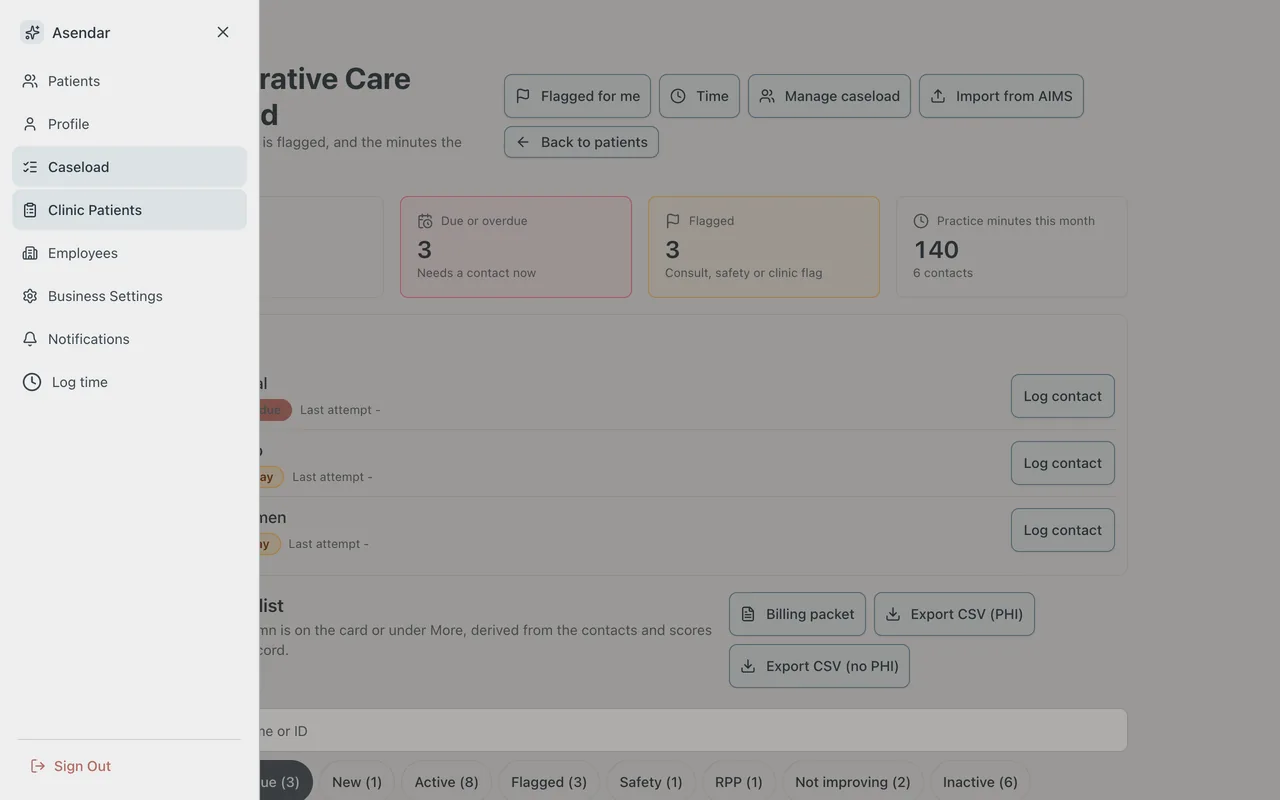
Select the menu button at the top left (three lines). The menu holds:
- Patients: records that individuals have shared with you directly from their own Asendar account.
- Profile: your own account.
- Caseload: the Collaborative Care caseload, with Today at the top. It appears once your clinic has patients enrolled that you can see.
- Clinic Patients: your clinic's patient list.
- Employees and Business Settings: for the people who run the clinic (sections 11 and 12).
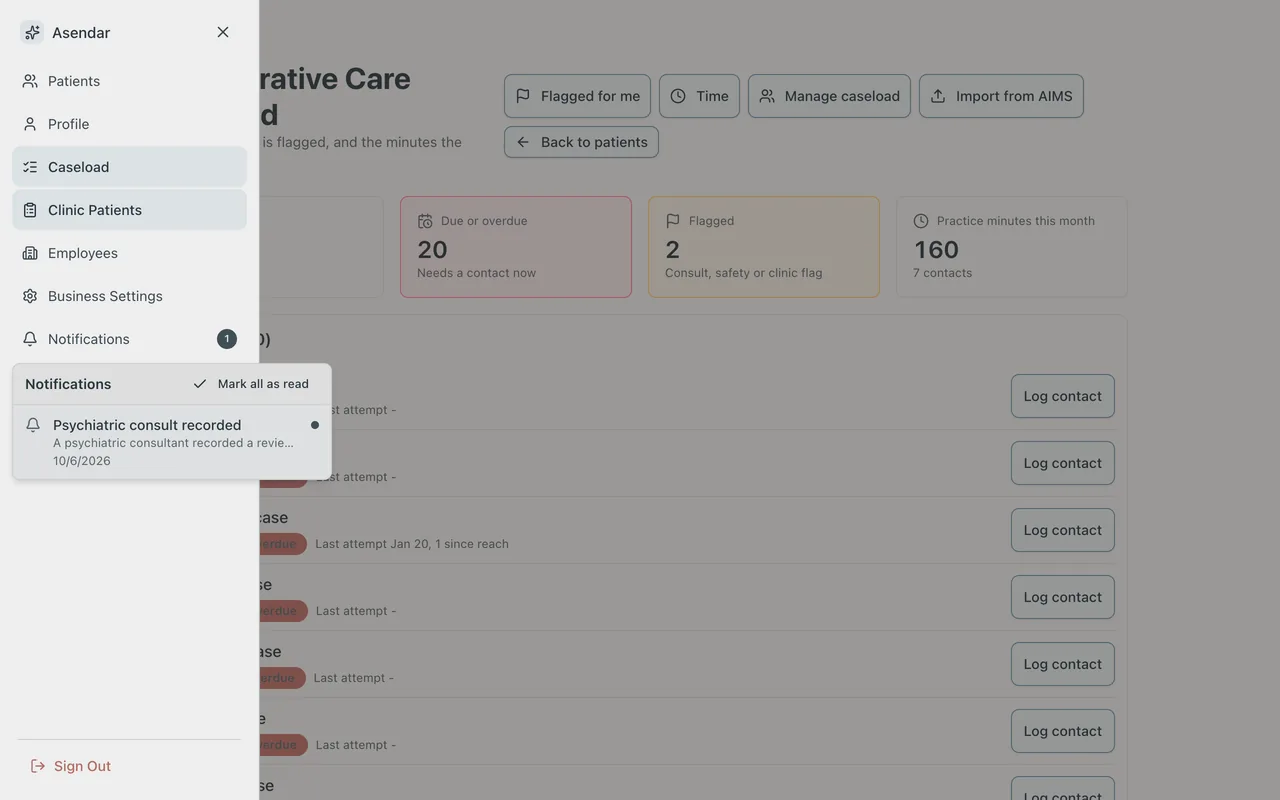
- Notifications: notices for you, such as a recorded psych consult (section 6), with how many are unread. A dot on the menu button means one is waiting.
- Log time: log a contact for any patient on your caseload.
- Sign Out, at the bottom.
What appears depends on your role. An Owner or Clinic Admin who works the clinic rather than a caseload sees the same entries in a sidebar that stays open on a computer, with Audit Logs under Admin; their Notifications are in the account menu at the top right.
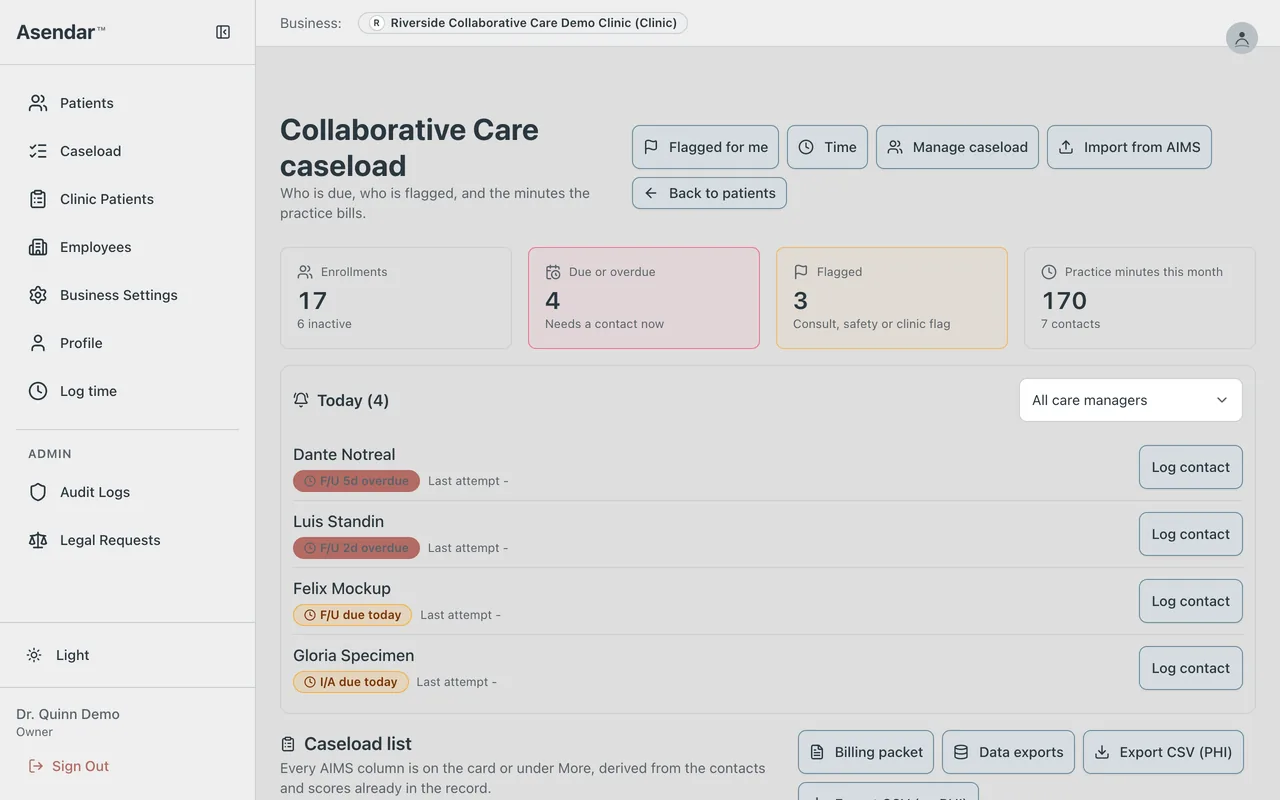
The caseload page has buttons at the top for Flagged for me (the consult requests you can record as the patient's Psychiatric Consultant), Time (minutes and the time tracker), Manage caseload (bulk transfers), Import from AIMS (for clinics moving from the AIMS Caseload Tracker; see Switching from AIMS to Asendar) and Back to patients. Below the tiles and Today, the Caseload list carries Billing packet, Data exports (Owners and Clinic Admins), Export CSV (PHI) and Export CSV (no PHI).
The patient chart. Open a patient from the caseload with Open or from Clinic Patients with View Details. For an enrolled patient the Collaborative Care tab sits second, after Witness. Log time is at the top of the chart.
Log time is everywhere you need it: the menu, the top of the chart, + time on a caseload card, Log contact in Today, and the round clock button at the bottom left of a phone screen.
5. Enrolling and deactivating patients
Check for an existing record first
Open Clinic Patients and search before you add anyone. This avoids a duplicate record.
Adding a new patient
Adding a patient is a job for an Owner or Clinic Admin.
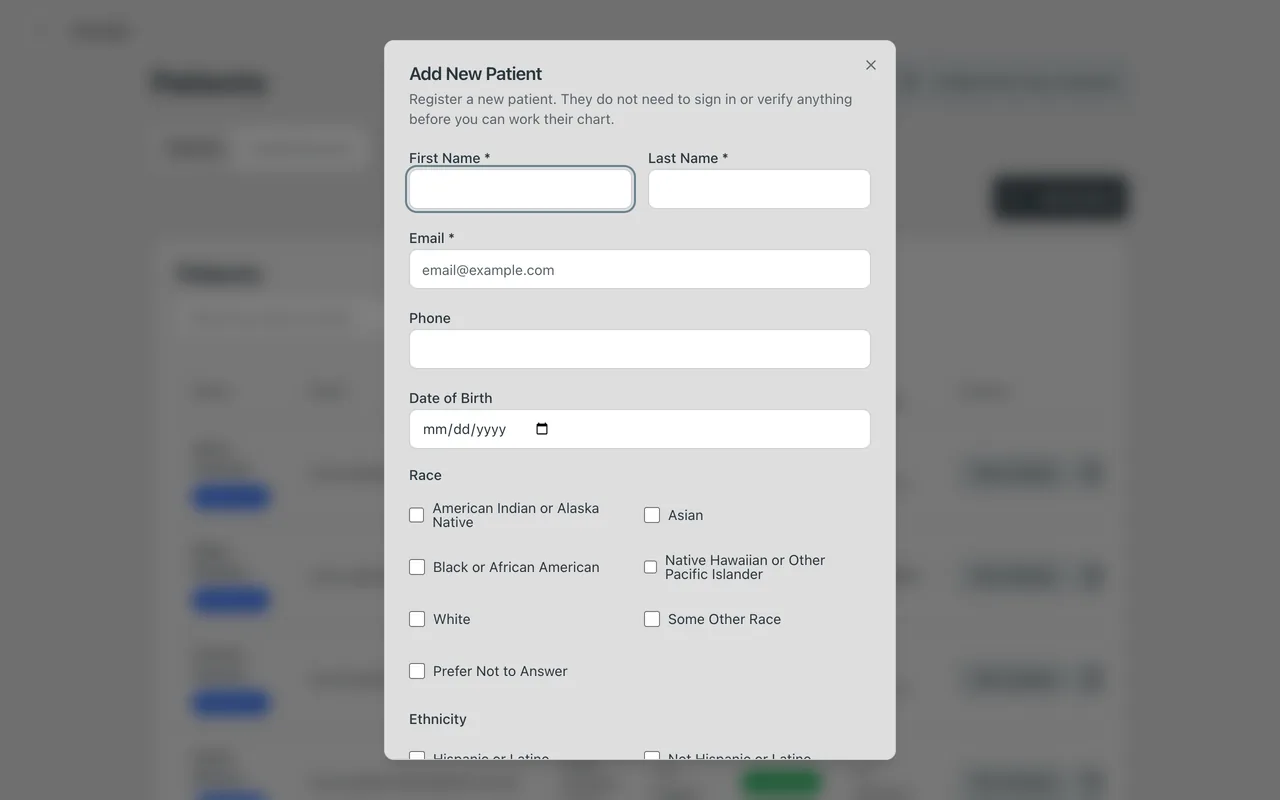
- Open Clinic Patients and select Add Patient.
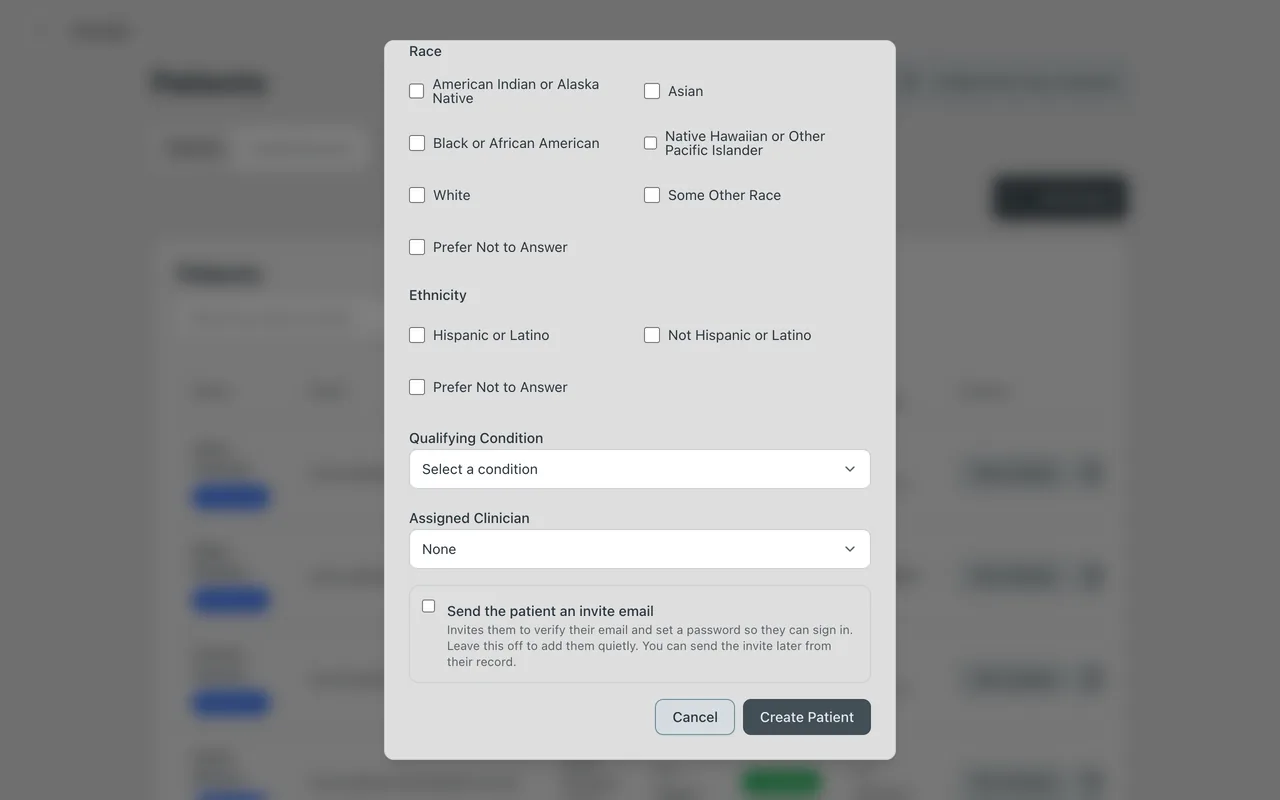
- Fill in First Name, Last Name and Email (all three are required). Asendar does not contact the patient unless you tick Send the patient an invite email; you can send the invite later from their record.
- Fill in what else you have: phone, date of birth, Assigned Clinician (the care manager who will carry the patient).
- If your clinic asks race and ethnicity (section 11), tick the answers the patient gives. Prefer Not to Answer clears the others.
- Select Create Patient.
Enrolling in the Collaborative Care registry
- Open the patient and select the Collaborative Care tab.
- Set the Enrollment date to the day the patient enrolled. It defaults to today and cannot be in the future.
- Enter the clinic's MRN (optional). If your clinic set an MRN format, Asendar checks it, and it refuses an MRN another patient at the clinic already holds.
- Select Enroll in registry.
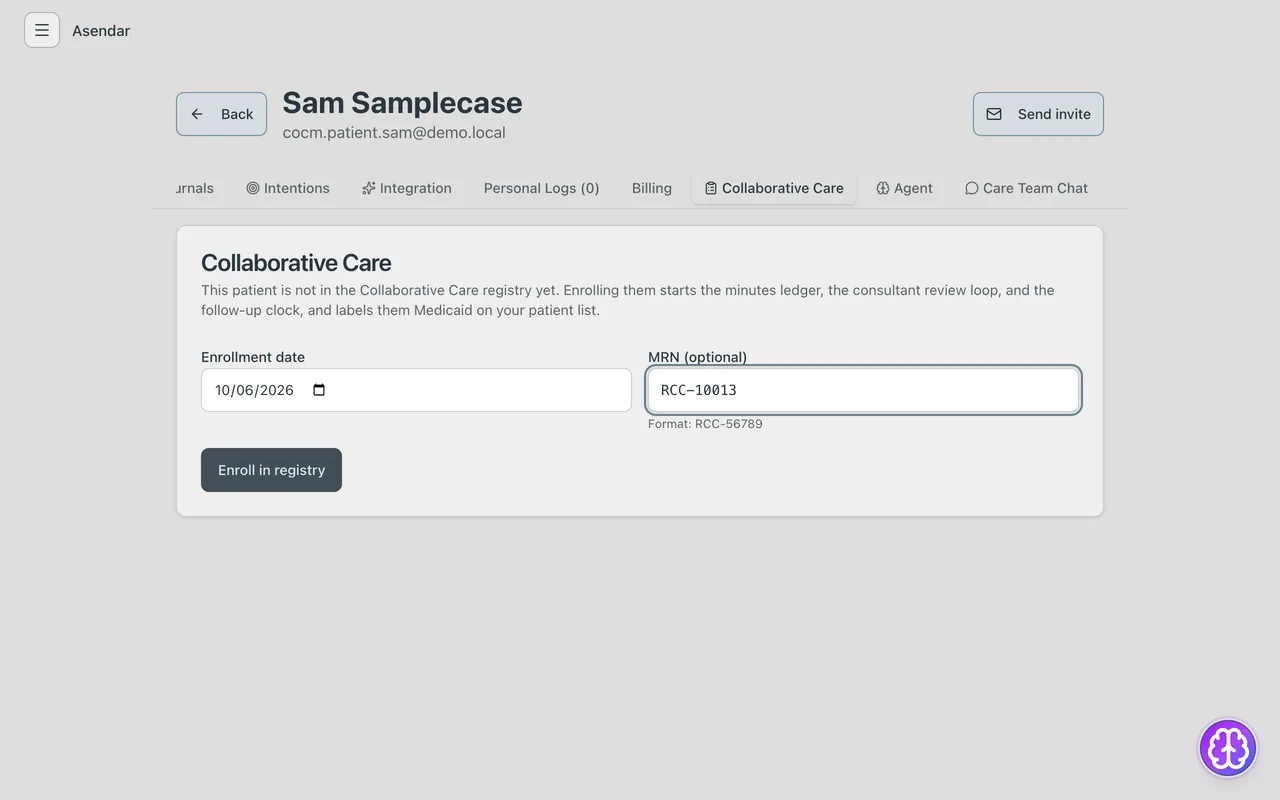
Enrolling starts episode 1 of the patient's care, the minutes ledger, the consultant review loop and the follow-up clock. The person who enrolls becomes the patient's Care Manager if nobody holds that role yet (section 9). The patient appears on the caseload with status E (enrolled, waiting for the initial assessment), which falls due 7 days after enrollment. Billed under Medicaid is on by default; turn it off on the same tab for a patient not billed under Medicaid.
Updating patient information
On the Collaborative Care tab, Change next to MRN edits the MRN. On the Profile tab the clinic keeps the clinical record and the patient's Clinics (section 10). The patient's own details (name, date of birth, health profile) belong to the patient's Asendar account and show read-only.
Deactivating a patient
- On the Collaborative Care tab select Deactivate enrollment. You can also deactivate from the caseload: open More on the patient's card.
- Set the Last day of the episode (today by default; not in the future, and not before the episode started).
- Choose the Reason: Completed treatment, No patient contact, Patient declined, Referred elsewhere, Moved, Deceased or Other. Other needs a few words in Note.
- Select Deactivate.
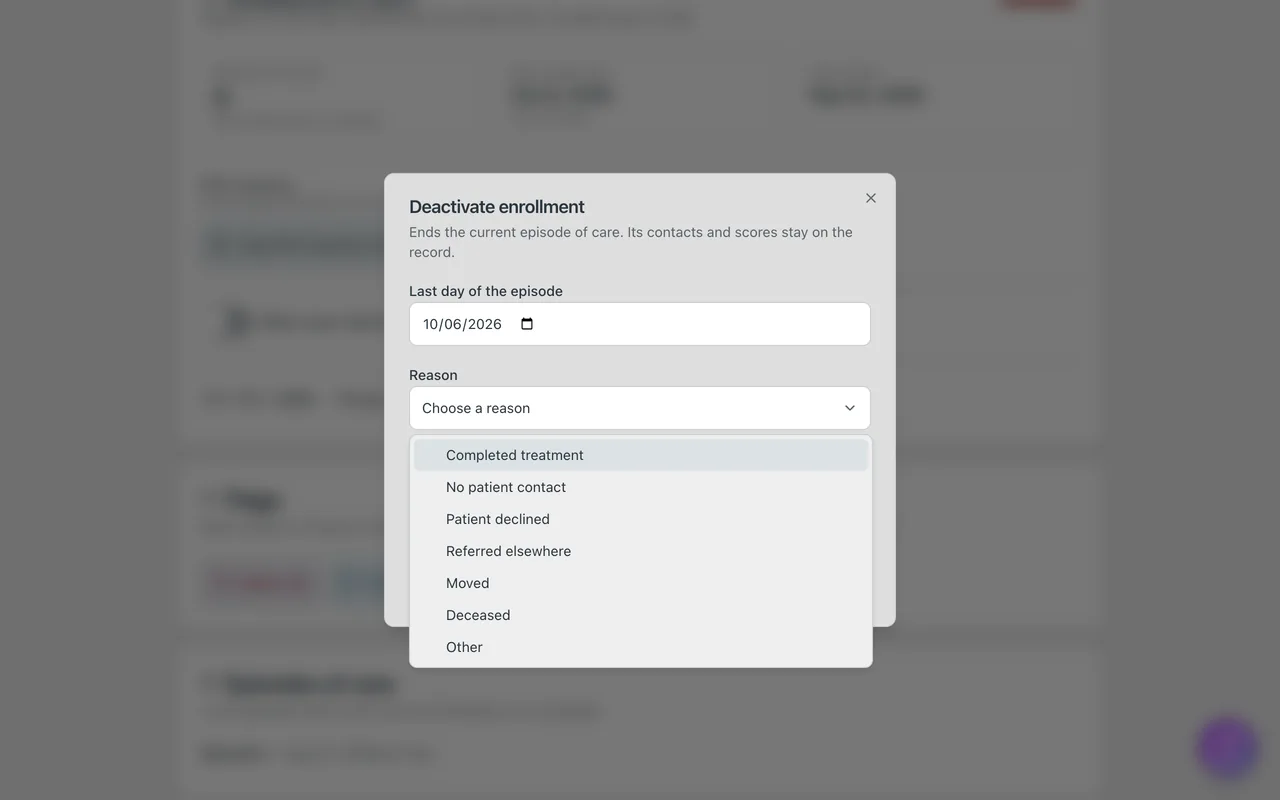
Deactivating ends the current episode of care with its reason. The patient moves to status D and to the Inactive filter and leaves Today, and no contact can be logged until the enrollment is re-activated. Their contacts, scores and minutes stay on record.
Re-enrolling into a new episode
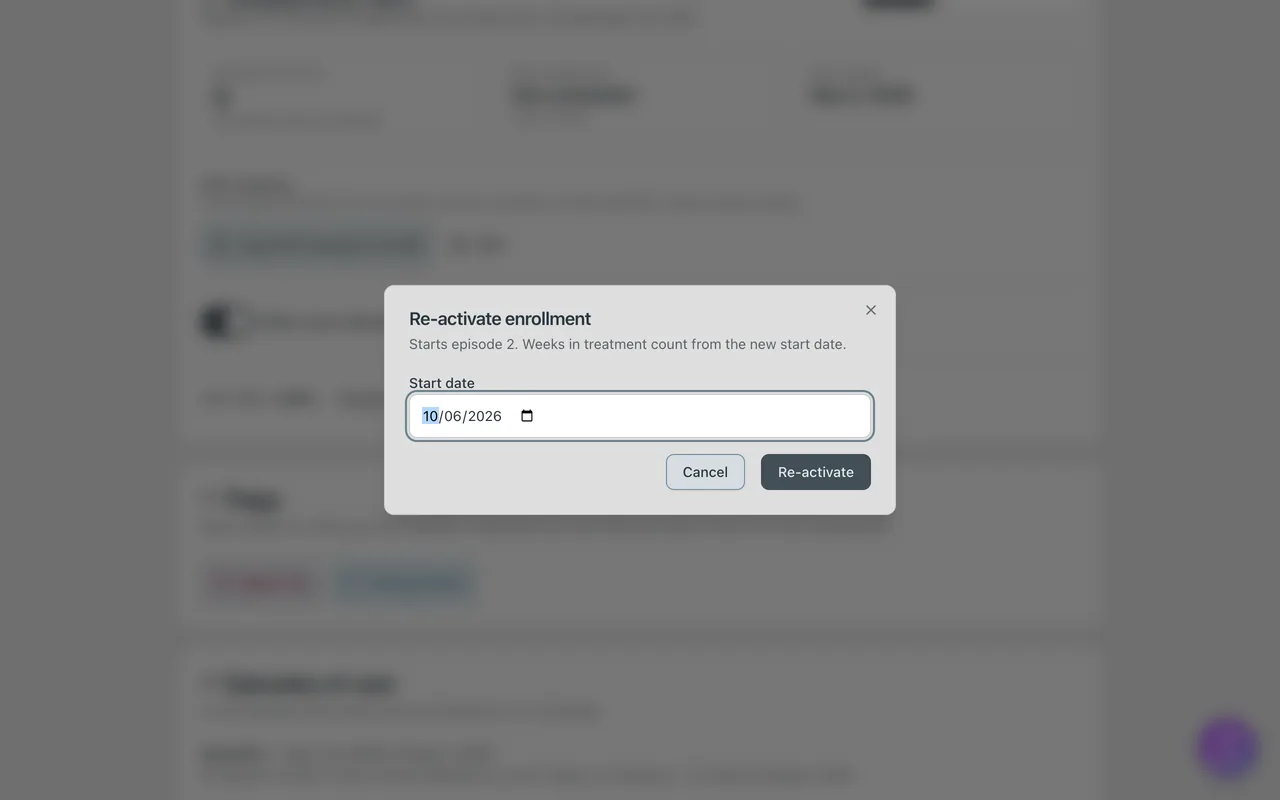
On the same tab select Re-activate enrollment, set the Start date and select Re-activate. This starts the next episode of care. Weeks in treatment count from the new start, and the earlier episode keeps its dates and reason.
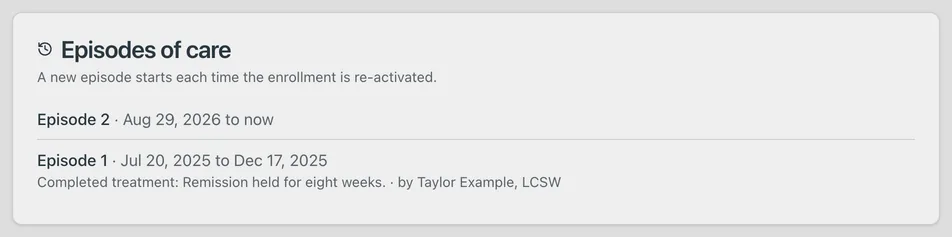
The Episodes of care card lists every episode with its dates and reason.
6. Recording patient contacts
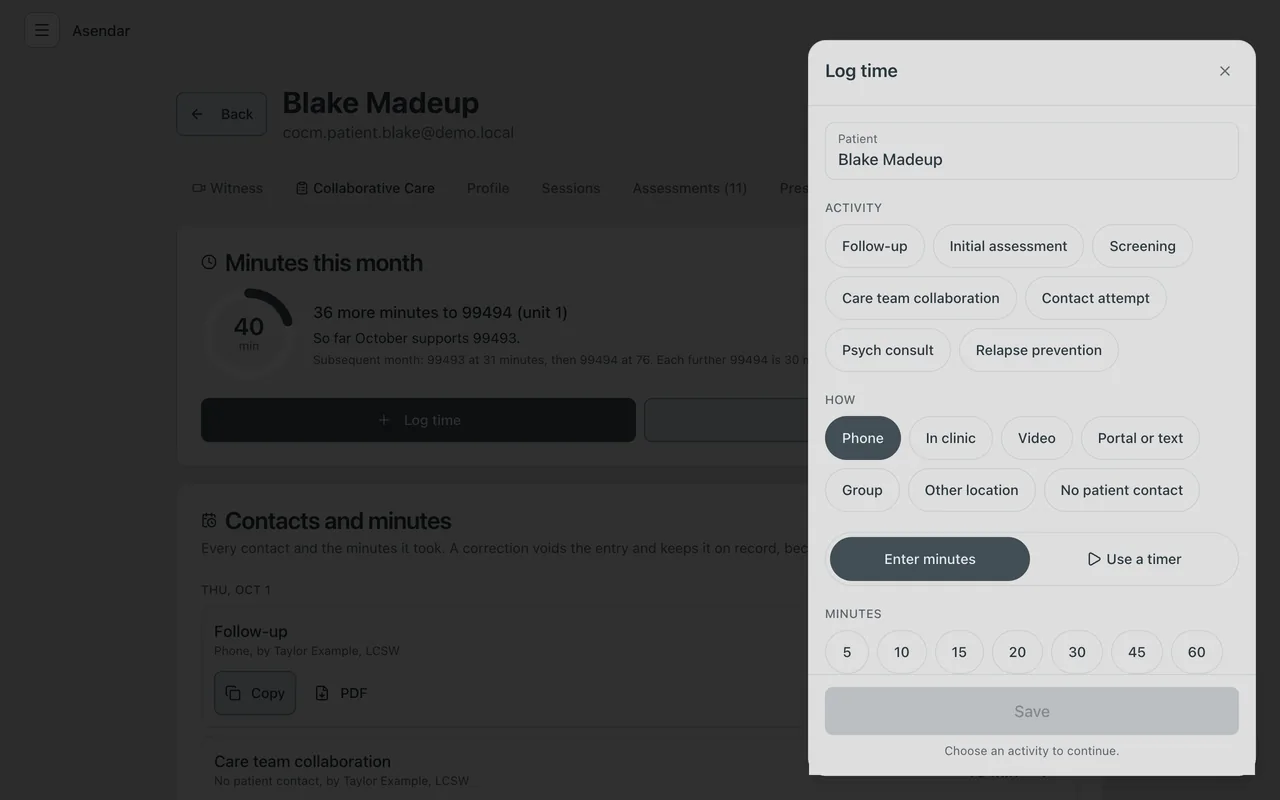
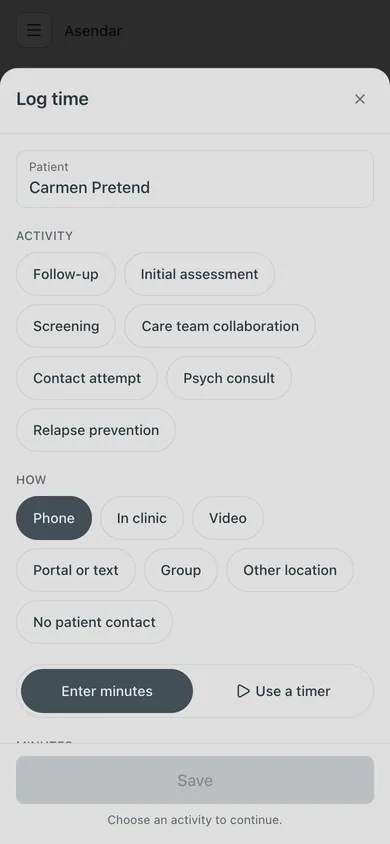
Every contact goes through the Log time sheet. One sheet covers every contact type.
Logging a contact
- Open Log time (section 4 lists every way in). From a chart or a caseload card the patient is already chosen. From the menu, search for the patient.
- Under Activity, choose the contact type: Follow-up, Initial assessment, Screening, Care team collaboration, Contact attempt, Psych consult or Relapse prevention.
- Under How, choose Phone, In clinic, Video, Portal or text, Group, Other location or No patient contact.
- With Enter minutes selected, tap a minute chip (5, 10, 15, 20, 30, 45, 60) or use minus and plus. A contact can be up to 120 minutes. Only a contact attempt, or work with no patient contact, can be 0 minutes.
- Check Date. It defaults to today; change it to back-enter a contact.
- Delivered by shows you. Select Change to credit a colleague at the clinic.
- Add a Note (optional). The microphone button dictates it.
- Select Save.
Scores and a consult flag in the same contact
Open Scores and psych consult (optional) at the bottom of the sheet.
- Under Scales, pick PHQ-9, GAD-7 or PCL-5. Asendar starts with the scales recorded at the patient's last scored contact, so the same scales carry forward from visit to visit. A scale your clinic switched off is not offered.
- Under Taken, say where the score came from: In session, Paper, Medical visit or Phone.
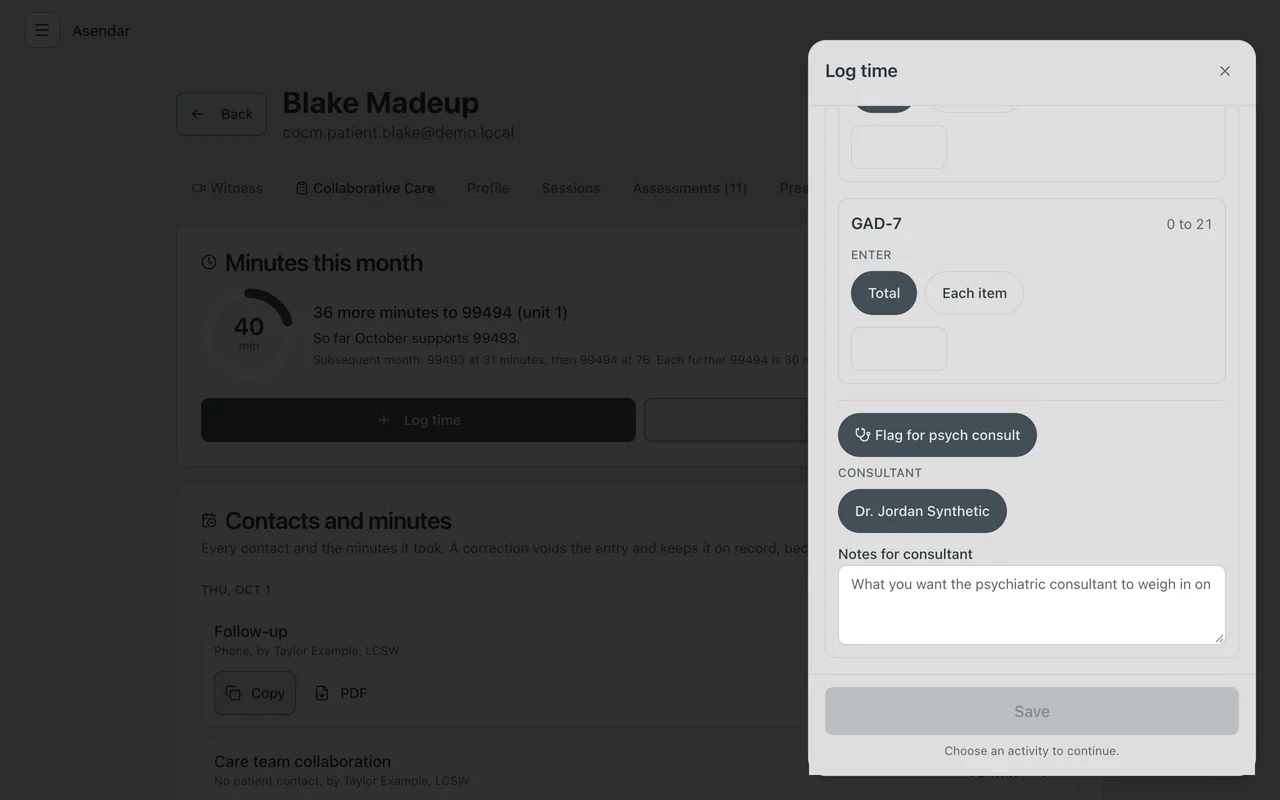
- Under Enter, choose Total to type the total, or Each item to tap each answer and let Asendar add it up.
- To flag the patient for the psychiatric consultant, select Flag for psych consult. Under Consultant, check who should review it: the patient's Psychiatric Consultant is chosen for you when there is only one, and with more than one you pick. Then write your question in Notes for consultant.
The scores are dated to the contact and linked to it.
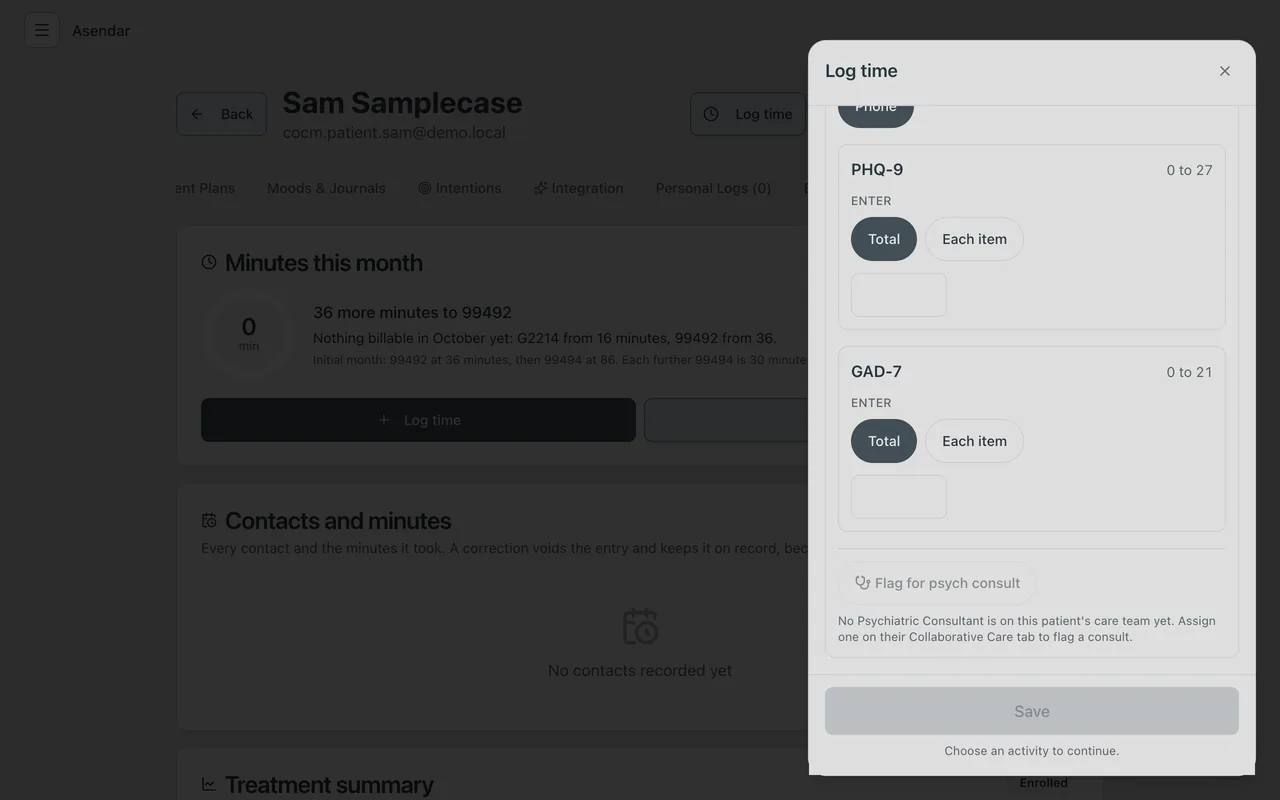
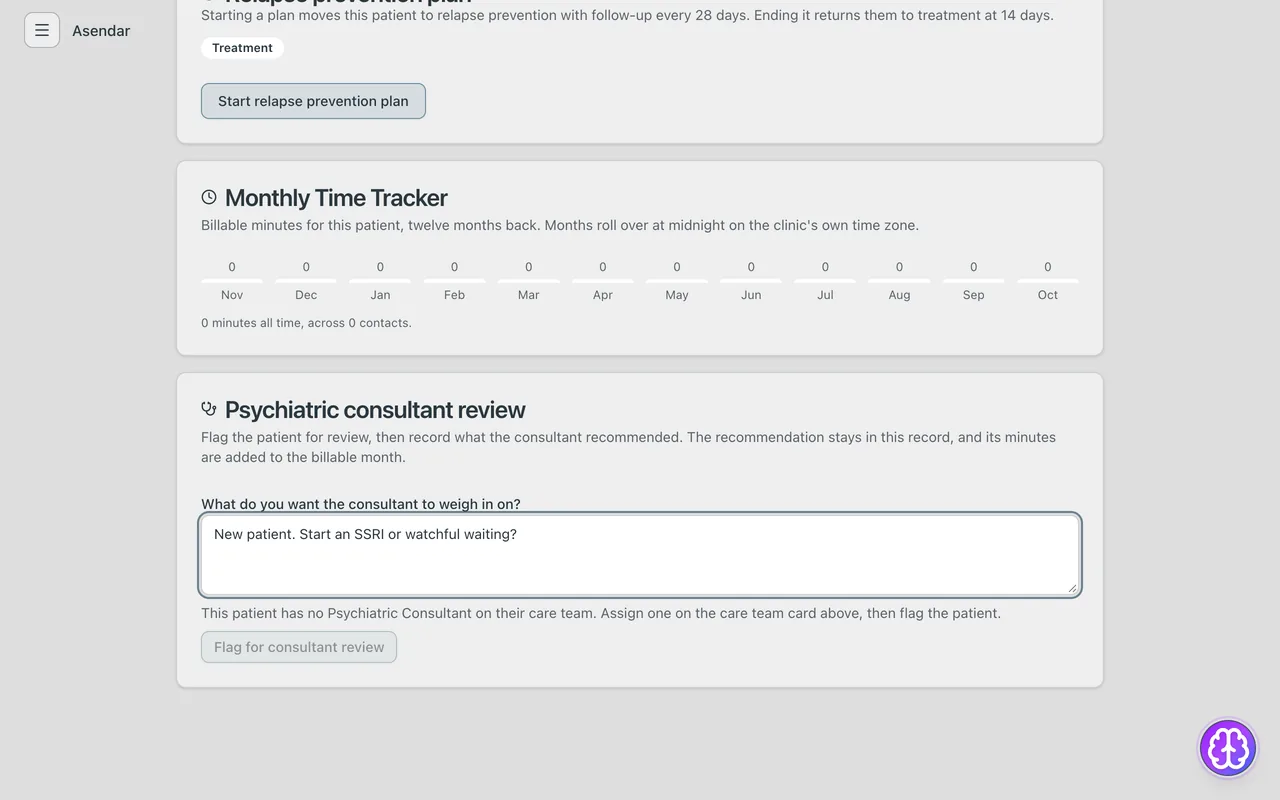
If the patient has no Psychiatric Consultant on their care team yet, Flag for psych consult is greyed out and says so. Assign one first (section 9).
A score taken outside a contact (for example at a PCP visit): on the Collaborative Care tab select + score on the Scores card, enter the score and its date, and save.
Assessments your patients take in Asendar
Besides the scores you enter in Log time, you can ask a patient to take a PHQ-9, GAD-7 or PCL-5 in their own Asendar account, and a patient can start one on their own. A score the patient submits counts the same as one you enter.
Who can assign one. A Facilitator, Prescriber, Medical Observer or Integration Specialist can assign an assessment to a patient they care for: one they are the assigned clinician for, or one whose session they led or supported at the clinic. An Owner, Clinic Admin or Support Facilitator can assign one to any patient at their clinic. Being named on the patient's Collaborative Care care team does not by itself let you assign.
How to assign one.
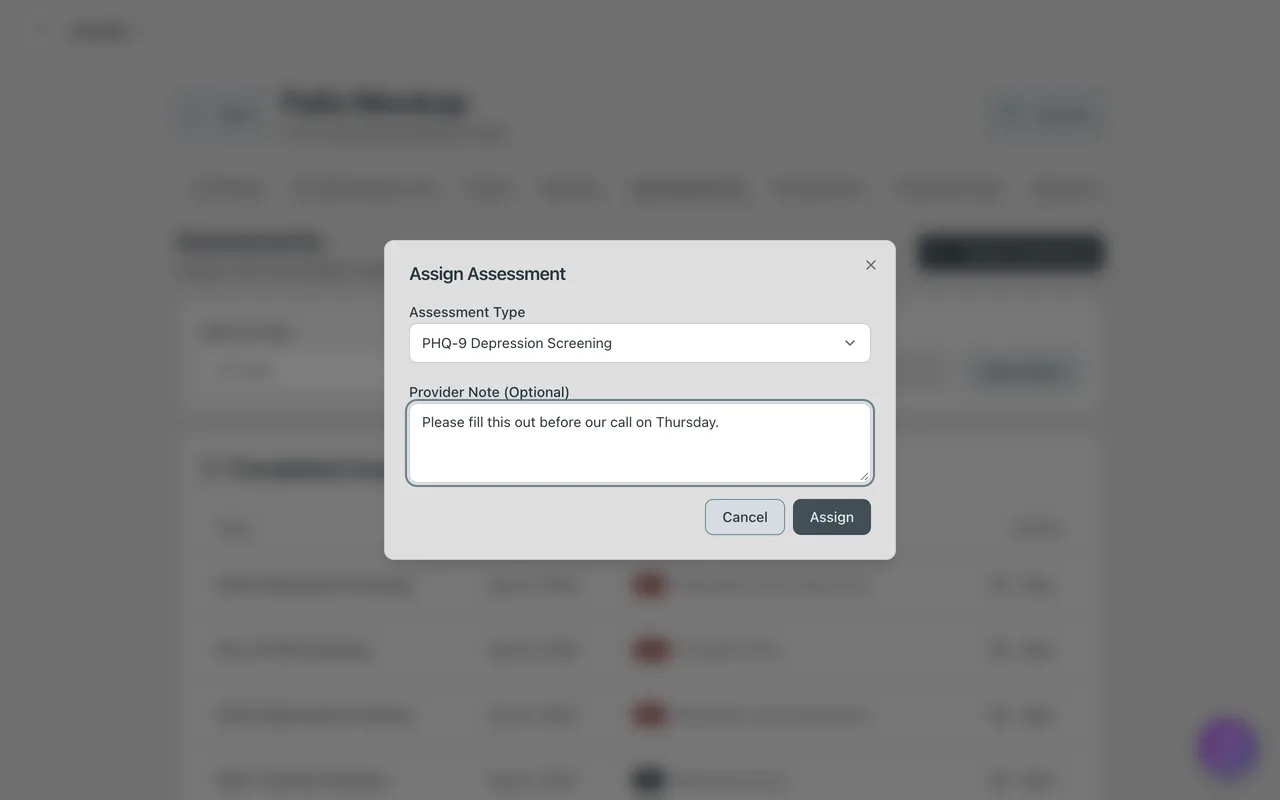
- Open the patient's chart and select the Assessments tab.
- Select Assign Assessment, at the top right of the tab.
- Under Assessment Type, choose PHQ-9 Depression Screening, GAD-7 Anxiety Screening or PCL-5 PTSD Screening. The other instruments in the list are not Collaborative Care scales.
- Leave Provider Note (Optional) empty, or add context for yourself. Tell the patient why you are asking, and by when, yourself: at the visit, or with the message below.
- Select Assign.
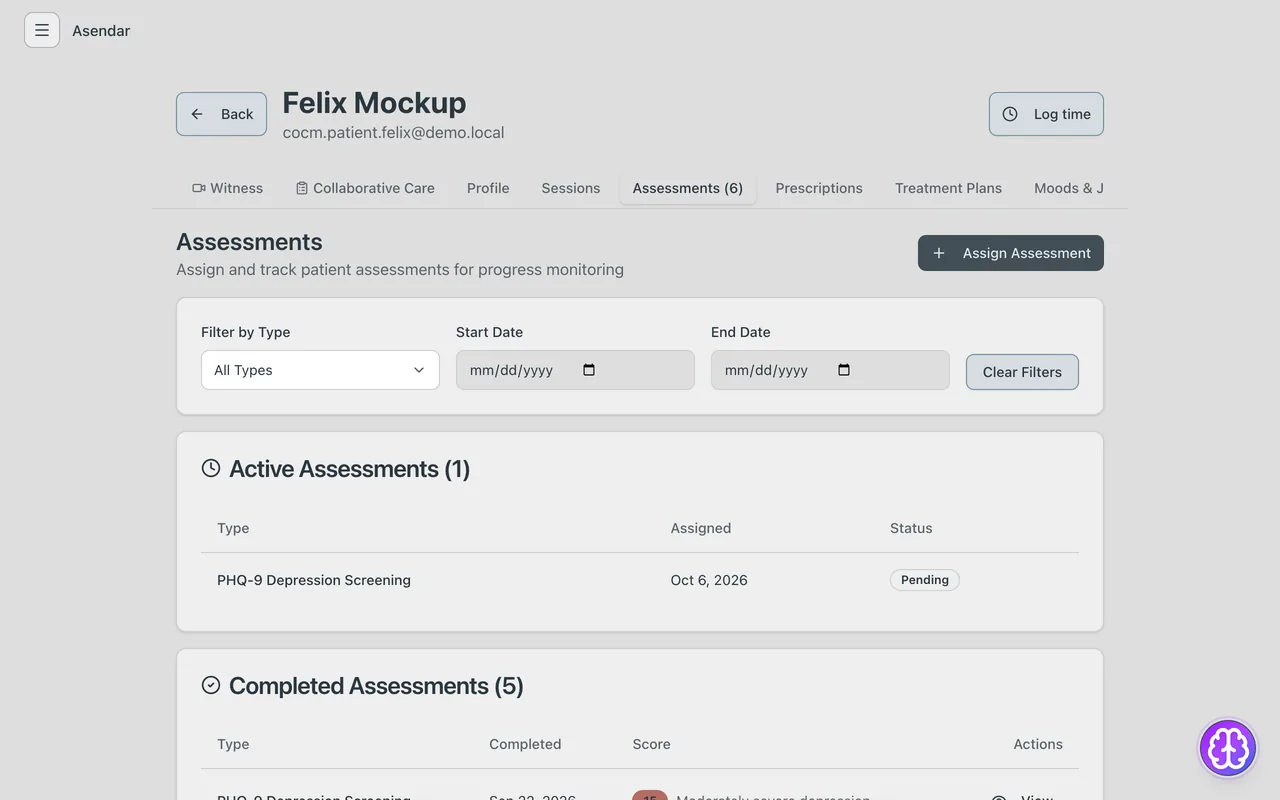
While it waits. The assessment is listed under Active Assessments, marked Pending, with the day you assigned it. If the patient already has one of that kind open, Asendar reuses it rather than adding a second.
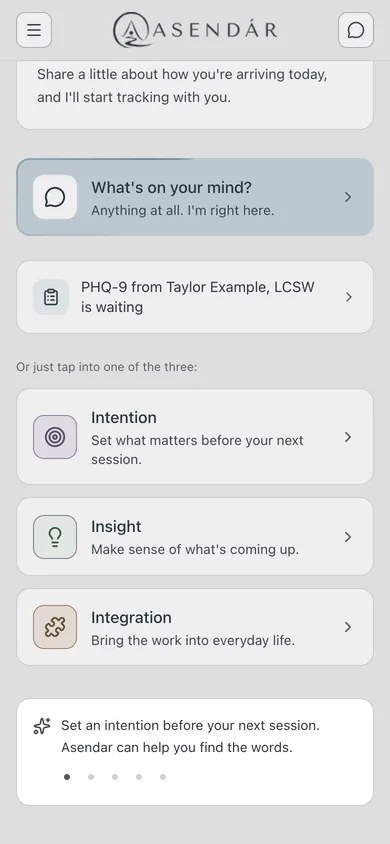
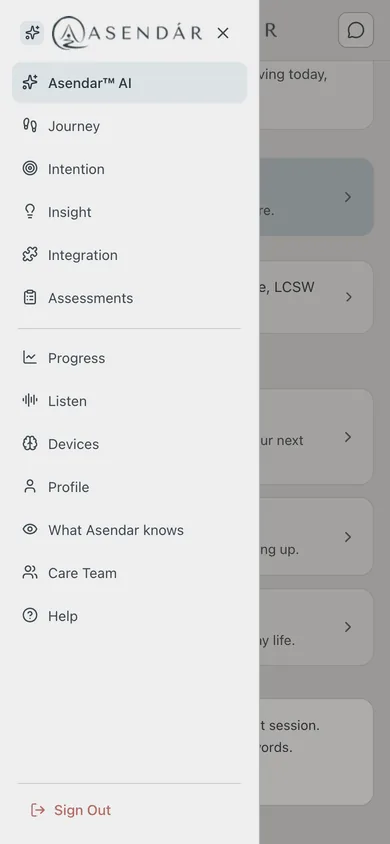
What the patient sees. Asendar emails the patient that a new assessment is assigned, with a Complete Assessment button that opens it. When they open Asendar, their home screen says it is waiting and who sent it, for example PHQ-9 from Taylor Example, LCSW is waiting; tapping it opens it. They can also open the menu and tap Assessments, where it is listed under Ready when you are, with your name. They answer each question and tap Submit. Asendar thanks them, and the line on the home screen goes away. The patient needs their own Asendar login, so for a patient you added without the invite email, send the invite first (section 5).
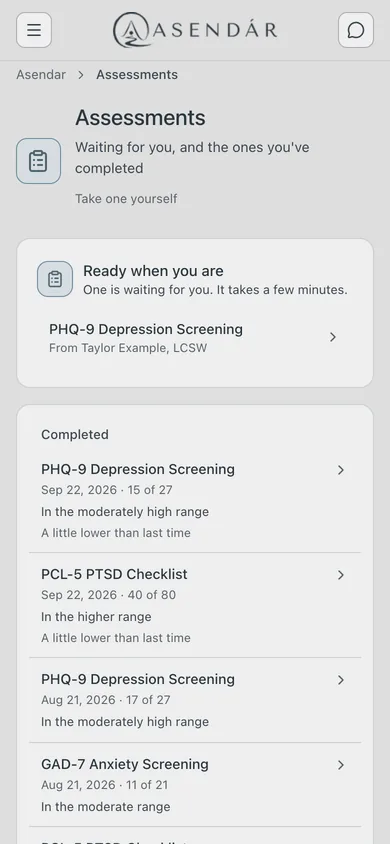
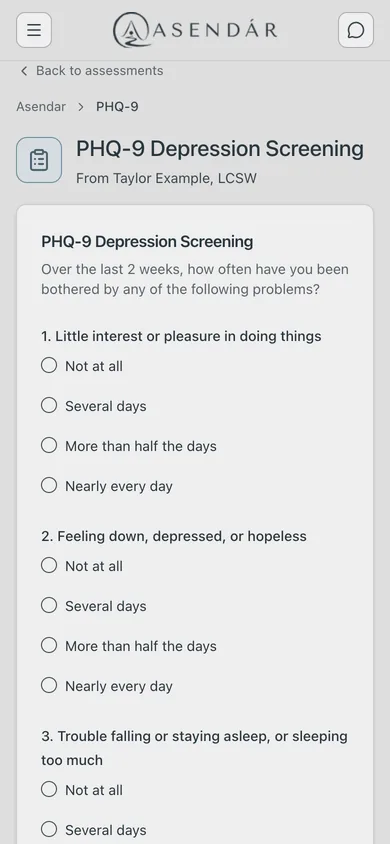
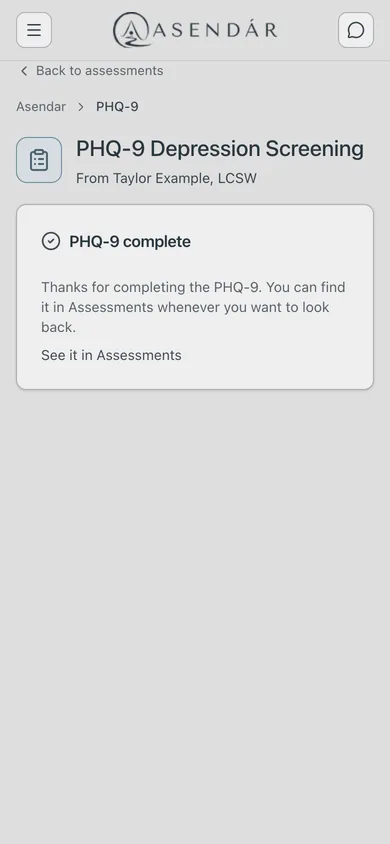
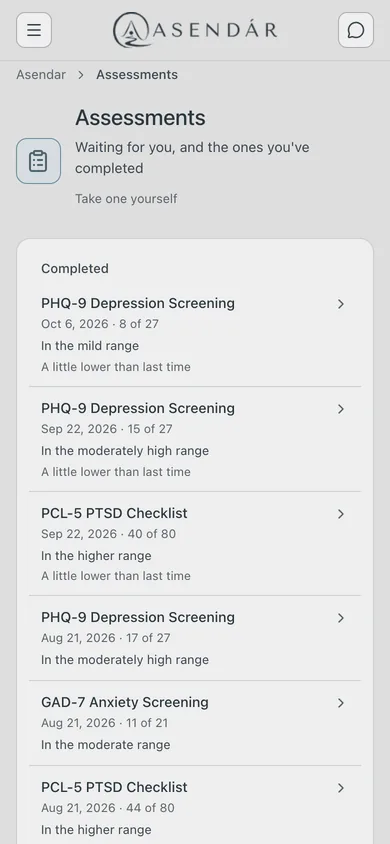
The patient's results. Each assessment the patient finishes is listed on their Assessments page under Completed, with the date, the score and a plain-words range, for example 8 of 27 and In the mild range.
When it is done. On the patient's Assessments tab it moves to Completed Assessments, with the date and the score, and View opens the answers. Asendar also notifies you under Notifications: Assessment completed by and the patient's name.
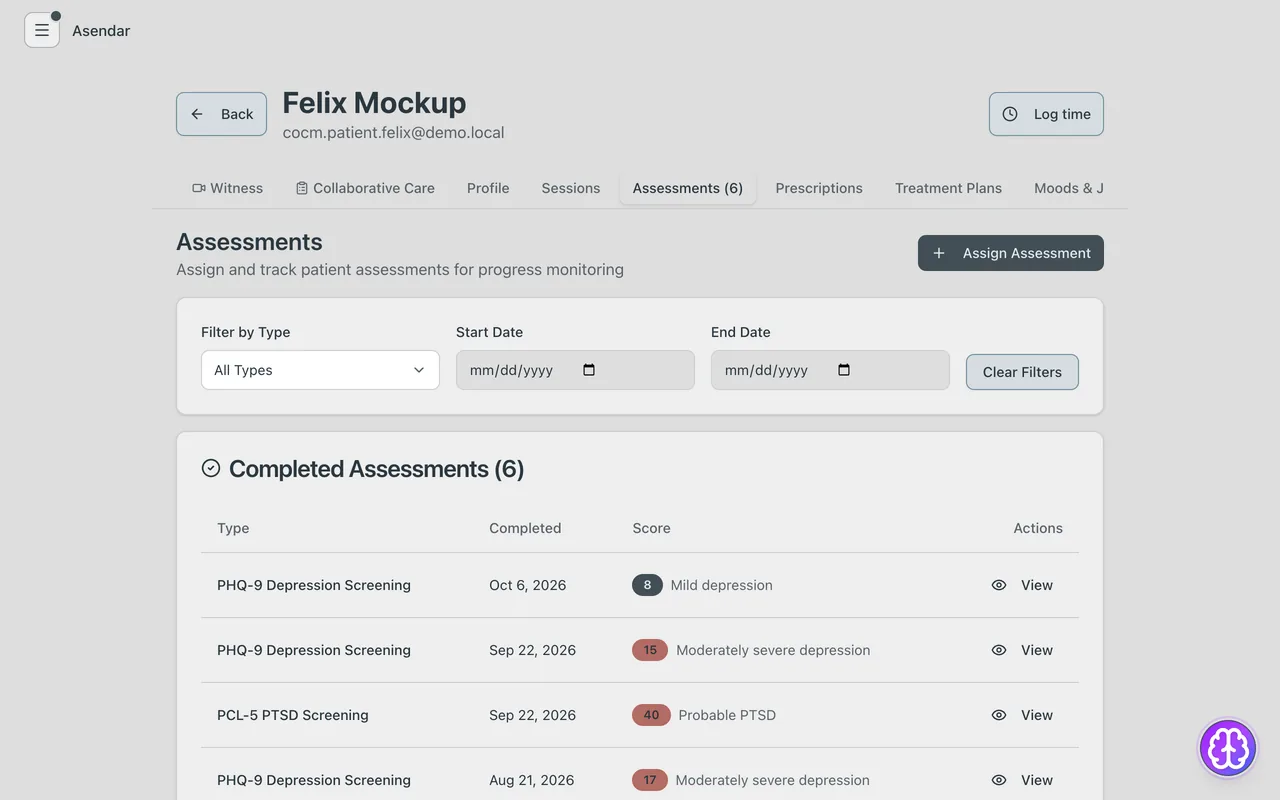
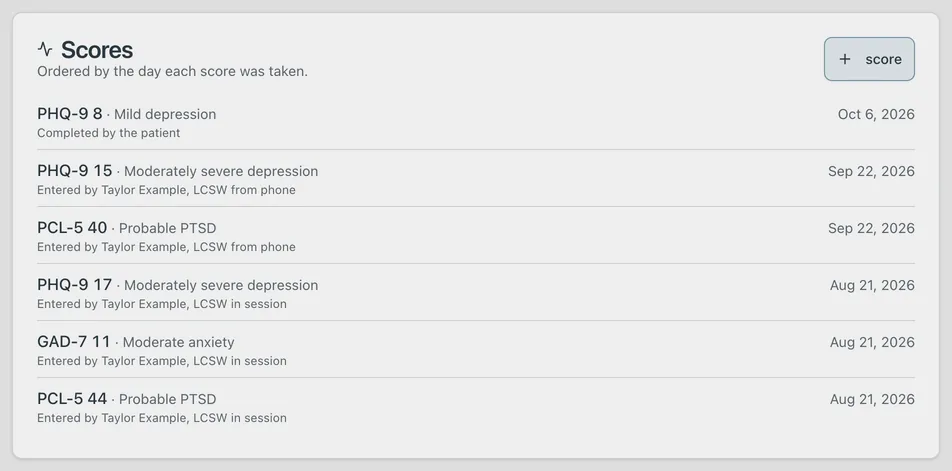
Where the score lands. The score is dated the day the patient submits it. From then on:
- it is listed on the Scores card on the Collaborative Care tab, marked Completed by the patient;
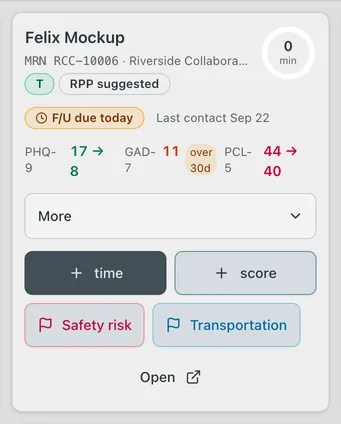
- it becomes the latest score on the caseload card, in the Treatment summary and on the symptom graph;
- it counts in the Medicaid Clinic Report, the Panel Outcomes Report and the billing packet's measurement evidence, the same as a score entered in Log time.
A score the patient completes is not part of a contact, so it adds no minutes, and it does not count toward Contacts with a scale in Caseload statistics (section 8.3), which counts only scores recorded at a contact.
What to tell your patient. Say it at the visit, or paste it into a message:
I've sent you a short questionnaire in Asendar. You'll get an email about it. When you open Asendar, you'll see it on your home screen, or open the menu and tap Assessments. It takes a few minutes. Answer each question as best you can, then tap Submit. I'll see your answers before we next talk.
For a patient who wants it on paper, print the handout in the appendix, "Taking an assessment in Asendar".
Using a timer
In Log time select Use a timer, or Start timer on the patient's Collaborative Care tab. The clock runs on the server, so it keeps going if you lock the phone, reload or change devices. Pause, resume or stop it from the timer. Stopping fills in whole minutes for you to check before you save. Asendar warns you at 110 minutes, 10 short of the 120-minute cap.
Contact types
- Screening: scores taken before the first care manager visit.
- Initial assessment: the first care manager contact. Today reminds you from 7 days after enrollment until one is logged.
- Follow-up: each later contact. Today reminds you every 14 days. Change the interval on the Collaborative Care tab under Follow-up every (7, 14, 21 or 28 days).
- Relapse prevention: see section 7, Relapse prevention plan. Reminders move to every 28 days.
- Psych consult: a psychiatric consultation. Logged by the Psychiatric Consultant the open request names, or by the clinic's Owner or Clinic Admin, it records the review and clears the flag (below). Logged by anyone else, its minutes still count but the consult stays open, and the message after Save says so.
- Care team collaboration: time conferring with the PCP, other clinic staff or the patient's wider care team.
- Contact attempt: outreach that did not reach the patient. Today and the card show the last attempt and the attempts since the patient was last reached.
Psychiatric consultation
Every consult request names one of the patient's Psychiatric Consultants, so the patient needs one on the care team first (section 9).
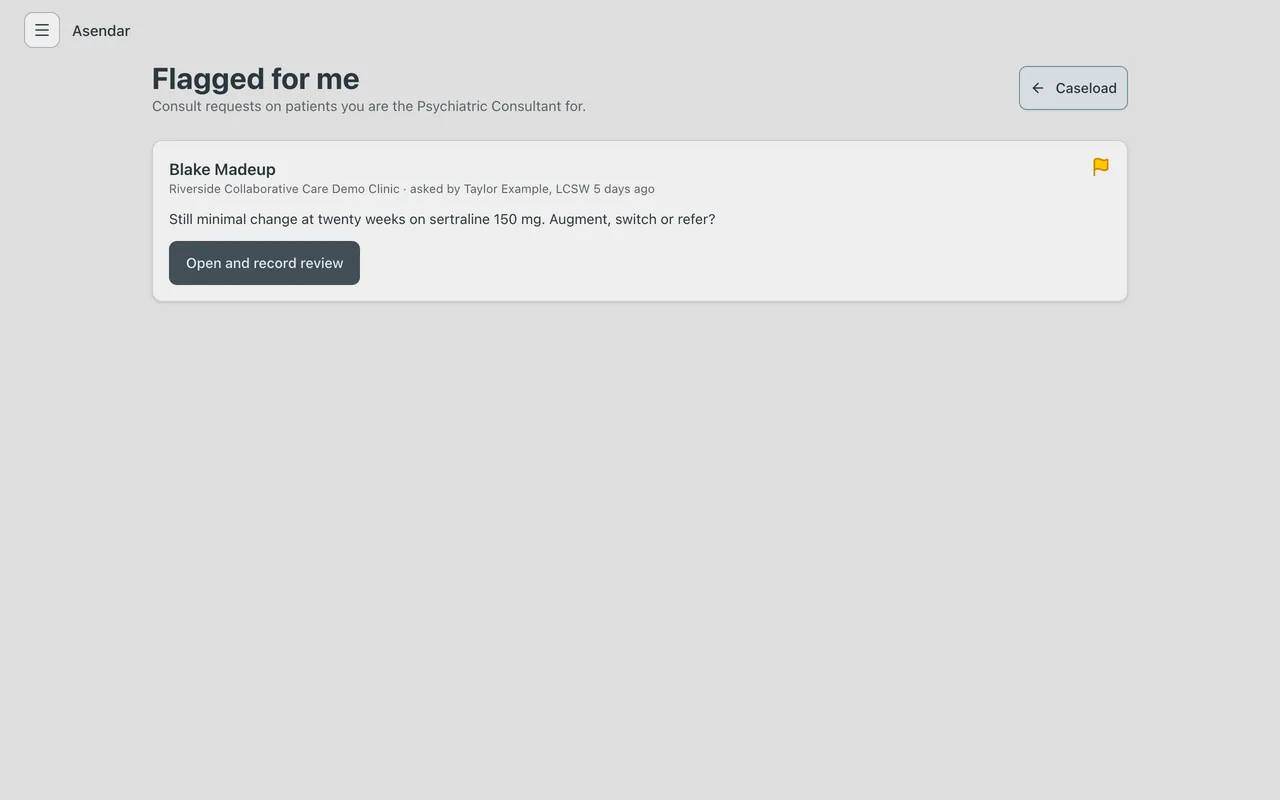
- The care manager flags the patient: Flag for psych consult in Log time, or on the Collaborative Care tab write in What do you want the consultant to weigh in on? and select Flag for consultant review. Under the question the tab says who the request Goes to; with more than one consultant, choose under Consultant. The card shows the yellow Psych consult flag and the tab shows Consult review pending.
- The patient appears in Flagged for me for the consultant the request names, oldest first.
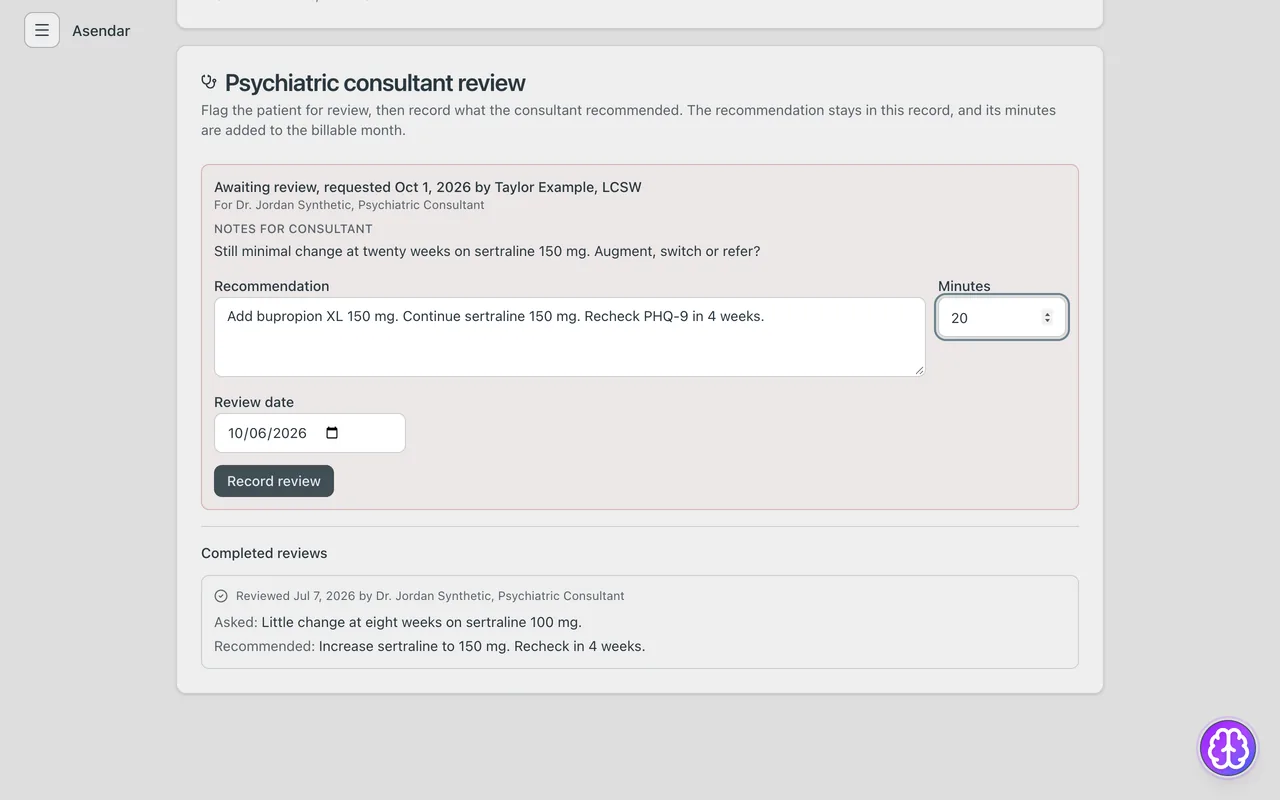
- At case review the consultant opens the Psychiatric consultant review card, reads the notes, enters the Recommendation, the Minutes and the Review date (today by default, never in the future) and selects Record review. Logging a Psych consult contact in Log time does the same.
- The flag clears, and the recommendation stays on the record under Completed reviews, with who recorded it and in what role. Its minutes join the billable month.
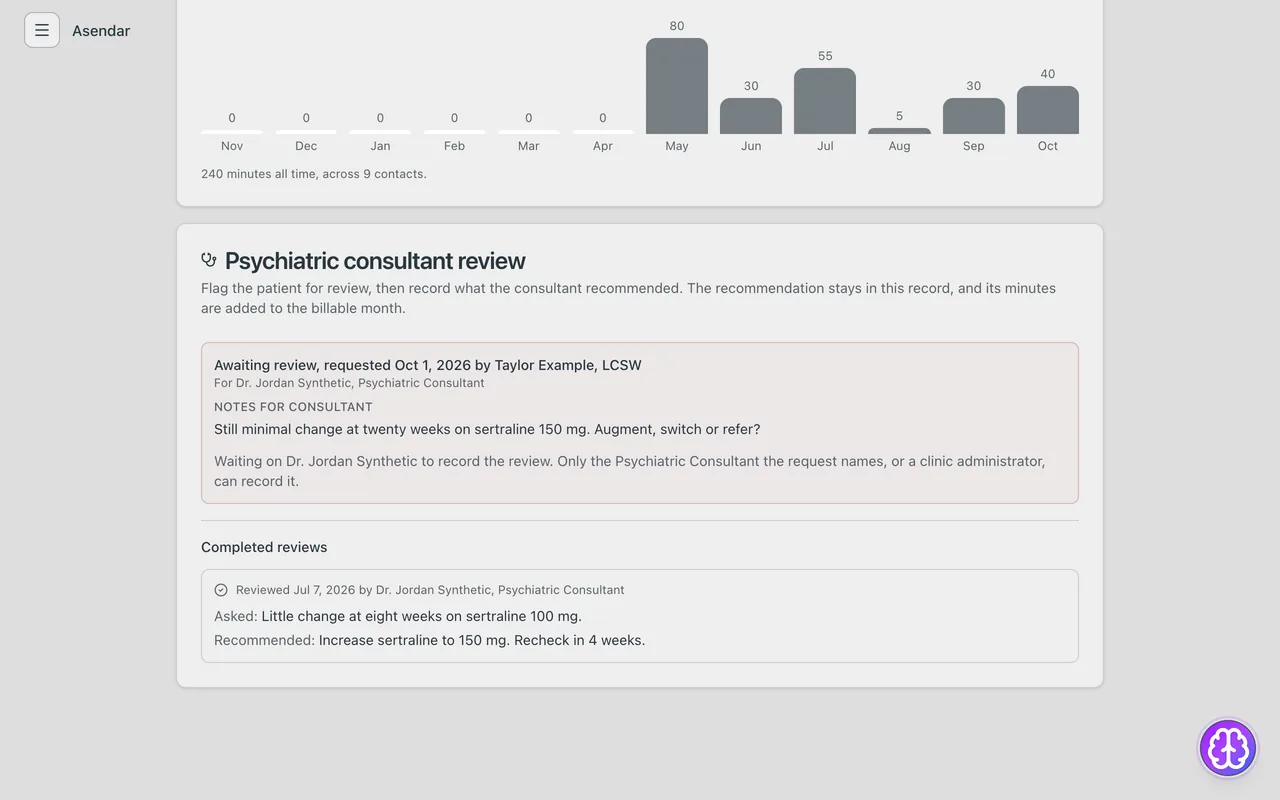
Who records it. Only the Psychiatric Consultant the request names, or the clinic's Owner or Clinic Admin, can record the review. Everyone else sees Waiting on and the consultant's name where the form would be. If the named consultant leaves the patient's care team, a Psychiatric Consultant still on the team can record it.
Who hears about it. When the review is recorded, the person who asked for it, the patient's Care Managers and any PCP with a login are each notified once. Anyone the patient has removed from their care team is not told. The email names no patient. Its Read the recommendation button opens the recommendation; if you are not signed in, Asendar asks you to sign in first and then opens it. In Asendar the notice is under Notifications: in the menu (section 4), or on the sidebar layout in the account menu at the top right. It opens the patient's Collaborative Care tab with the recommendation outlined and on screen; if that chart is already open, the outline moves to this recommendation. Nothing is sent while a consult is still waiting.
Updating and deleting contacts
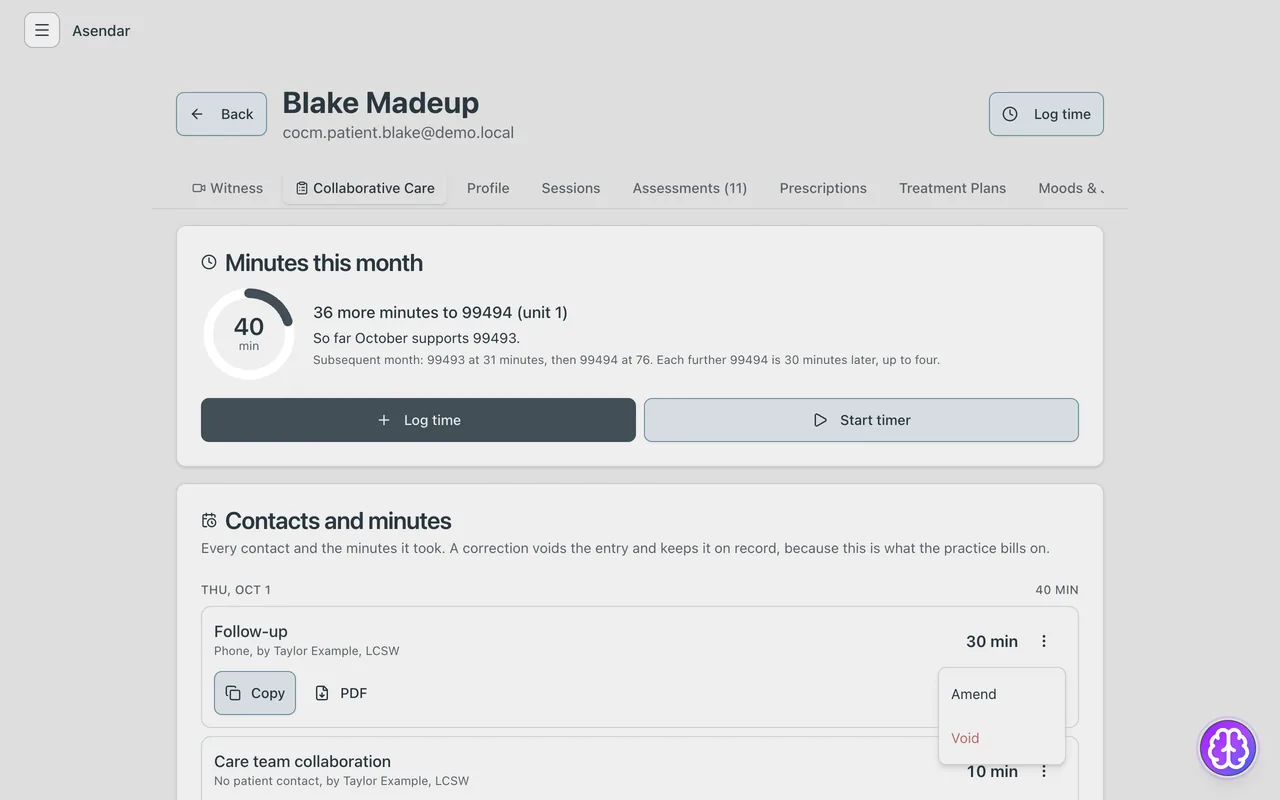
Every contact is listed under Contacts and minutes on the Collaborative Care tab, newest first, grouped by day. Select the three-dot button on a contact.
- Amend: correct the date, type, minutes, note or who delivered it. A reason is required.
- Void: remove a contact logged in error, with a reason.
The original stays on record with who changed it, when and why. Minutes are what the practice bills, so nothing is erased. The person who logged a contact can correct it for 7 days; after that only a Clinic Admin or the Owner can.
Working alongside your EHR
Each contact has Copy and PDF. Copy puts a plain-text note on your clipboard to paste into Epic or another EHR. On the Collaborative Care tab, Copy PCP summary for EHR and PDF give the PCP the scores against baseline, the current plan and the consultant's recommendations.
7. Patient summary and clinical dashboard
The patient's Collaborative Care tab is the treatment history and the clinical dashboard in one. From the top:
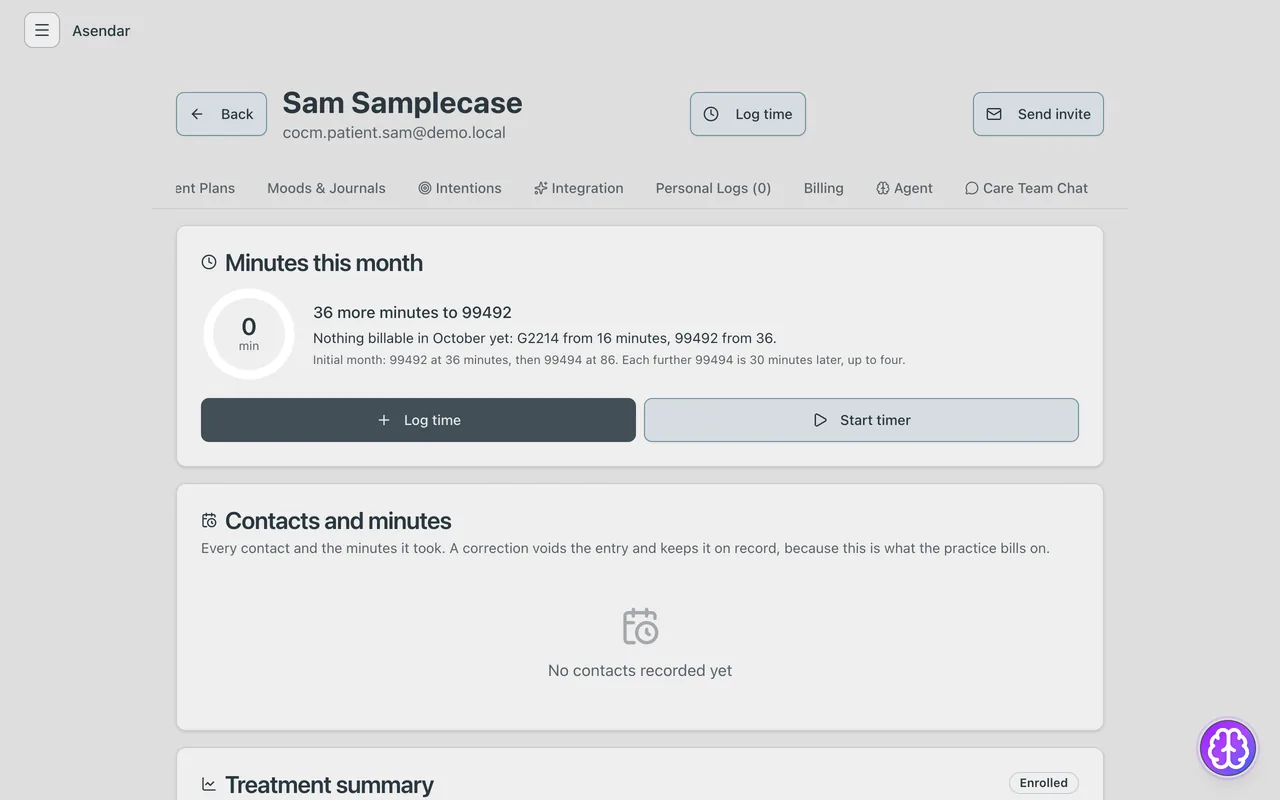
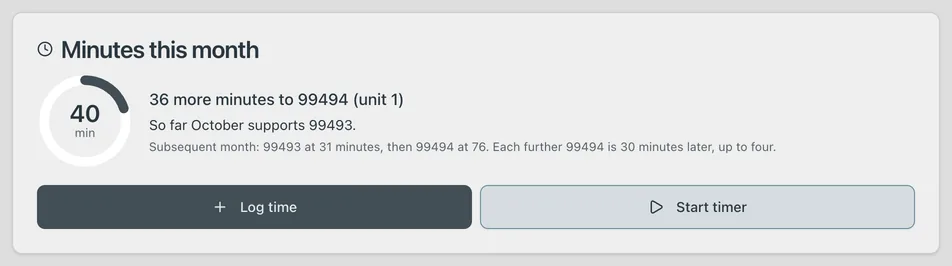
- Minutes this month: a ring with the month's minutes on your clinic's calendar, the minutes to the next code, what the month already supports, and Log time and Start timer (below).
- Contacts and minutes: the treatment history (section 6).
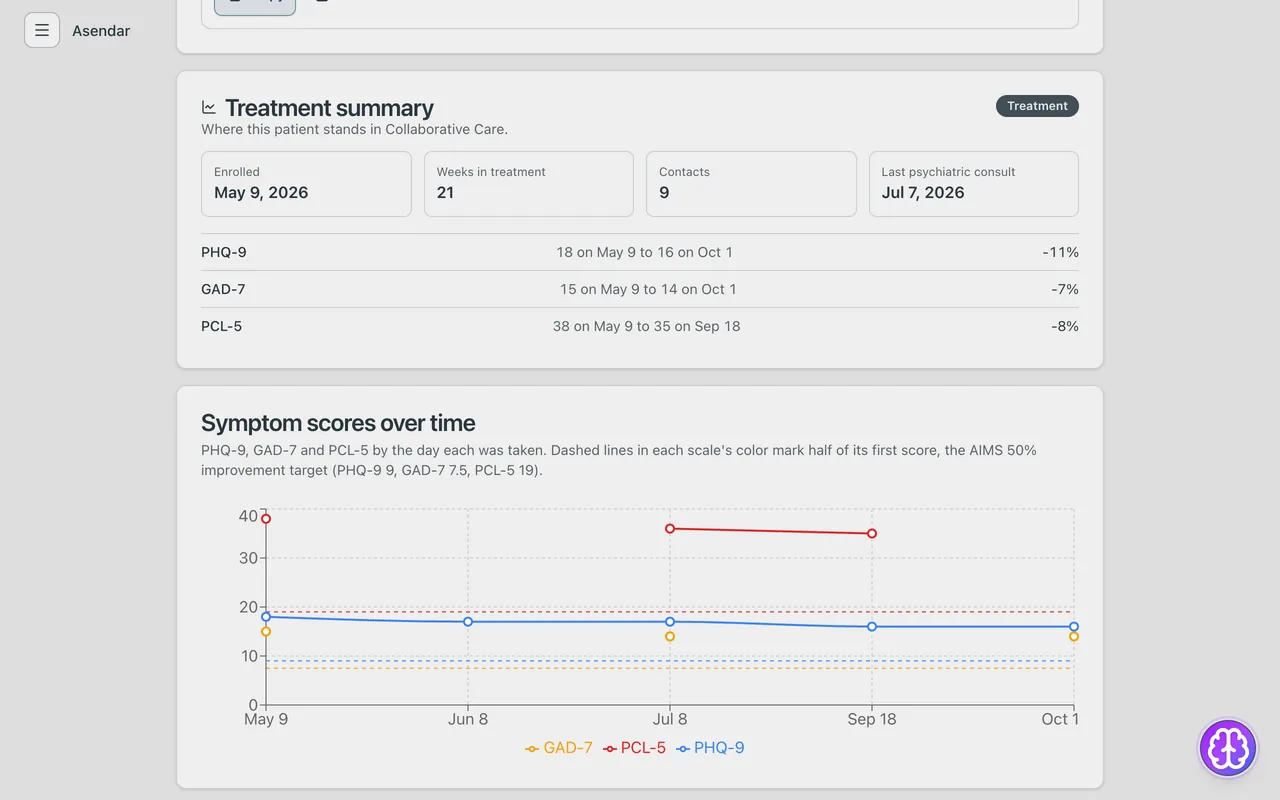
- Treatment summary: status, enrollment date, weeks in treatment, contacts, last psychiatric consult, and for each scale the first and latest score with the change. A 50% met badge shows when a scale has halved.
- Symptom scores over time: the PHQ-9, GAD-7 and PCL-5 on one graph, with a dashed line at half of each scale's first score, the 50% improvement target.
- Scores: every score in date order, with its severity, who entered it and where it came from.
- Care team: the patient's Care Manager, Psychiatric Consultant and PCP (section 9).
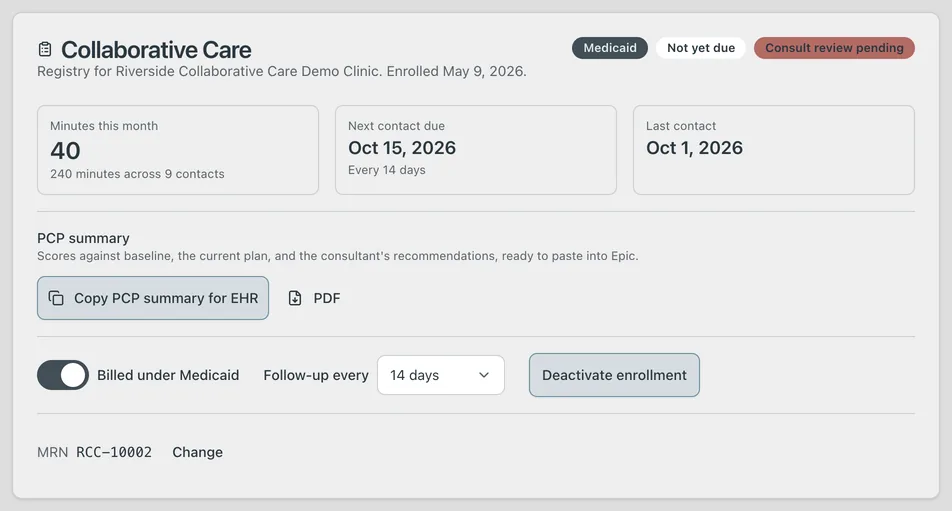
- Collaborative Care: when the patient enrolled, Medicaid, what is due (Not yet due, Due today, Overdue by N days), Consult review pending, Next contact due, Last contact, the PCP summary, Billed under Medicaid, Follow-up every, MRN and Deactivate enrollment.
- Flags: the red safety flag and your clinic's blue flag, raised and cleared here or on the caseload.
- Episodes of care.
- Relapse prevention plan.
- Monthly Time Tracker: this patient's minutes, twelve months back.
- Psychiatric consultant review, with completed reviews.
Minutes this month reads the month the way the billing packet does. Under the minutes to the next code it says what the month already supports, for example So far October supports 99493. Below every threshold it says Nothing billable in October yet and names the two floors: G2214 from 16 minutes, and 99493 from 31 (99492 from 36 in the patient's initial month). A clinic with minutes tracking turned off (section 11) sees Contacts here instead, with Log contact and no ring.
Relapse prevention plan
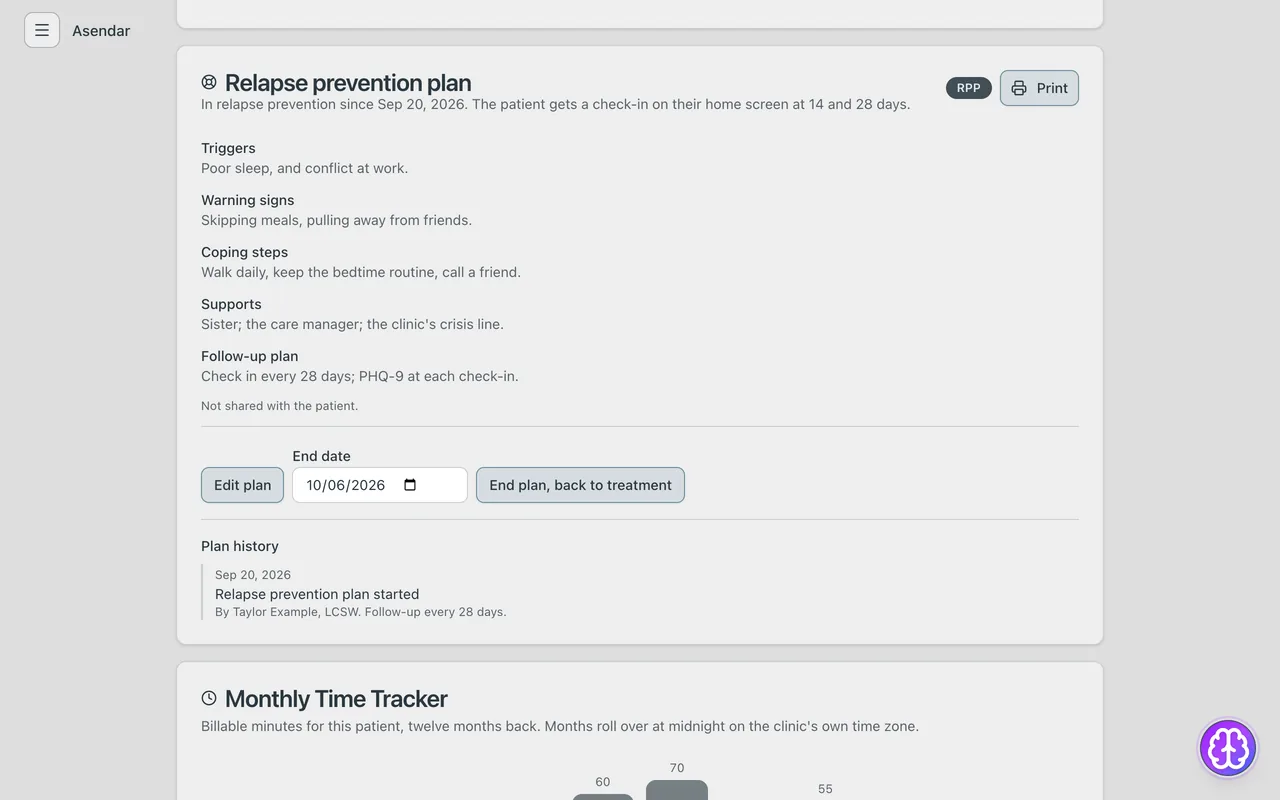
On the Relapse prevention plan card select Start relapse prevention plan, fill in the plan and its start date, and start it. Follow-up reminders move to every 28 days and the patient shows RPP. To bring the patient back to active treatment, end the plan; reminders return to every 14 days. The caseload marks RPP suggested when a PHQ-9 or GAD-7 started at 10 or more and is now under 10 and at least halved.
Status letters on the caseload: E enrolled and waiting for the initial assessment, T in treatment, RPP in a relapse prevention plan, D discharged (deactivated).
8. Reports
Everything in this section is on the Caseload page or one click from it. The page opens with four tiles: Enrollments, Due or overdue, Flagged and Practice minutes this month.
8.1 Today
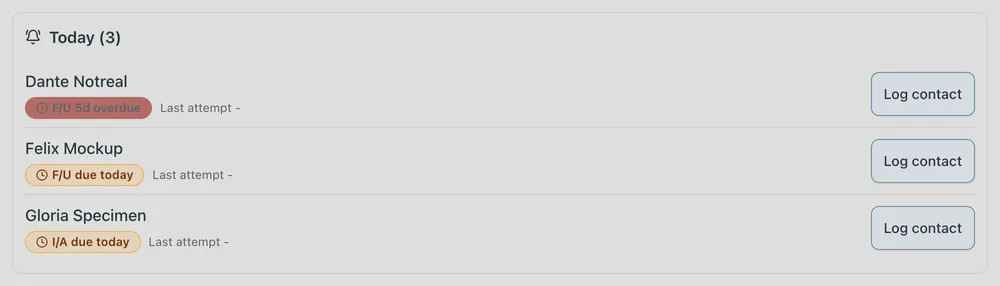
Today sits at the top of the caseload. It lists every active patient whose initial assessment (7 days after enrollment) or follow-up (every 14 days, or 28 in relapse prevention) falls due by tonight, most overdue first, with the last attempt. Log contact opens Log time for that patient. With more than one care manager, choose one from the list at the top right, or All care managers.
8.2 Caseload list
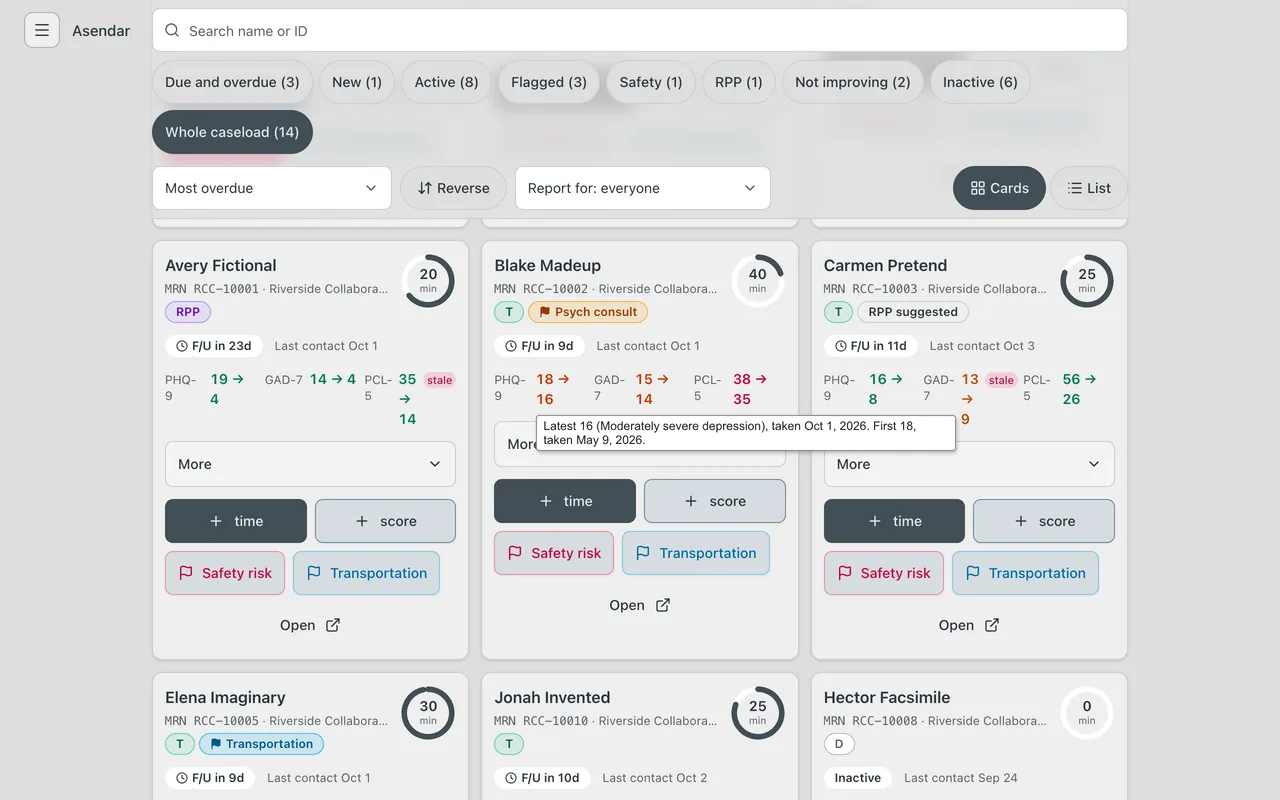
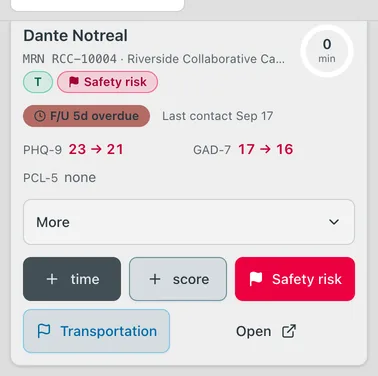
Each enrolled patient has a card. What the caseload tracks for each patient is on the card or under More.
The face of the card: the name, the MRN, the clinic, Medicaid, the status letter, the flags, the minutes ring (this month), what is due, the last contact, and the PHQ-9, GAD-7 and PCL-5 as first score then latest, coloured by severity. A score more than 30 days old is marked over 30d, and over 60 days stale. Hovering a score shows when the first and latest were taken.
| Flag | Meaning |
|---|---|
| Yellow Psych consult | Flagged for the psychiatric consultant. Clears when the review is recorded |
| Red Safety risk | Safety concern. Stays up until someone clears it |
| Blue, your clinic's label | Your clinic's own flag, for example Transportation |
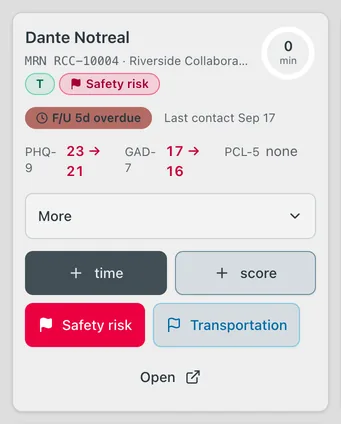
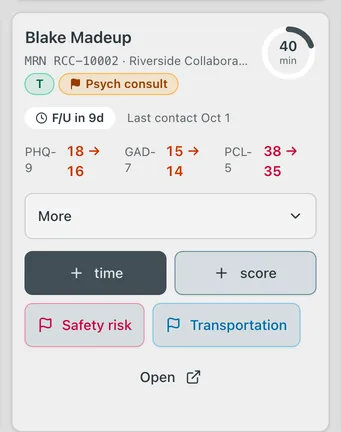
More opens the rest: the I/A, F/U, P/C and RPP dates (each one opens that visit in the chart), weeks in treatment, sessions, next due, minutes in total, enrollment date, last attempt, provider, care manager, consultant and PCP, and Deactivate enrollment.
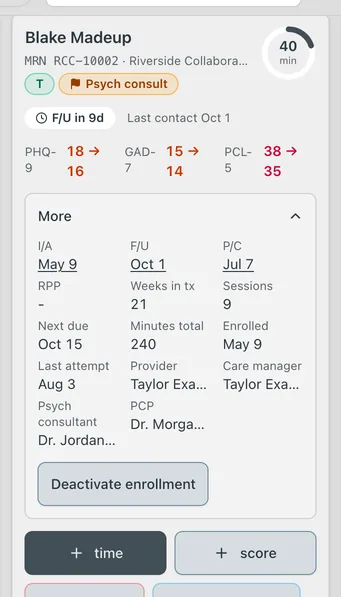
Buttons on the card: + time (Log time), + score, the clinic's flag toggles and Open.
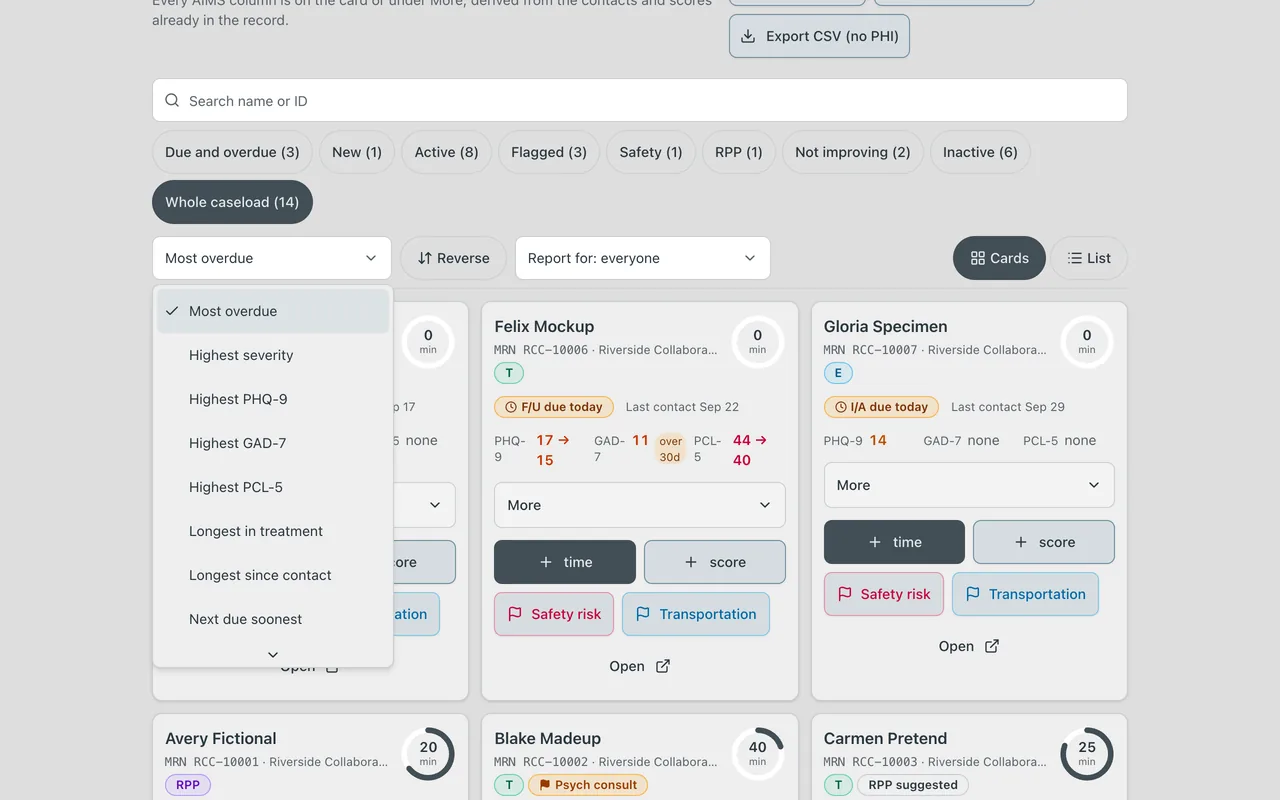
Search, filter and sort. Search by name or ID. The filters are Due and overdue, New, Active, Flagged, Safety, RPP, Not improving (10 or more weeks in treatment and a score still 10 or more and not halved), Inactive and Whole caseload. The sort list orders the caseload by any column: Most overdue, Highest severity, Highest PHQ-9, Highest GAD-7, Highest PCL-5, Longest in treatment, Longest since contact, Next due soonest, Oldest initial assessment, Oldest follow-up, Oldest psych consult, Oldest relapse prevention, Most attempts since reach, Fewest minutes this month, Most minutes in total, Most sessions, Most recently enrolled, Care manager, Provider, Clinic or Name. Reverse flips the order.
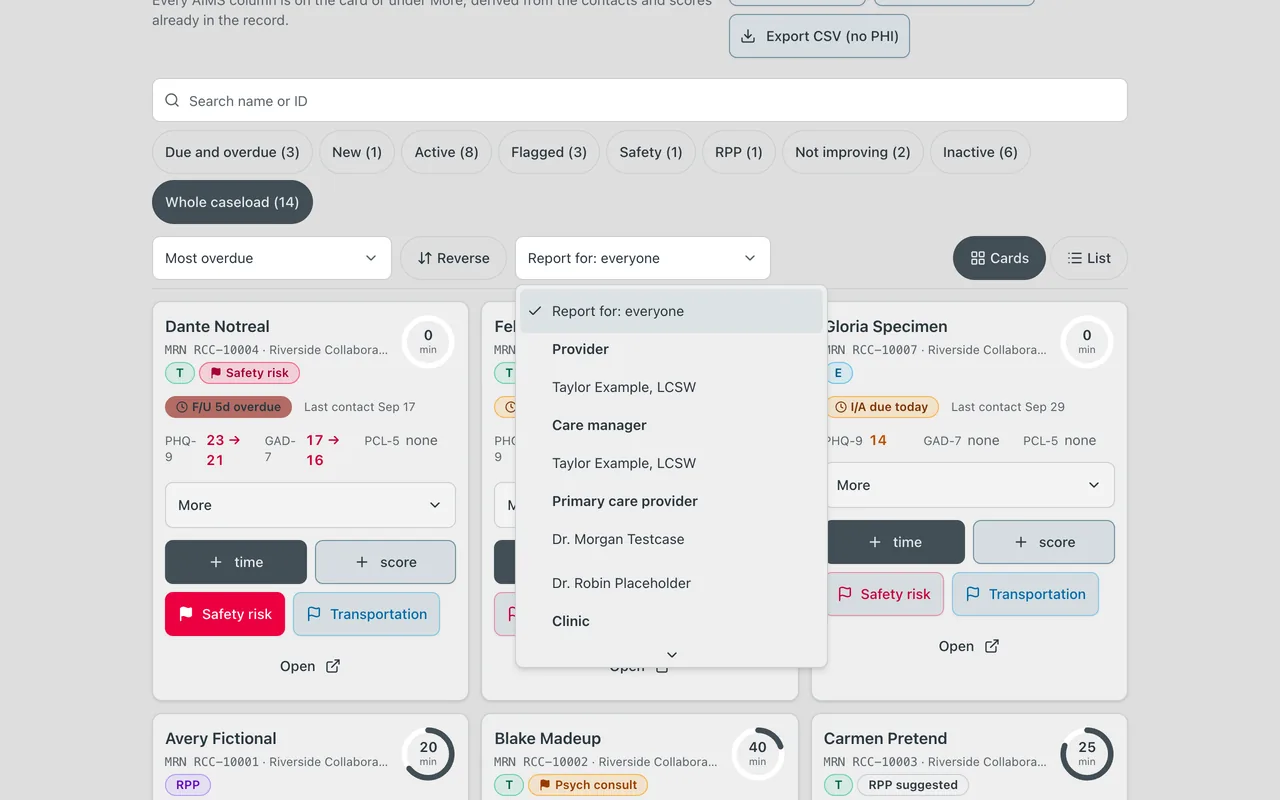
Report for runs the list for one Provider, Care manager, Primary care provider (including a directory PCP with no login) or Clinic, or Report for: everyone you can see. Cards and List switch between cards and a dense list.
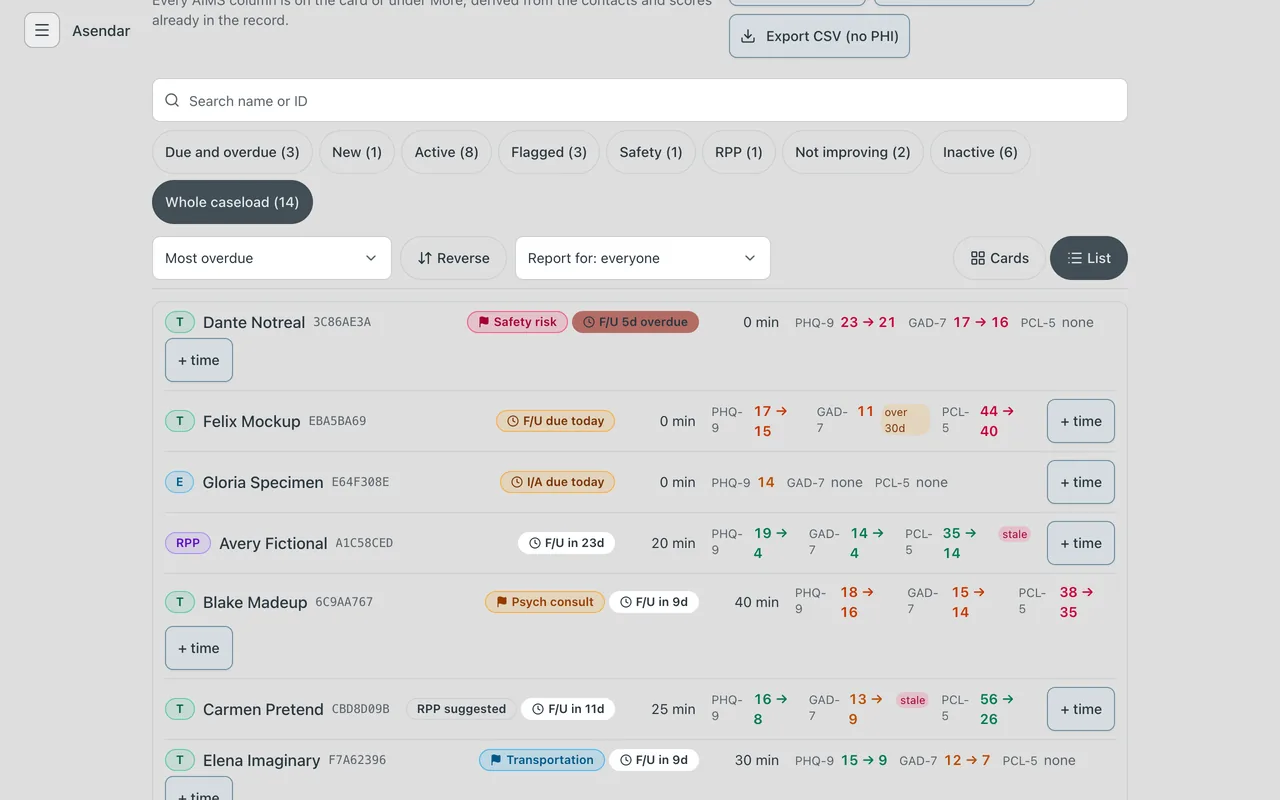
Caseload CSVs. Export CSV (PHI) and Export CSV (no PHI) download the whole caseload.
8.3 Caseload statistics
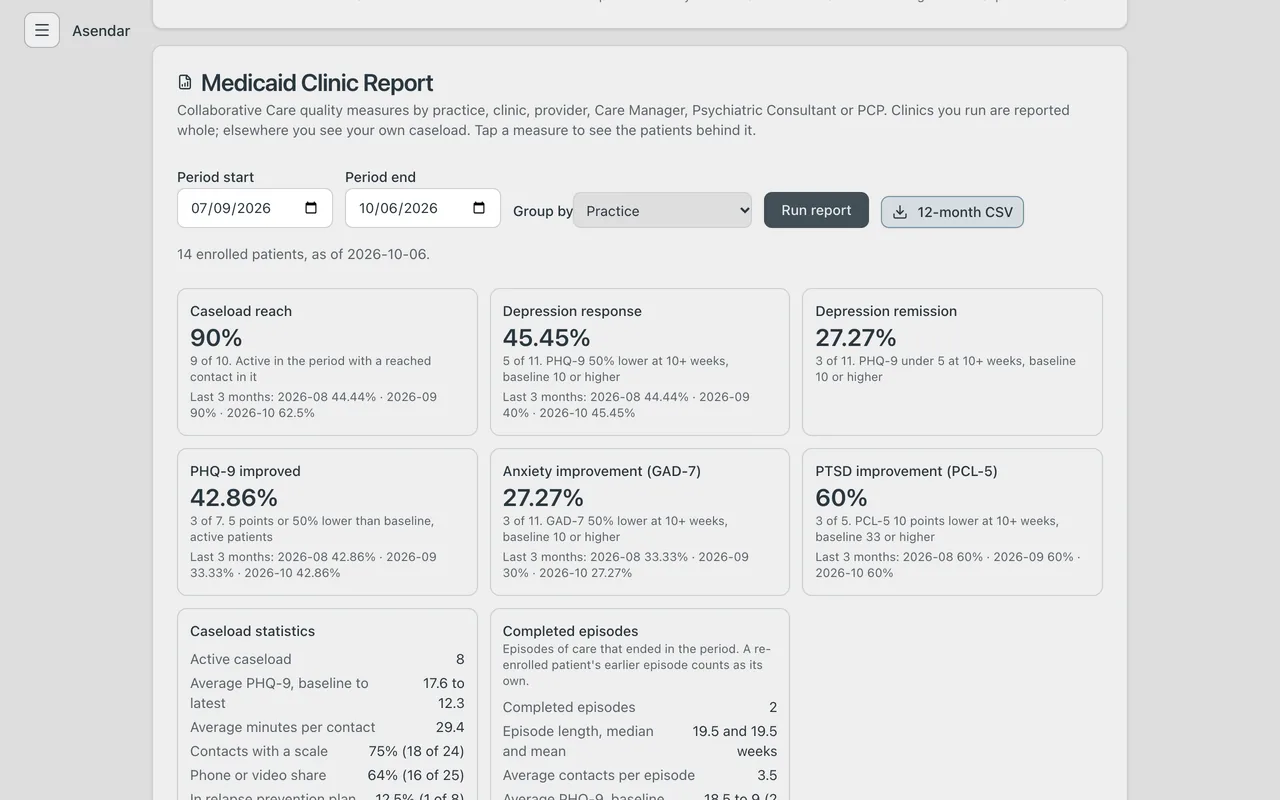
The Medicaid Clinic Report sits below the caseload list.
- Set Period start and Period end (the last 90 days by default).
- Choose Group by: Practice, Clinic, Provider, Care Manager, Psychiatric Consultant or Primary Care Provider.
- Select Run report.
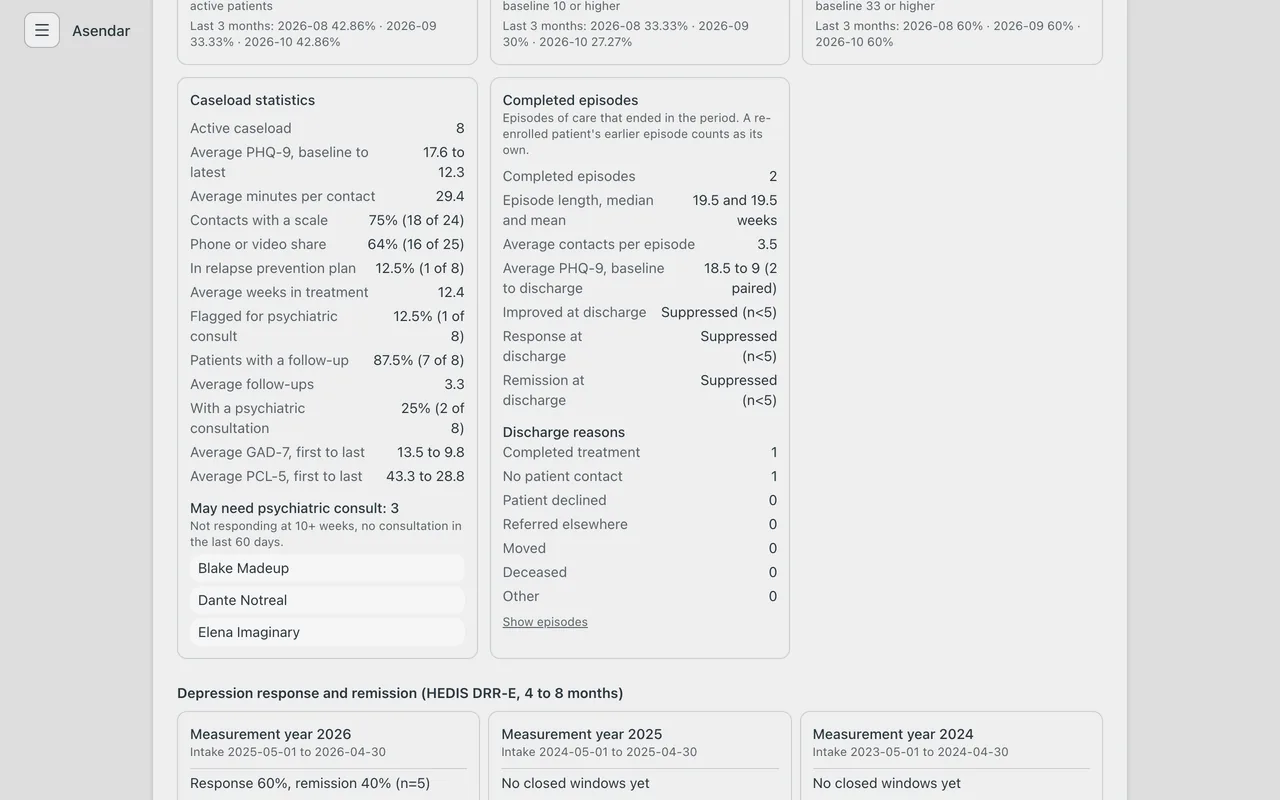
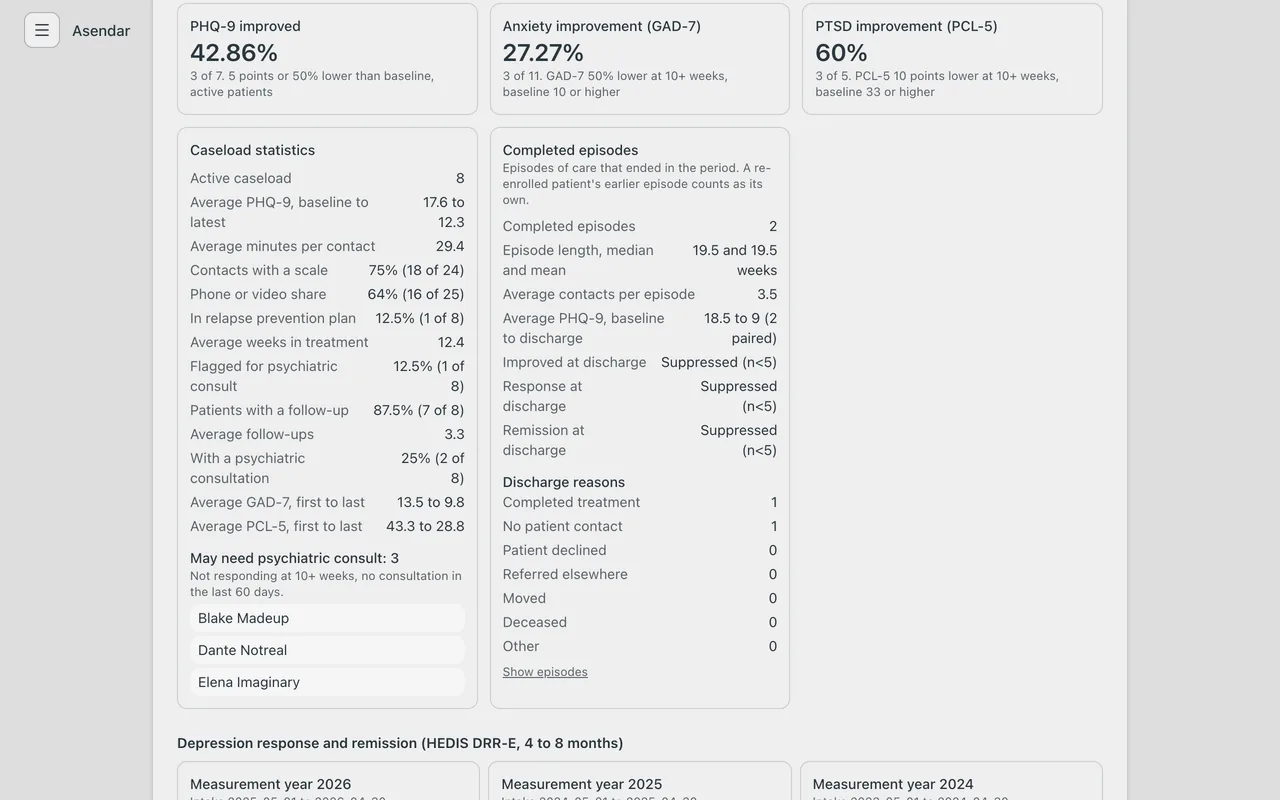
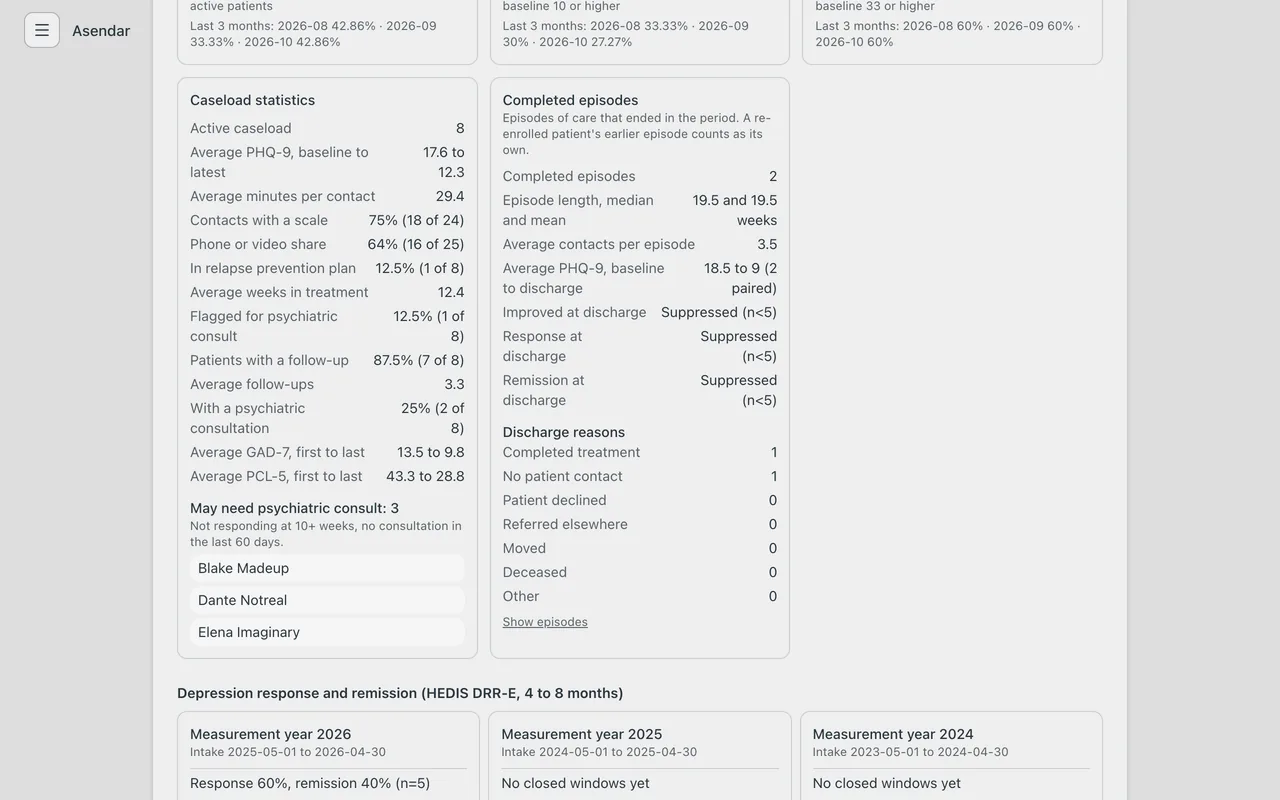
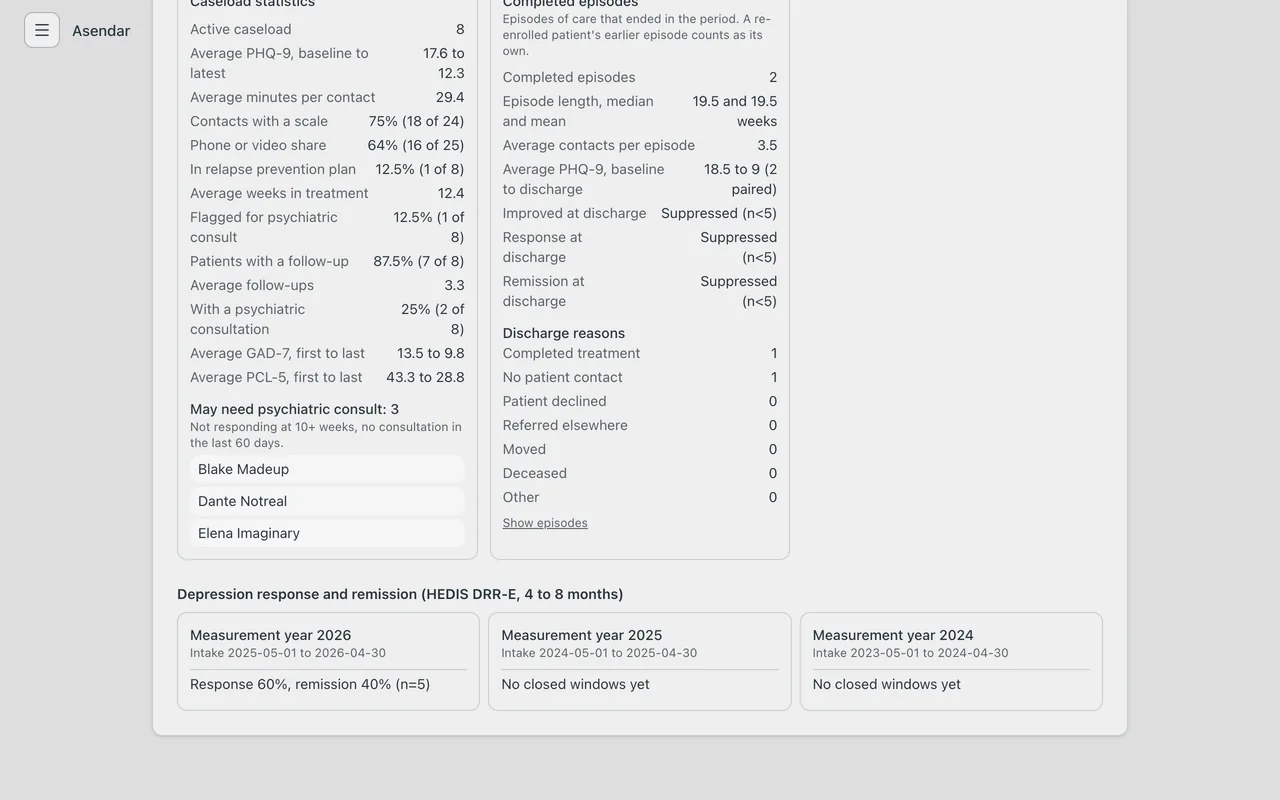
Caseload statistics shows the active caseload, average PHQ-9 baseline to latest, average minutes per contact, Contacts with a scale, the phone or video share, In relapse prevention plan, average weeks in treatment, Flagged for psychiatric consult, patients with a follow-up, average follow-ups and patients with a psychiatric consultation, plus average GAD-7 and PCL-5 first to last where a patient has those scores. It lists who May need psychiatric consult (not responding at 10 or more weeks, no consultation in the last 60 days). Grouped by care team, a patient with no one in a role counts under Not assigned, and a patient with two Care Managers counts under each.
Contacts with a scale is the share of the period's patient contacts (screening, initial assessment, follow-up and relapse prevention; not consultations, care team collaboration, contact attempts or anything recorded as No patient contact) with a PHQ-9, GAD-7 or PCL-5 recorded at that contact; the University of Washington AIMS Center suggests at least 75%. In relapse prevention plan counts patients with a plan open on the report's as-of date (the AIMS Center suggests 10 to 20% of the caseload). Flagged for psychiatric consult counts patients with a consult request not yet recorded; safety and custom flags are not counted, so it can be lower than the caseload's Flagged tile.
Owners and Clinic Admins see their clinics whole; everyone else sees their own caseload.
8.4 Completed episodes
Completed episodes, in the Medicaid Clinic Report under Caseload statistics, covers the episodes of care that ended in the report period. A re-enrolled patient's earlier episode counts as its own. It shows how many ended, their length (median and mean weeks), the average contacts per episode, the average PHQ-9 at baseline and at discharge, how many improved, responded and remitted by discharge (shown once there are at least five), and the discharge reasons with a count for each. Show episodes lists them: patient, episode number, weeks and reason.
8.5 CoCM quality metrics
The Medicaid Clinic Report's measure cards are Caseload reach, Depression response, Depression remission, PHQ-9 improved, Anxiety improvement (GAD-7) and PTSD improvement (PCL-5), each with its last three months. Tap a measure to see the patients behind it. 12-month CSV downloads the trend, with contacts with a scale, patients in a relapse prevention plan and patients flagged for psychiatric consult for each month. Scores already recorded on a scale still count after your clinic switches that scale off.
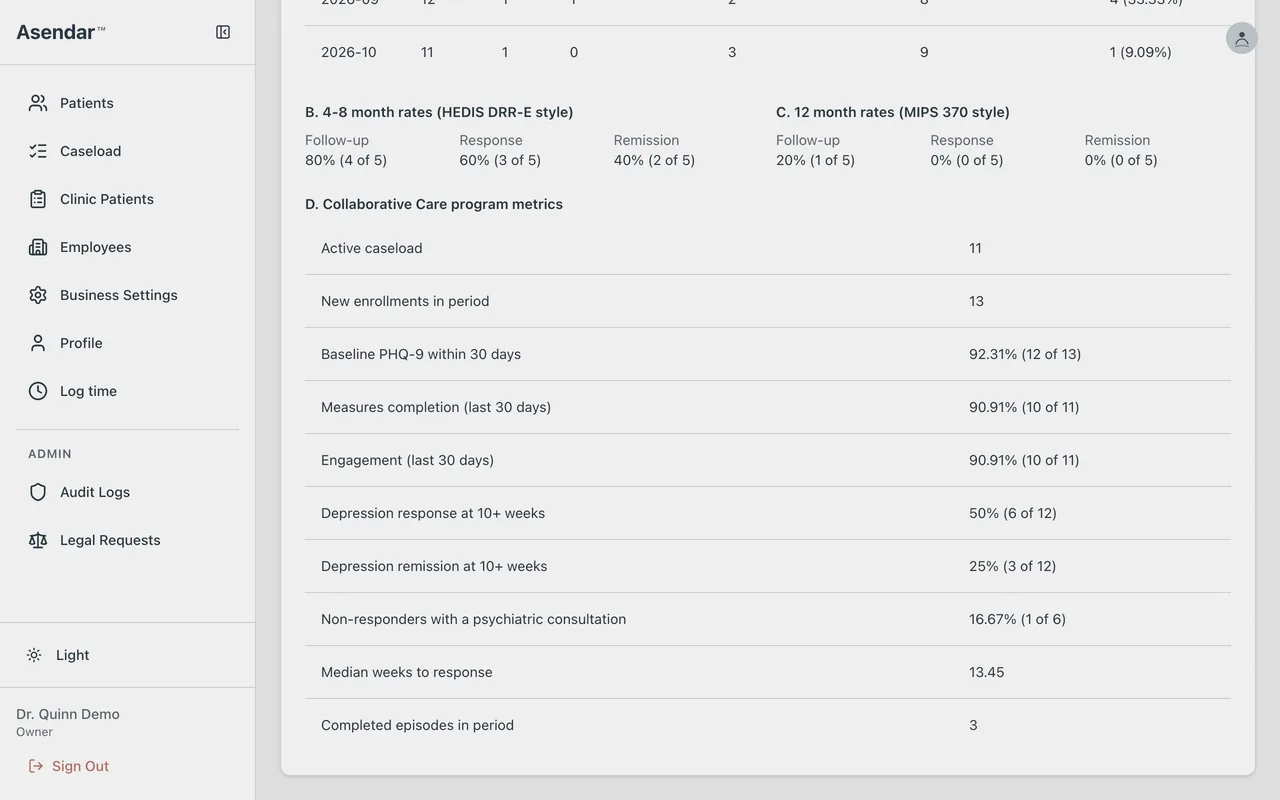
The Panel Outcomes Report (Owners and Clinic Admins) runs below it. Set Period start, Period end and As of, then Run report. It shows 4 to 8 month rates (HEDIS DRR-E style), 12 month rates (MIPS 370 style) and the Collaborative Care program metrics: active caseload, new enrollments, baseline PHQ-9 within 30 days, measures completion, engagement, response and remission at 10 or more weeks, non-responders with a psychiatric consultation, median weeks to response and completed episodes. It also carries month-by-month report lines in the format a state funding program asks for. The detail CSVs and Print / Save as PDF export it.
8.6 HEDIS Depression Remission or Response (DRR)
Depression response and remission (HEDIS DRR-E, 4 to 8 months) is in the Medicaid Clinic Report, by measurement year (intake May 1 to April 30), and follows the report's grouping. A year shows its rates once its 4 to 8 month windows have closed and it has at least five patients.
8.7 Monthly time tracker
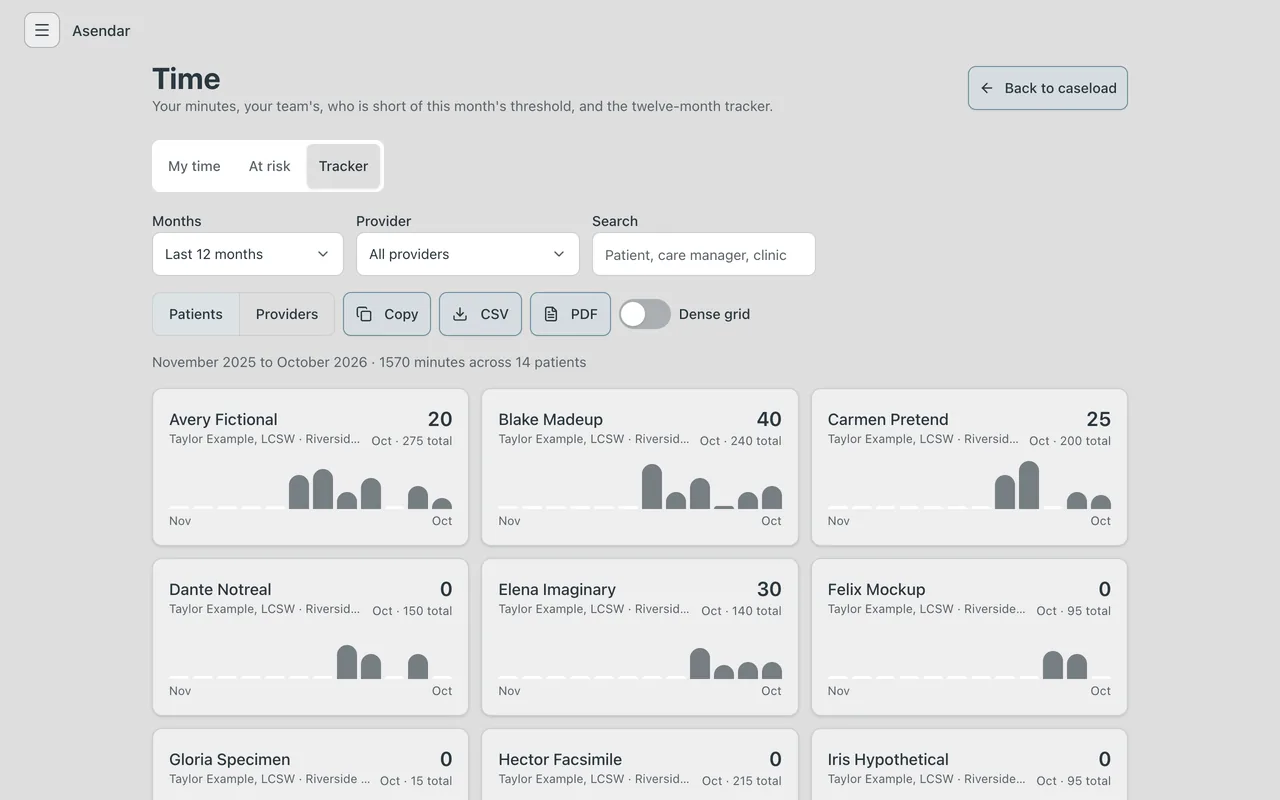
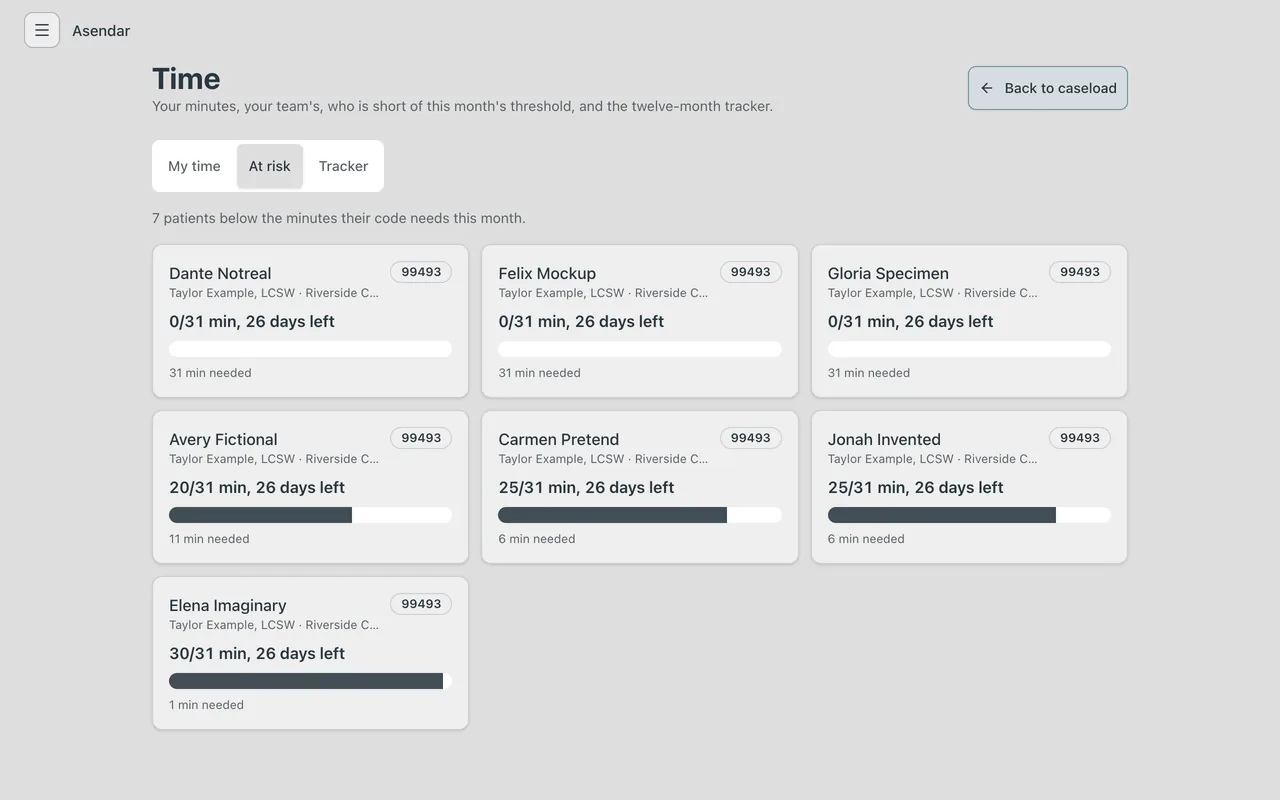
The caseload shows a Monthly Time Tracker strip: billable minutes across the caseload, twelve months back, on each clinic's own clock. Select Time at the top of the caseload for the full view:
- My time: your minutes today, this week and this month, and your entries by day or by activity.
- Team: each provider's minutes (Owners and Clinic Admins).
- At risk: every active patient below the minutes their code needs this month, with the minutes still needed and the days left.
- Tracker: minutes per patient per month, the last 12 months by default, by patient or by provider, with Copy, CSV and PDF.
These views, the billing packet and both reports open on the clinic's current month and today's date on the clinic's clock, even when your device is set to another time zone, so on the evening of the last day of a month they still open on that month.
8.8 Monthly billing packet
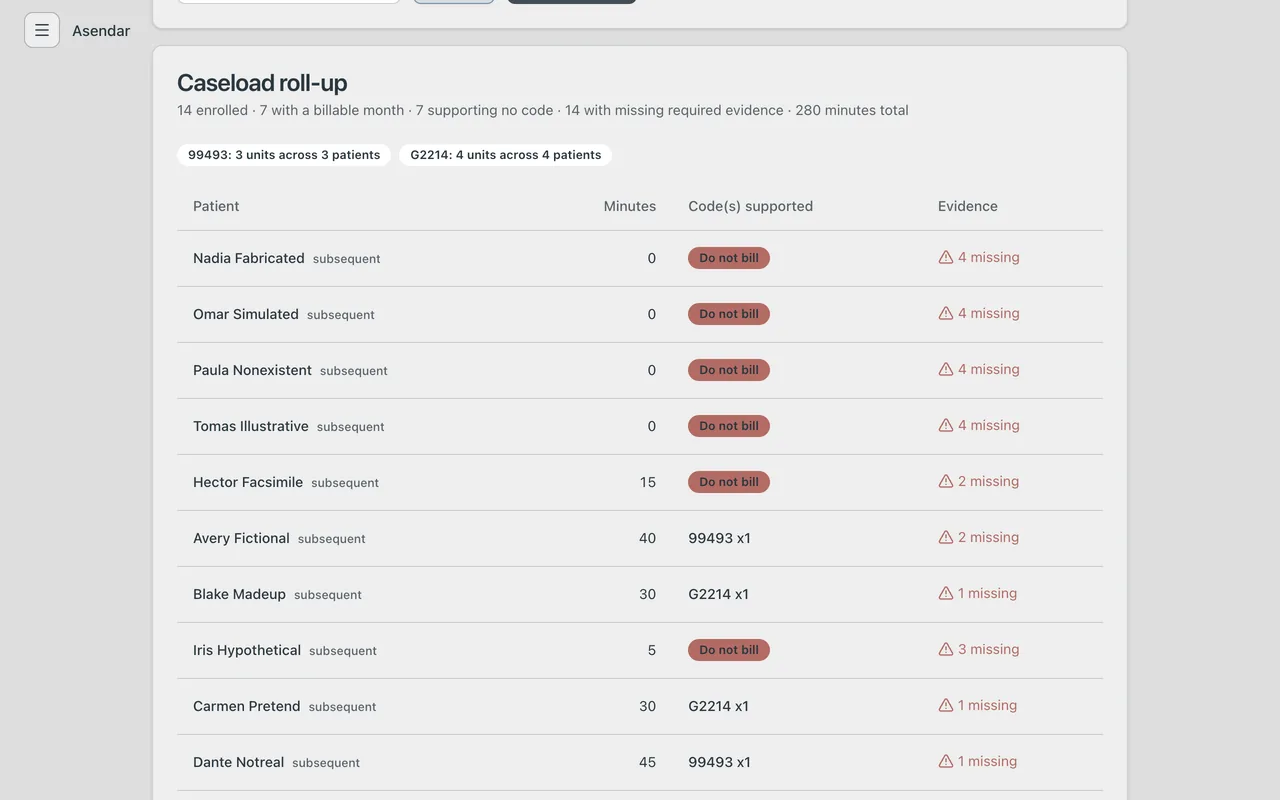
Billing packet on the caseload shows, for a chosen month, every enrolled patient's minutes, the code or codes the month supports and the evidence behind it, with CSV and PDF packet. The packet carries no dollar figures. Asendar submits no claim: the packet is what the claim is keyed from and the record you produce on audit.
The codes. Minutes are behavioral health care manager minutes in the calendar month, on the clinic's own clock.
| Month | Base code | First 99494 | Each further 99494 |
|---|---|---|---|
| Initial month (the patient's first billable month) | 99492 from 36 minutes | at 86 minutes | every 30 minutes after that (116, 146) |
| Any later month | 99493 from 31 minutes | at 76 minutes | every 30 minutes after that (106, 136) |
- 99494 is capped at 4 units a month.
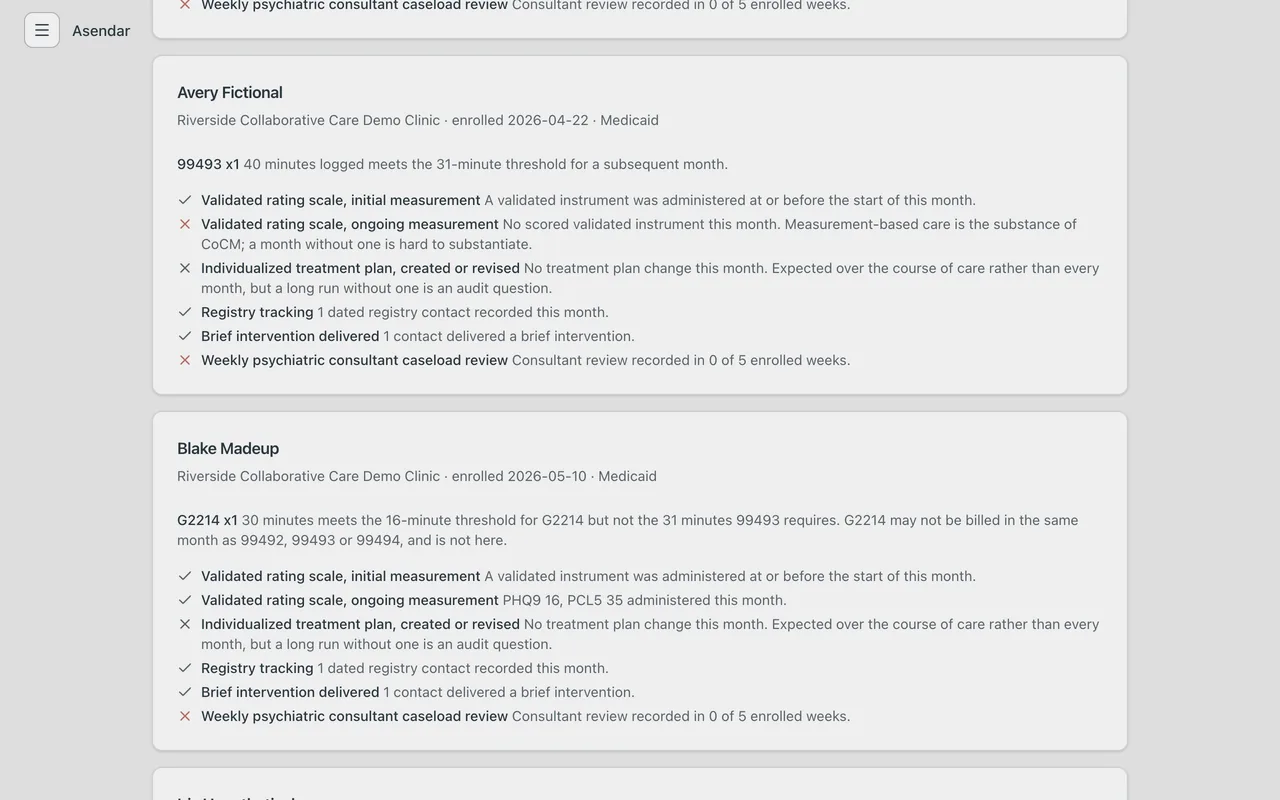
- G2214 applies from 16 minutes when the base code is not reached, and is never billed in the same month as 99492, 99493 or 99494. Asendar enforces this.
- Under 16 minutes the month shows Do not bill, with the reason. Every enrolled patient appears, so no month is silently dropped.
- A patient carried at two clinics in a month is billed once, by the primary clinic.
The evidence. For each patient-month the packet checks a validated rating scale, the treatment plan created or revised, registry tracking, a brief intervention delivered and the weekly psychiatric consultant caseload review. Minutes and evidence are shown separately: a month can meet the minutes and still be one you should not bill.
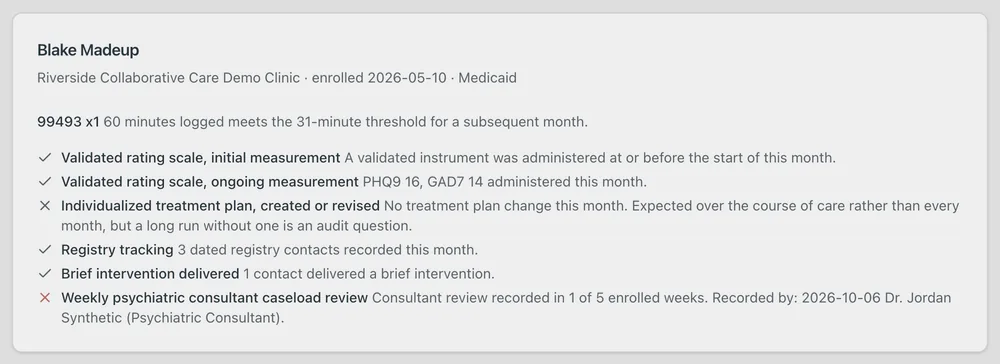
Who recorded each consult review. In a month with a recorded psychiatric review, the evidence line Weekly psychiatric consultant caseload review ends with Recorded by: and, for each review, its date, who recorded it and in what role: Psychiatric Consultant, Owner or Clinic Administrator. The web page and the PDF packet both show it, and the CSV carries the same in its last column, Consult reviews recorded by.
9. Provider assignments
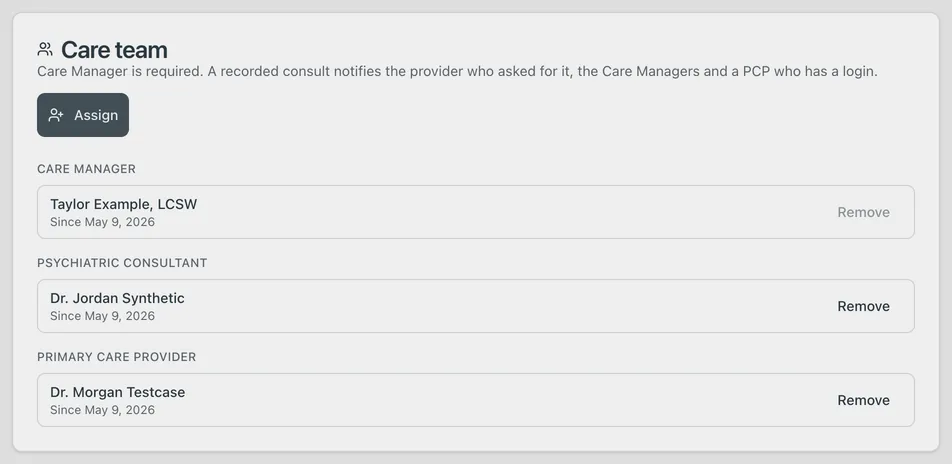
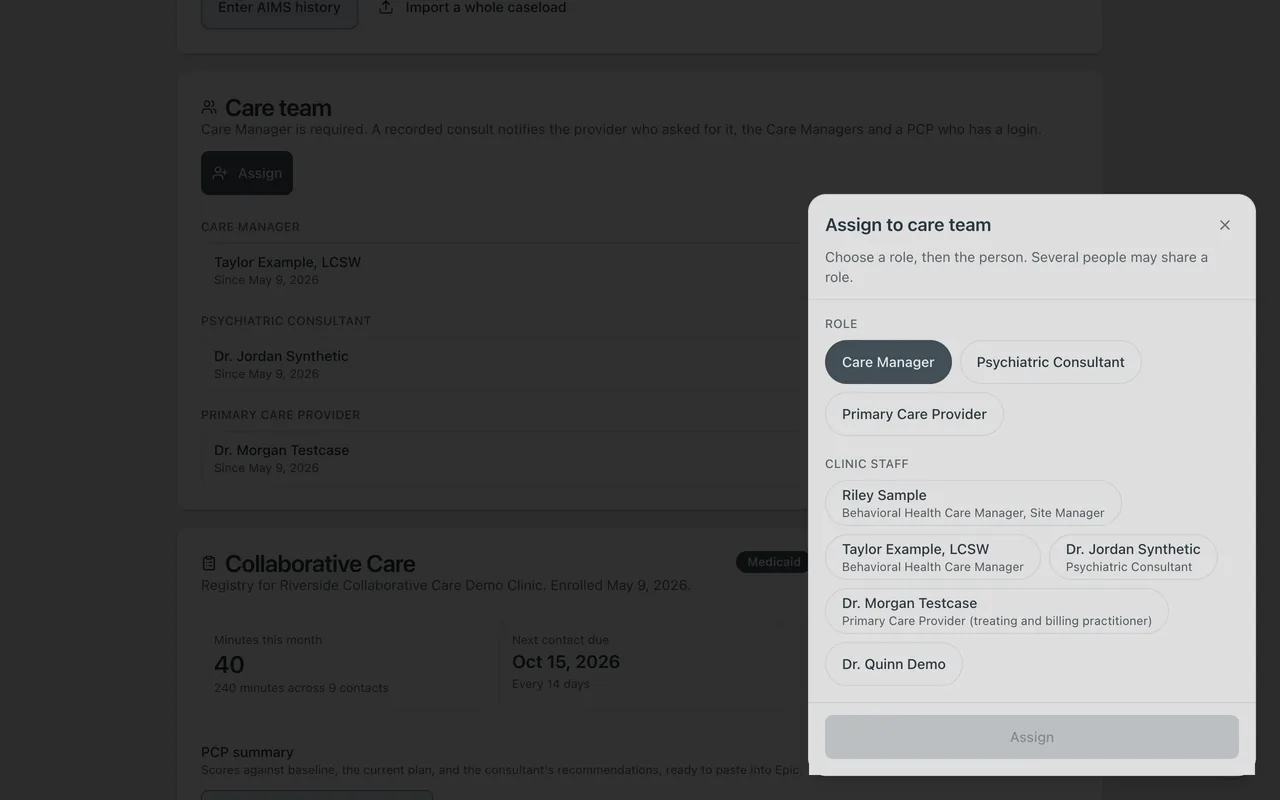
Each enrolled patient has a named care team on the Collaborative Care tab: a Care Manager (required), and optionally a Psychiatric Consultant and a Primary Care Provider. Several people can share a role.
To add someone: on the Care team card select Assign, choose the Role, choose the person from Clinic staff (their care team role label shows beside the name), and select Assign. A PCP who does not sign in to Asendar can be added to the clinic's directory with their name, NPI and practice, then assigned the same way; the card shows them with "no login".
Naming someone on the care team lets them open the patient at that clinic: the chart and the Collaborative Care tab, where they can do what their role allows (a consultant records the reviews that name them). It grants no export, Employees or settings power.
Assign a Psychiatric Consultant before flagging a consult. Every consult request names one of the patient's Psychiatric Consultants, and only that consultant, or the clinic's Owner or Clinic Admin, records the review (section 6). Until the patient has one, the tab says so and the consult flag stays off, in Log time too.
To remove someone: select Remove beside them. Their access through the care team ends. The last Care Manager cannot be removed; assign the new one first. A removed assignment stays on the card's history with its dates. Someone who reaches the patient only through their own assignment cannot change the care team; the clinic's Owner or Clinic Admin can.
To transfer a patient to another care manager, assign the new Care Manager, then remove the old one. To move many patients at once, use the Caseload Manager (section 10).
10. Clinic assignments and bulk transfers
Clinic assignments
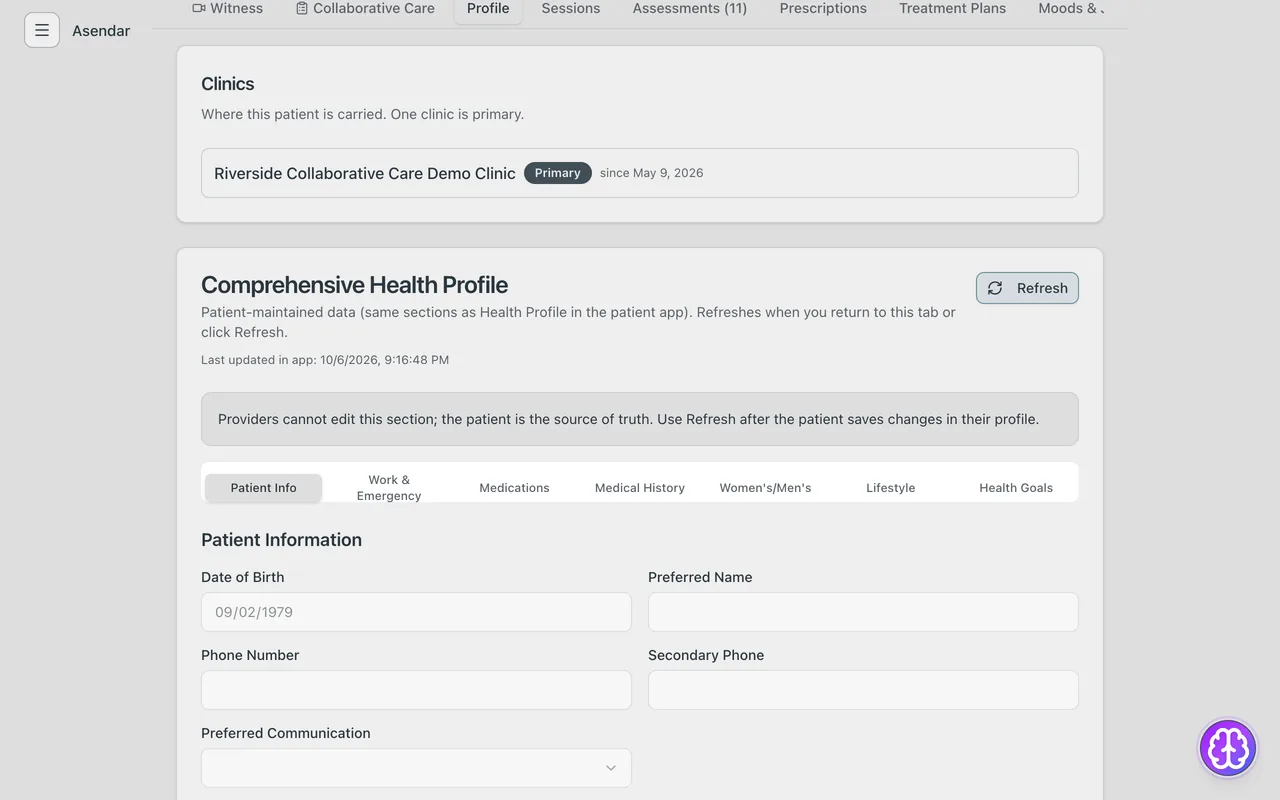
A patient can be carried at several clinics of the same organization, and one clinic is the primary. On the patient's Profile tab, the Clinics card lists them with their dates. An Owner or Clinic Admin can add a clinic, make one primary, or remove one; the last clinic cannot be removed. Reports count a patient once, at their primary clinic, and the billing packet bills a month once, from the primary clinic.
Bulk transfers (the Caseload Manager)
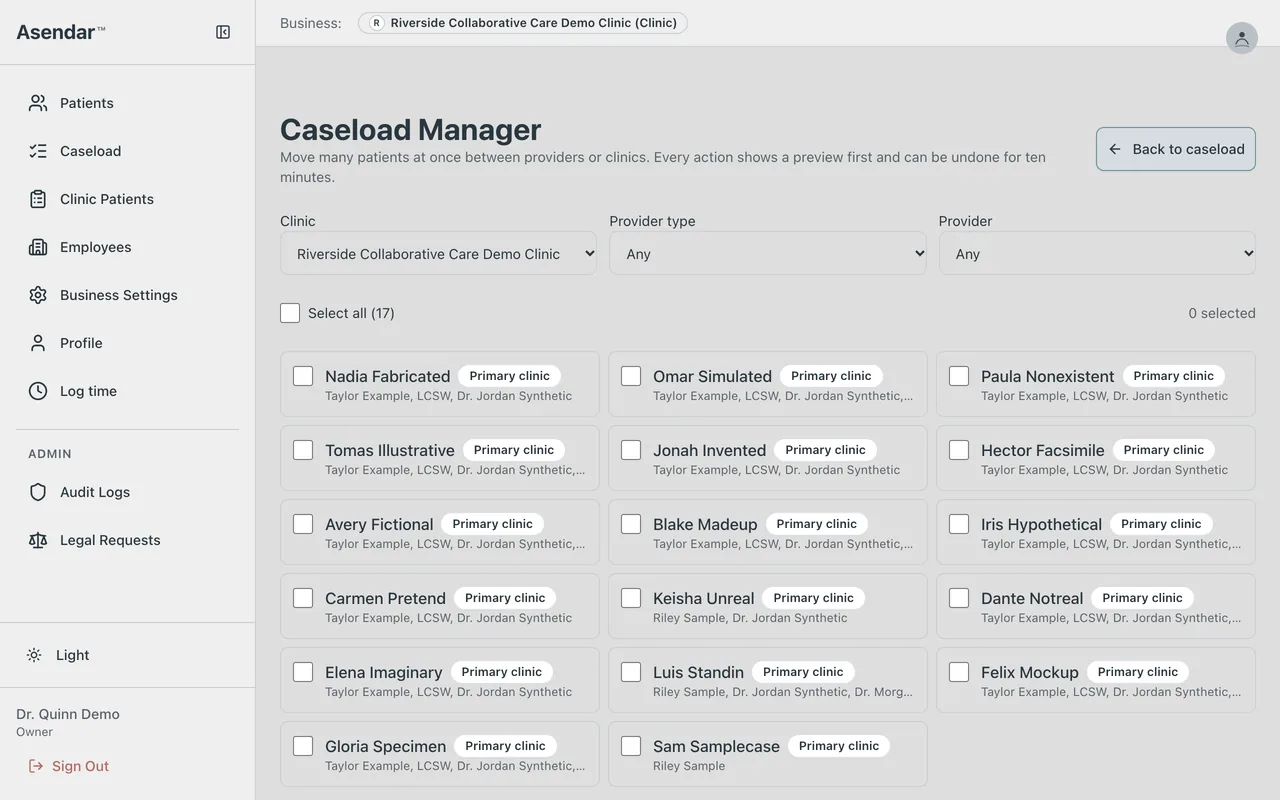
Manage caseload on the caseload opens the Caseload Manager, for Owners and Clinic Admins.
- Filter the patients by Clinic, Provider type and Provider, then tick the patients to move, or Select all.
- Choose the action: add a provider, transfer to another provider, transfer to another clinic (keeping or removing the current one), or remove from a clinic.
- Read the preview. It says how many patients will change and why any are skipped. Nothing is written yet.
- Confirm. The change can be undone for ten minutes.
11. Clinic setup
Clinic settings are under Business Settings, on the Business tab. Only an Owner or Clinic Admin of the clinic can change them.
Flags
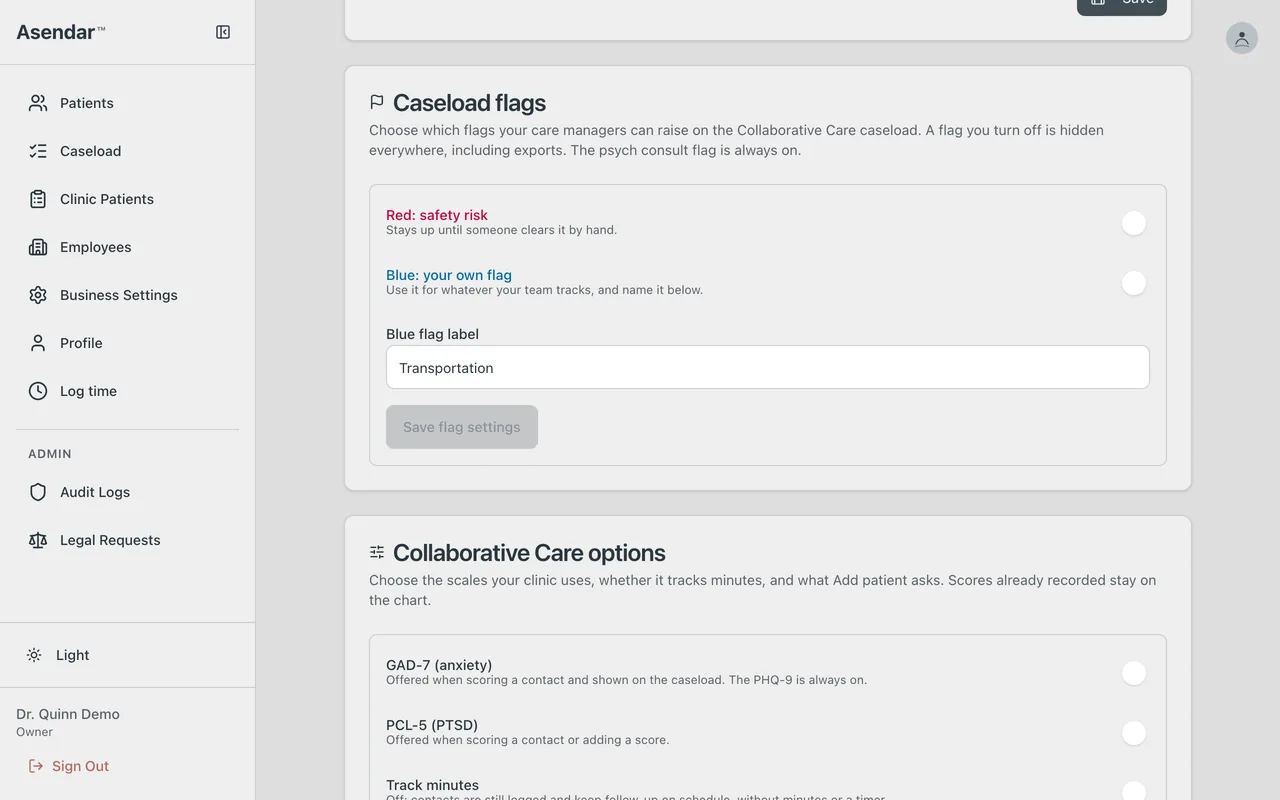
The Caseload flags card sets which flags your care managers can raise. The yellow psych consult flag is always on. Turn Red: safety risk and Blue: your own flag on or off, name the blue flag, and save. A flag you turn off is hidden everywhere.
Collaborative Care options
The Collaborative Care options card sets, per clinic:
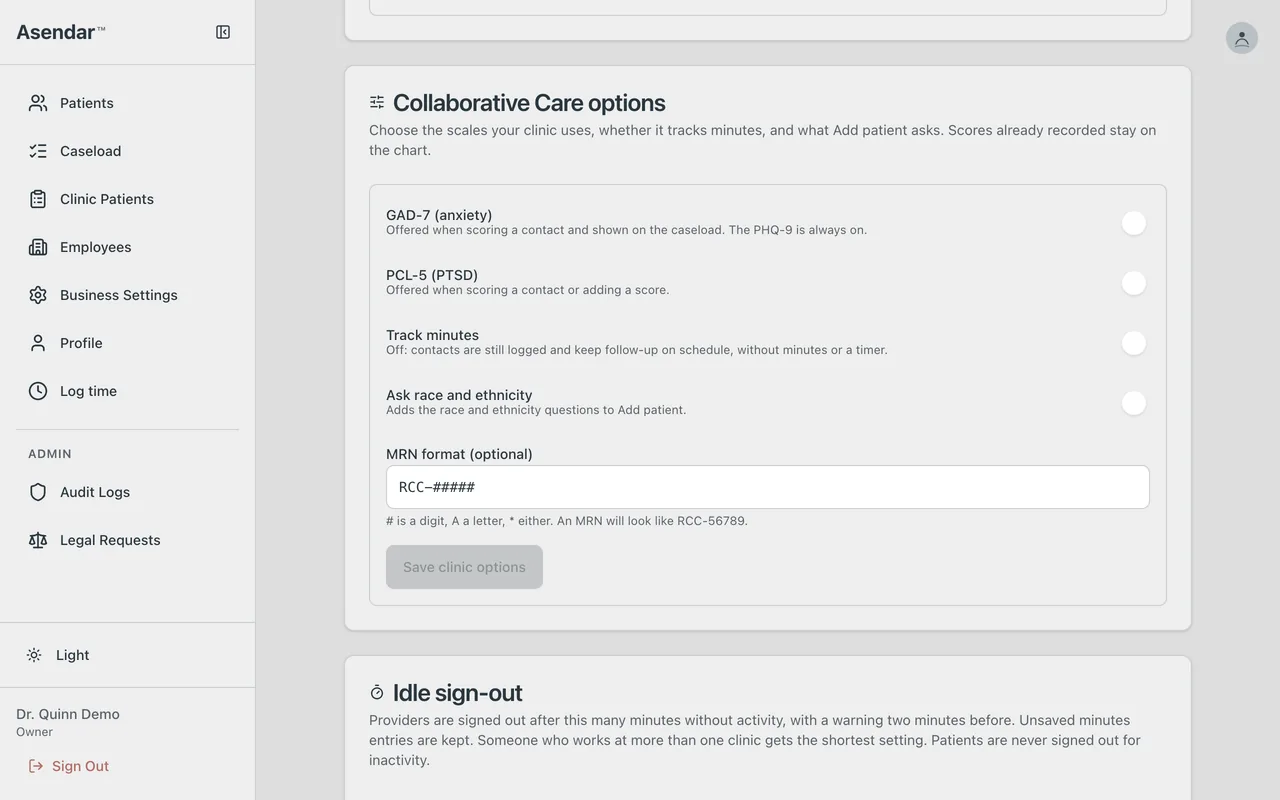
- GAD-7 and PCL-5: whether the clinic uses them. The PHQ-9 is always on. A scale that is off is not offered in Log time or + score and leaves the caseload card. Scores already recorded stay on the chart and still count in every report.
- Minutes tracking: when off, Log time becomes Log contact, with no minutes or timer; follow-ups stay due and dated.
- Race and ethnicity question: when on, Add Patient asks it.
- MRN format (optional): a pattern where # is a digit, A a letter, * either, and anything else must match itself, for example
RCC-#####.
Idle sign-out
The Idle sign-out card sets the minutes without activity before Asendar signs a provider out (5 to 240, default 30). Someone who works at several clinics gets the shortest.
Clinics
Each clinic is set up with Asendar at onboarding. To add a clinic location to your organization, email support@asendar.com.
12. User accounts
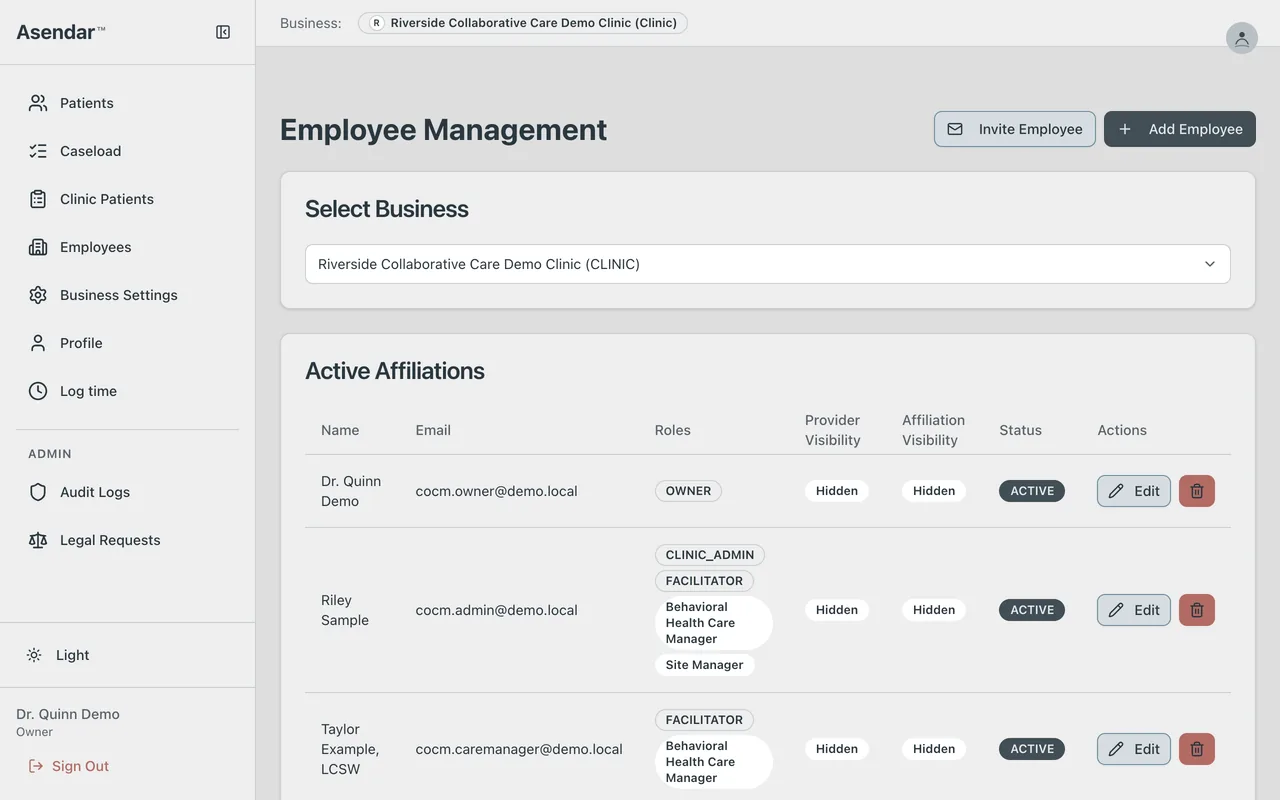
Open Employees. The Employee Management page lists your clinic's staff under Active Affiliations, Pending Affiliations and Pending Invitations.
Adding staff
- Invite Employee (Owner and Clinic Admin): enter the Email Address, pick the Roles and select Send Invitation. The person gets an email to set up their account.
- Add Employee (Owner only): enter the name and email, pick the roles and add them.
A care manager gets FACILITATOR, a psychiatric consultant PRESCRIBER, a PCP who signs in PRESCRIBER or MEDICAL OBSERVER, and a site manager CLINIC ADMIN.
Setting the care team role label
- Select Edit on the person's row.
- Under the care team role, pick the label that fits: Behavioral Health Care Manager, Psychiatric Consultant, Primary Care Provider, Site Manager or Data Manager. Only labels that match the roles above are offered.
- Select Save Changes. Every label change is written to the audit log.
Supporting a user
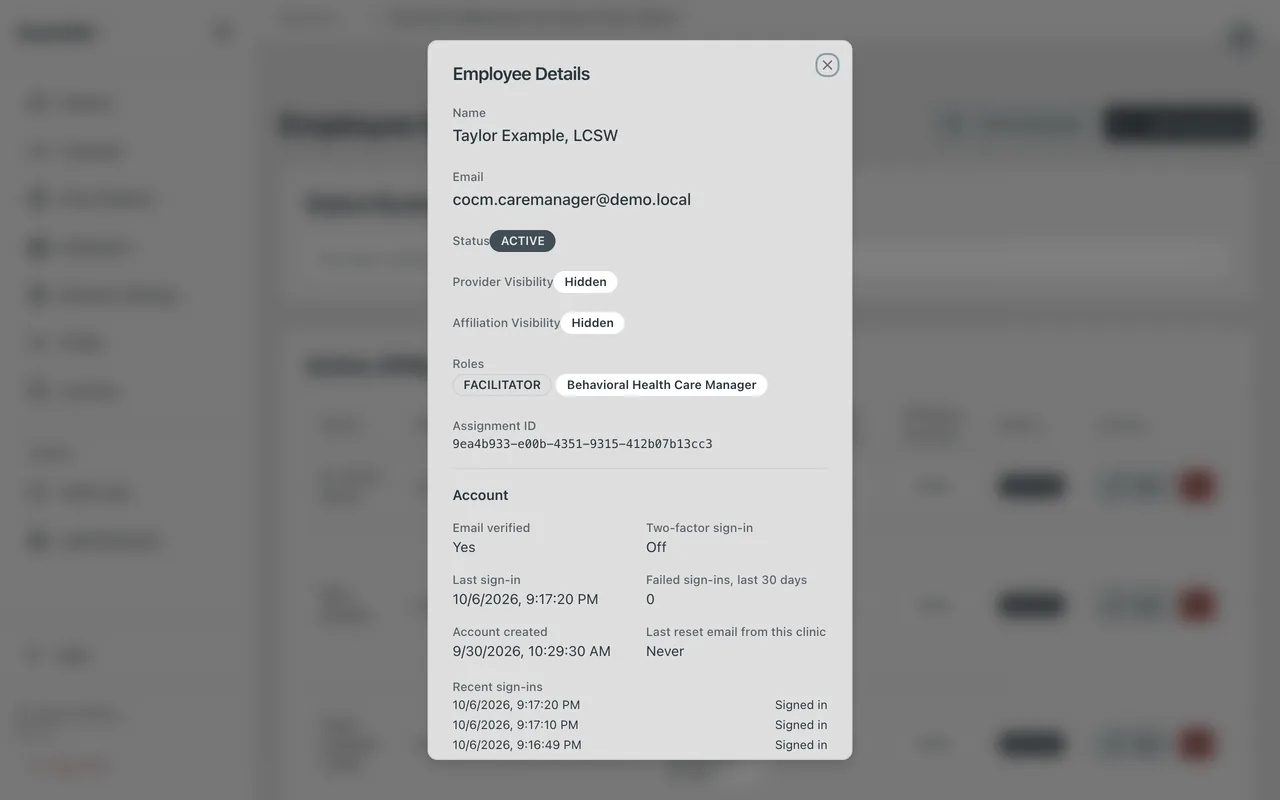
Select a person's row to open Employee Details. The Account section shows whether their email is verified, two-factor sign-in, their last sign-in, failed sign-ins in the last 30 days, recent sign-ins at this clinic, and when this clinic last sent them a reset email.
Send password reset email sends the person the same reset link as Forgot password. It goes only to their own inbox; you never see or set their password, and their current password keeps working until they use the link. You cannot send one to yourself (use Profile), a Clinic Admin cannot send one to an Owner, and one account gets at most one every five minutes.
Removing staff
Select the remove button on their row and confirm. This removes their access to the clinic. It does not remove the contacts they logged.
Tracking user activity
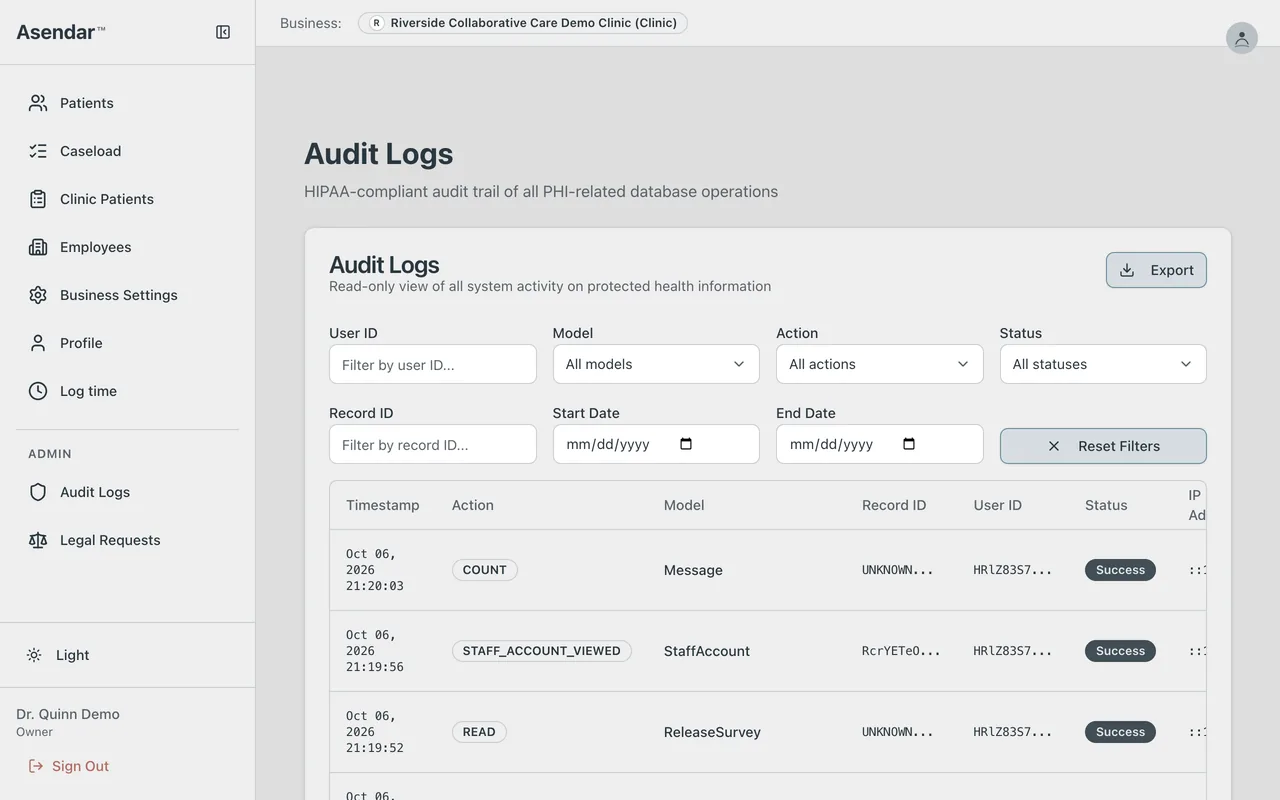
Audit Logs (Owner and Clinic Admin) records every read and change of patient data, every sign-in and failed sign-in, staff account views and reset emails. Filter by user, model, action, status, record and dates, and Export the result.
13. Deleting patient data
A clinic does not delete patients in Asendar. Instead:
- Deactivate the patient with a reason (section 5). That ends the episode, takes them off Today and the active caseload, and keeps the record intact for billing and audit.
- To correct a contact logged in error, Void it with a reason (section 6). The original stays on record by design.
- For a full deletion request, email support@asendar.com with the clinic name and the patient's MRN. Do not put other patient details in the email. Asendar support handles the request under the data retention policy and confirms back to you.
A patient can also close their own Asendar account from their Profile.
14. Exporting data
Exports are run by an Owner or Clinic Admin.
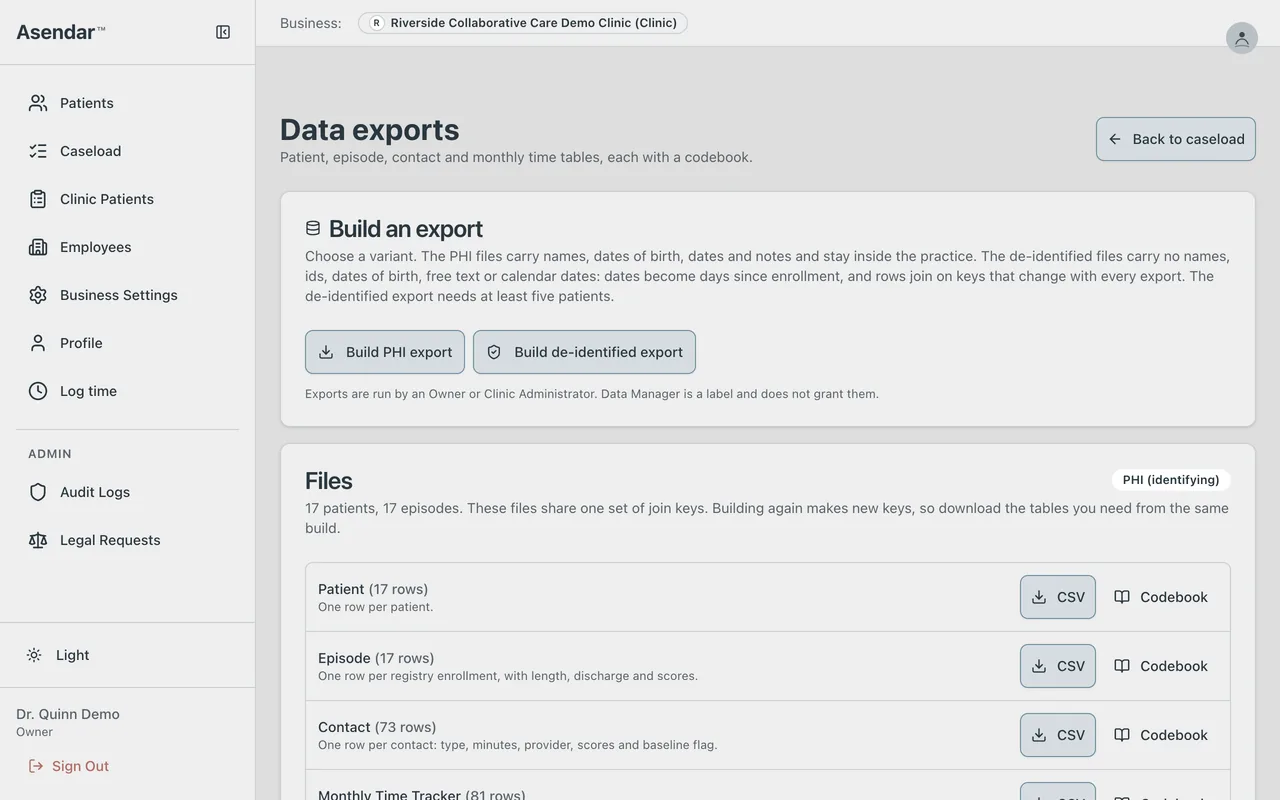
- On the caseload, select Data exports.
- Select Build PHI export or Build de-identified export.
- Under Files, download each table's CSV and its Codebook: Patient, Episode, Contact and Monthly Time Tracker.
The PHI files carry names, dates of birth, dates and notes, and stay inside the practice. The de-identified files carry no names, IDs, dates of birth, free text or calendar dates; dates become days since enrollment. Rows join on keys that change with every build, so download every table you need from the same build. The de-identified export needs at least five patients.
Other exports: the caseload CSVs (8.2), the Medicaid Clinic Report 12-month CSV (8.5), the Panel Outcomes CSVs and PDF (8.5), the time tracker CSV and PDF (8.7), and the billing packet CSV and PDF (8.8).
15. Troubleshooting
| What you see | What to do |
|---|---|
| I do not see Caseload in the menu | Caseload appears once your clinic has an enrolled patient you can see. Ask your Clinic Admin to assign you to the patient (section 9) |
| A patient is missing from my caseload | You see the patients assigned to you. Check Whole caseload and Inactive, then ask your Clinic Admin to name you on the patient's care team (section 9) |
| I cannot add a patient | Adding patients is for Owners and Clinic Admins |
| "This registry enrollment is inactive" when logging time | The patient was deactivated. Re-activate the enrollment first (section 5) |
| GAD-7 or PCL-5 is not offered | Your clinic switched that scale off (section 11) |
| The MRN is refused | It does not match your clinic's MRN format, or another patient at the clinic holds it |
| I cannot correct a contact | It is more than 7 days old. Ask a Clinic Admin |
| I do not see Assign Assessment | You can assign to a patient you are the assigned clinician for, or whose session you led or supported; an Owner, Clinic Admin or Support Facilitator can assign to any patient at the clinic. Being on the Collaborative Care care team is not enough. Ask your Clinic Admin to make you the patient's assigned clinician, or enter the score yourself in Log time (section 6) |
| My patient says they can't find the assessment | Check the patient's Assessments tab: it should be under Active Assessments, marked Pending (a finished one moves to Completed Assessments). Ask them to sign in with the email address on their chart and look on their home screen, or open the menu and tap Assessments. If they have no Asendar login yet, send the invite from their record (section 5) |
| I cannot flag a patient for psych consult | The patient has no Psychiatric Consultant on their care team. Assign one first (section 9) |
| A consult email's link asked me to sign in | Sign in. Asendar then opens the recommendation. If it says the review is not one you can open, you are no longer on that patient's care team |
| I see "Waiting on" instead of Record review | Only the Psychiatric Consultant the request names, or the clinic's Owner or Clinic Admin, records a review (section 6) |
| My Psych consult contact left the consult open | The minutes count, but only the named consultant or an Owner or Clinic Admin closes the consult (section 6) |
| I do not see the Panel Outcomes Report | It is for Owners and Clinic Admins of the clinics they run, so it is not on a Care Manager's caseload page. Your own caseload's measures are in the Medicaid Clinic Report (8.5) |
| I was signed out | Idle sign-out (section 2). An unsaved Log time entry is offered back when you sign in |
| Anything else | Email support@asendar.com |
Appendix: Taking an assessment in Asendar
A one-page handout for patients. Print it, or send them the PDF.
Your care team may ask you to fill out a short form in Asendar, like the PHQ-9, GAD-7 or PCL-5. It asks how you have been feeling. Your answers help your care team see how you are doing over time.
1. Look for the message
You will get an email that says a form is waiting for you. Tap the button in the email to open it. You may also see a notice in Asendar.
2. Or open Asendar
Sign in to Asendar. You'll see it on your home screen, or open the menu and tap Assessments. Forms your care team sent are at the top, under Ready when you are, with the name of the person who sent them.
3. Answer the questions
Tap the form to open it. Read each question and pick the answer that fits you best. There are no right or wrong answers. Most forms take a few minutes.
4. Tap Submit
When you have answered every question, tap Submit. Nothing is sent until you do. After that, your care team can see your answers.
5. See your results
Open the menu and tap Assessments. Each form you finished is listed with the date and your score. Tap one to see the answers you chose.
Want to take one on your own?
On Assessments, tap Take one yourself and pick a form.
Questions?
Ask your care team at your next visit, or call your clinic.
Asendar is not for emergencies. If you are in crisis or thinking about hurting yourself, call or text 988 (the 988 Suicide and Crisis Lifeline), or call 911.
Screens shown are from a synthetic demo clinic. No real patients appear in this guide. Questions: support@asendar.com.