AIMS words, Asendar words
| In AIMS | In Asendar | Where |
|---|---|---|
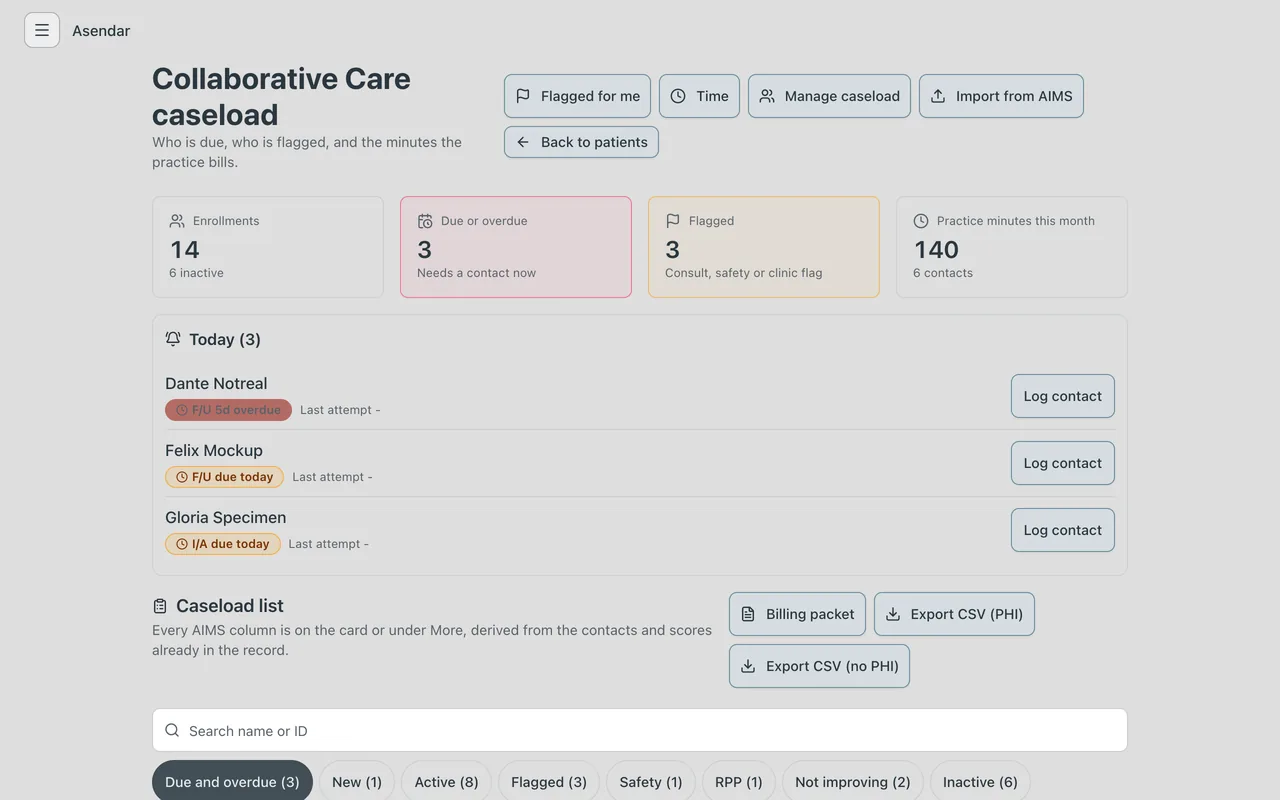
| Reminders page | Today | Top of the caseload, your home page after sign-in |
| Caseload List page, and every column on it | Caseload list: each column is on the patient's card or under More | Caseload in the menu |
| Active, New, Inactive caseload lists | Filters Active, New, Inactive, Whole caseload | Caseload |
| Report for | Report for (Provider, Care manager, Primary care provider, Clinic) | Caseload |
| Sort by a column | The sort list (any column) and Reverse | Caseload |
| Clinical Dashboard | Collaborative Care tab: Treatment summary and symptom graph | Patient chart |
| Treatment History page | Contacts and minutes | Collaborative Care tab |
| New Contact | Log time | Menu, chart, + time on a card, Log contact in Today |
| Initial CoCM Screening | Screening | Log time, Activity |
| Initial Assessment | Initial assessment | Log time, Activity |
| Follow Up | Follow-up | Log time, Activity |
| Psychiatric Consultation | Psych consult, or Record review, by the consultant the request names or an Owner or Clinic Admin | Log time, or the Psychiatric consultant review card |
| Care Team Collaboration | Care team collaboration | Log time, Activity |
| Contact Attempt | Contact attempt | Log time, Activity |
| Session type | How (Phone, In clinic, Video, Portal or text, Group, Other location, No patient contact) | Log time |
| Duration | Minutes (chips, or a timer) | Log time |
| Scale scores (PHQ-9, GAD-7, PCL-5) | Scores in Log time, or + score on the Scores card. A patient can also complete their own PHQ-9, GAD-7 or PCL-5 in Asendar, assigned from the chart's Assessments tab or started by the patient, and it counts the same | Log time; Collaborative Care tab; Assessments tab |
| Yellow flag and Notes for Psychiatric Consultant | Flag for psych consult, the Consultant it goes to, and Notes for consultant | Log time, or the Collaborative Care tab |
| Flagged patients, for the consultant | Flagged for me | Caseload |
| Red safety flag | Safety risk | Caseload card, Flags card |
| Blue custom flag | Your clinic's own label | Caseload card, Flags card |
| Relapse Prevention Plan | Relapse prevention plan | Collaborative Care tab |
| Status E, T, RPP, D | The same letters | Caseload card |
| Minutes This Month | The minutes ring | Caseload card, Collaborative Care tab |
| Deactivate, with a reason | Deactivate enrollment, with a Reason | Collaborative Care tab, or More on the card |
| Re-enroll (New Episode) | Re-activate enrollment (starts the next episode) | Collaborative Care tab |
| MRN | MRN, checked against your clinic's MRN format | Enroll in registry |
| Provider assignments (CM, PC, PCP) | Care team: Care Manager, Psychiatric Consultant, Primary Care Provider | Collaborative Care tab |
| PCP without a login | A directory PCP (name, NPI, practice) | Care team, Assign |
| Clinic assignments | Clinics (one primary) | Profile tab |
| Caseload Manager (bulk transfers) | Caseload Manager | Manage caseload on the caseload |
| Update a contact | Amend, with a reason | The contact's three-dot menu |
| Delete a contact | Void, with a reason (the original stays on record) | The contact's three-dot menu |
| Export as Text | Copy and PDF | Each contact; Copy PCP summary for EHR |
| Caseload Statistics | Caseload statistics, including Contacts with a scale, In relapse prevention plan and Flagged for psychiatric consult, grouped by Care Manager, Psychiatric Consultant, PCP, clinic or provider | Medicaid Clinic Report |
| CoCM Quality Metrics | Medicaid Clinic Report and Panel Outcomes Report | Caseload |
| Completed Episode Statistics | Completed episodes: length, contacts, PHQ-9 at discharge, discharge reasons | Medicaid Clinic Report |
| Depression Remission or Response | Depression response and remission (HEDIS DRR-E, 4 to 8 months) | Medicaid Clinic Report |
| Monthly Time Tracker | Time, Tracker | Time on the caseload |
| (no AIMS equivalent) | Monthly billing packet | Billing packet on the caseload |
| Exporting Data, Data Manager | Data exports, run by an Owner or Clinic Admin | Caseload |
| Organization settings | Business Settings, Business tab | Menu |
| Care Manager account | Facilitator, labelled Behavioral Health Care Manager | Employees |
| Psychiatric Consultant account | Prescriber, labelled Psychiatric Consultant | Employees |
| Primary Care Provider account | Prescriber or Medical Observer, labelled Primary Care Provider; or a directory PCP with no login | Employees, or Care team, Assign |
| Site Manager | Clinic Admin, labelled Site Manager | Employees |
| Account Administrator | Owner | Employees |
| Data Manager account | Support Facilitator, labelled Data Manager; exports are run by an Owner or Clinic Admin | Employees |
| Consultant, Data Manager or Account Administrator without PHI | Not offered: every login sees PHI. De-identified data leaves through the de-identified export | Data exports |
| Care team collaborator (MA, RN, social worker) | Needs no login: the care manager logs the time as Care team collaboration | Log time |
| Reset a user's password | Send password reset email | Employees, Employee Details |
| Logout | Sign Out | Bottom of the menu |
The AIMS guide, section by section
The Asendar Collaborative Care User Guide keeps the AIMS Caseload Tracker User Guide's order, so you can read the two side by side.
| AIMS User Guide section | Asendar user guide section |
|---|---|
| Introduction | 1. Introduction |
| Logging In (web browser requirements, account security, preferences, business continuity) | 2. Signing in |
| Types of Accounts, Understanding Roles | 3. Account types and roles |
| Basic Navigation Tips | 4. Navigation |
| Enrolling and Deactivating Patients | 5. Enrolling and deactivating patients |
| Recording Patient Contacts | 6. Recording patient contacts |
| Patient Summary Pages (Treatment History, Clinical Dashboard) | 7. Patient summary and clinical dashboard |
| Population and Caseload Reports | 8. Reports |
| Managing Provider Assignments | 9. Provider assignments |
| Managing Clinic Assignments, Bulk Patient Transfers | 10. Clinic assignments and bulk transfers |
| Organization Setup and Configuration | 11. Clinic setup |
| Managing User and Provider Accounts | 12. User accounts |
| Deleting Patient Data | 13. Deleting patient data |
| Exporting Data | 14. Exporting data |
What moves over, and how
The AIMS import
The clinic's Owner, a Clinic Admin or a care manager brings the AIMS caseload across from the AIMS Treatment History exports: the Patient, Episode and Contact Note tables (.csv) and each one's codebook (.txt). On the caseload, select Import from AIMS.
-
Upload the exports and choose the clinic they go into. The files are read on your computer, and nothing from them is stored except what the import creates.
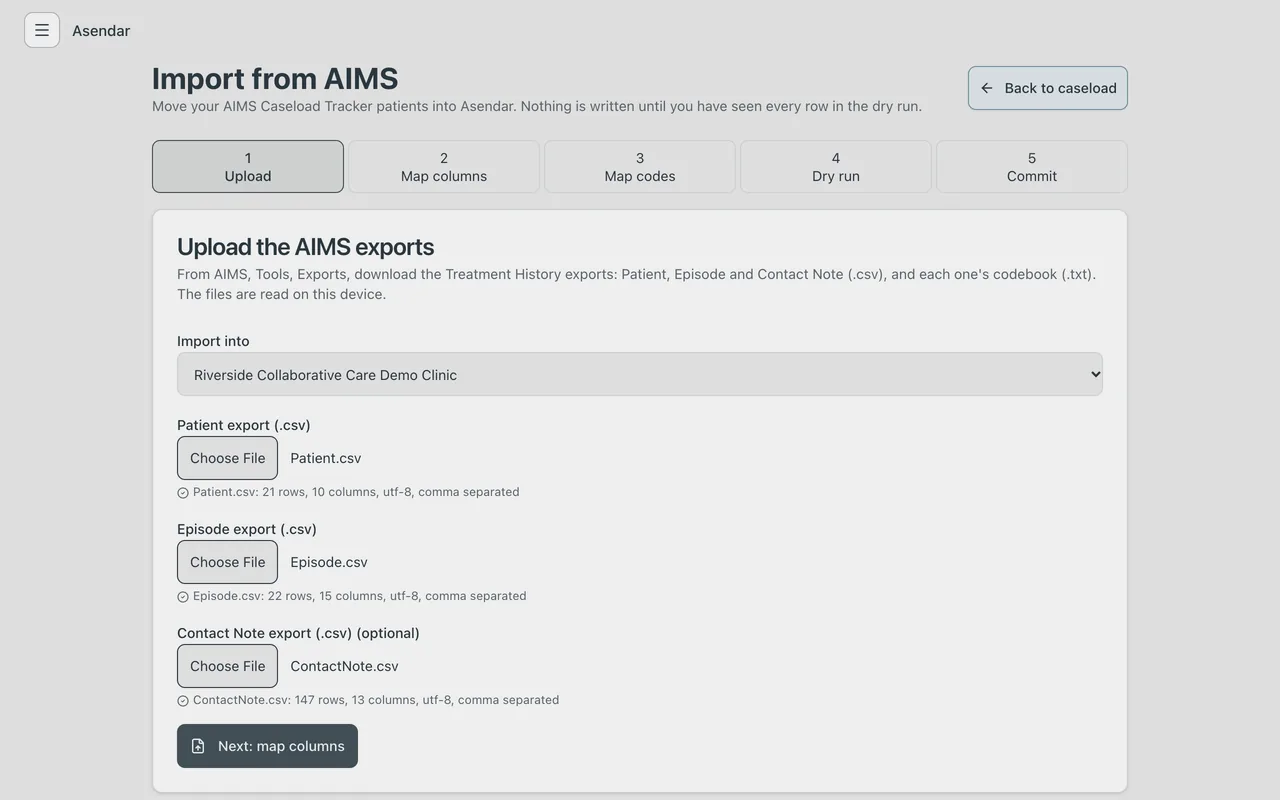
Upload the AIMS exports. -
Map the columns and map the codes. Asendar preselects a column only when its header matches exactly, and decodes coded values from the codebooks. You confirm each one. An unmapped contact type or status is reported as an error for its rows, never guessed; an unmapped discharge reason is recorded as Other, with the AIMS words kept as the note.
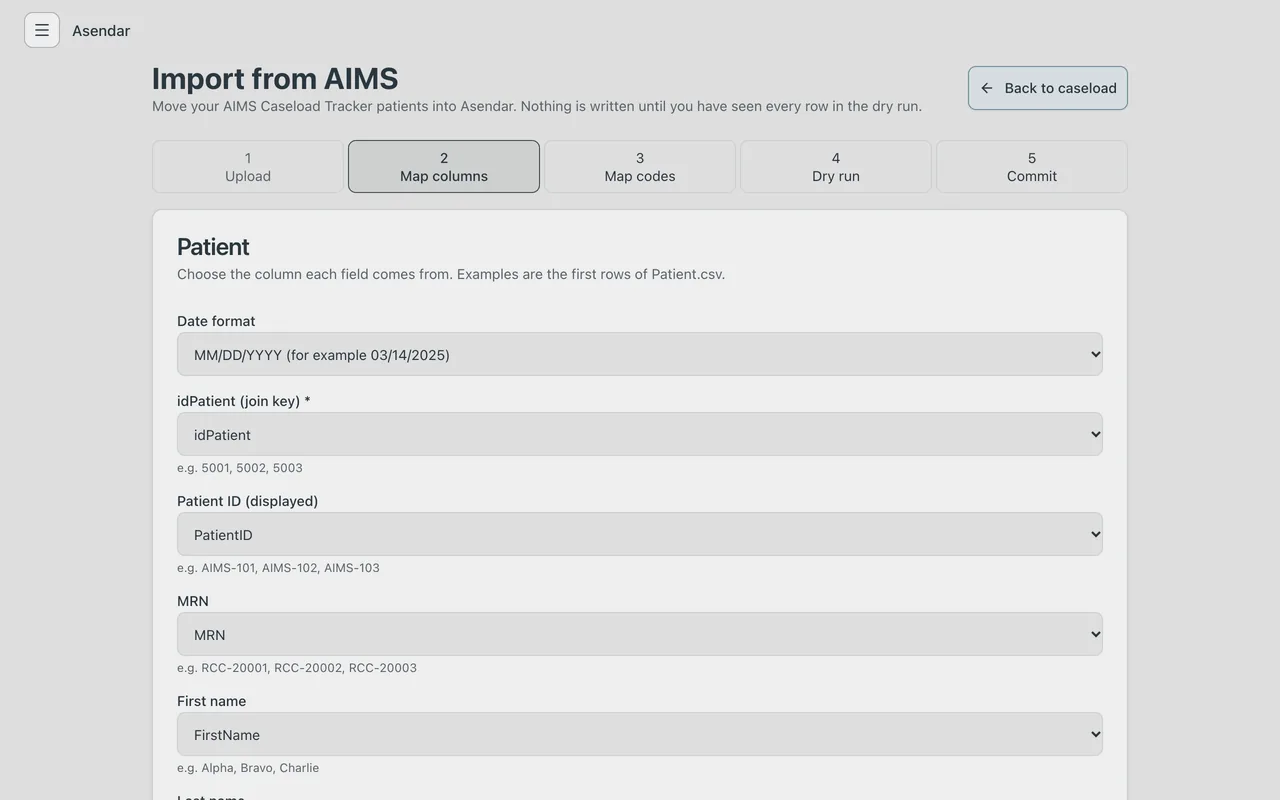
Map the columns: each Asendar field and the AIMS column it comes from. 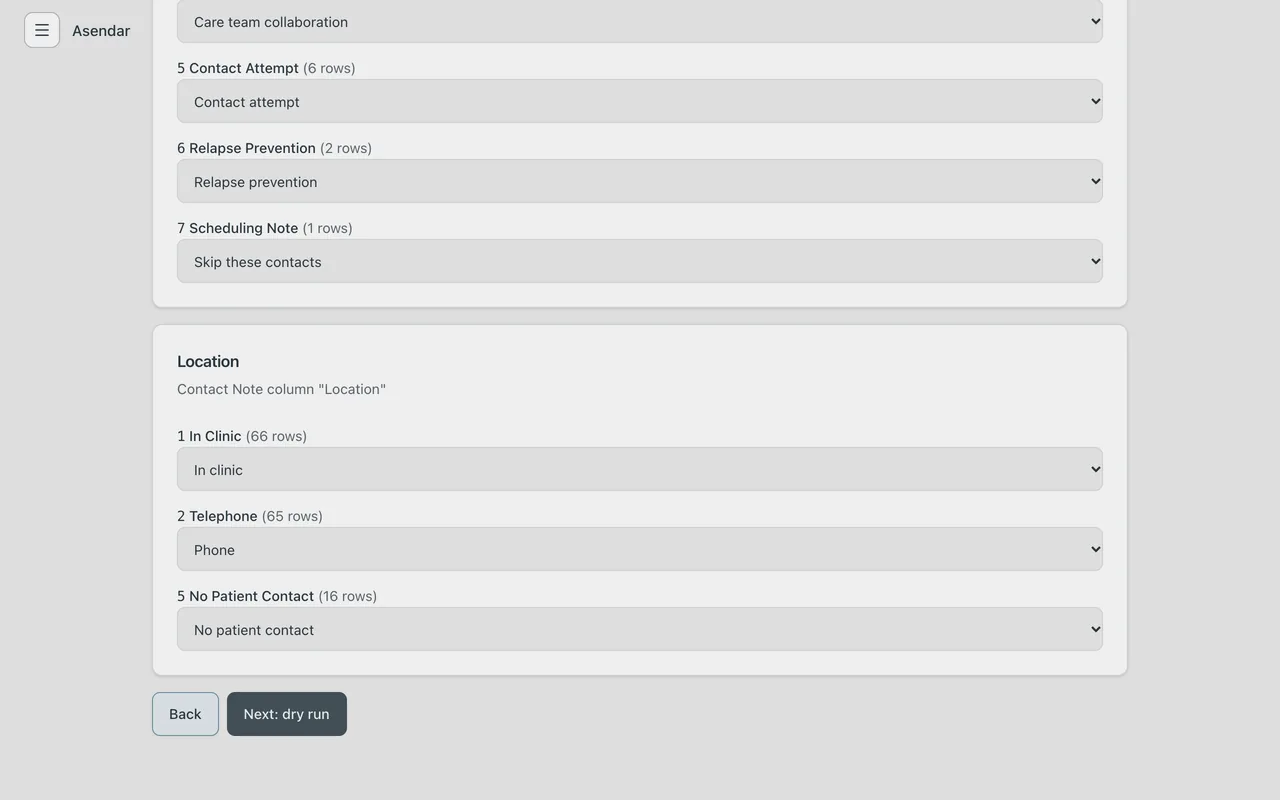
Map the codes, decoded from the codebooks. -
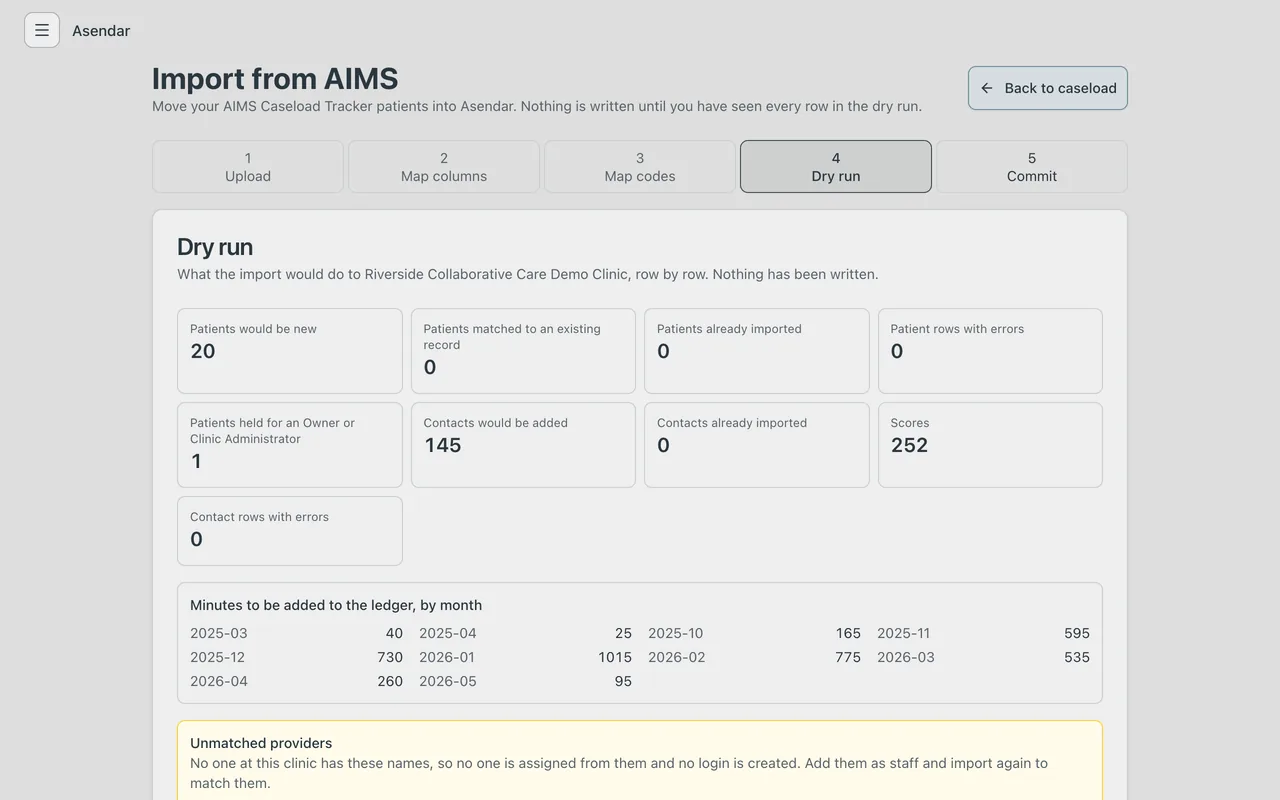
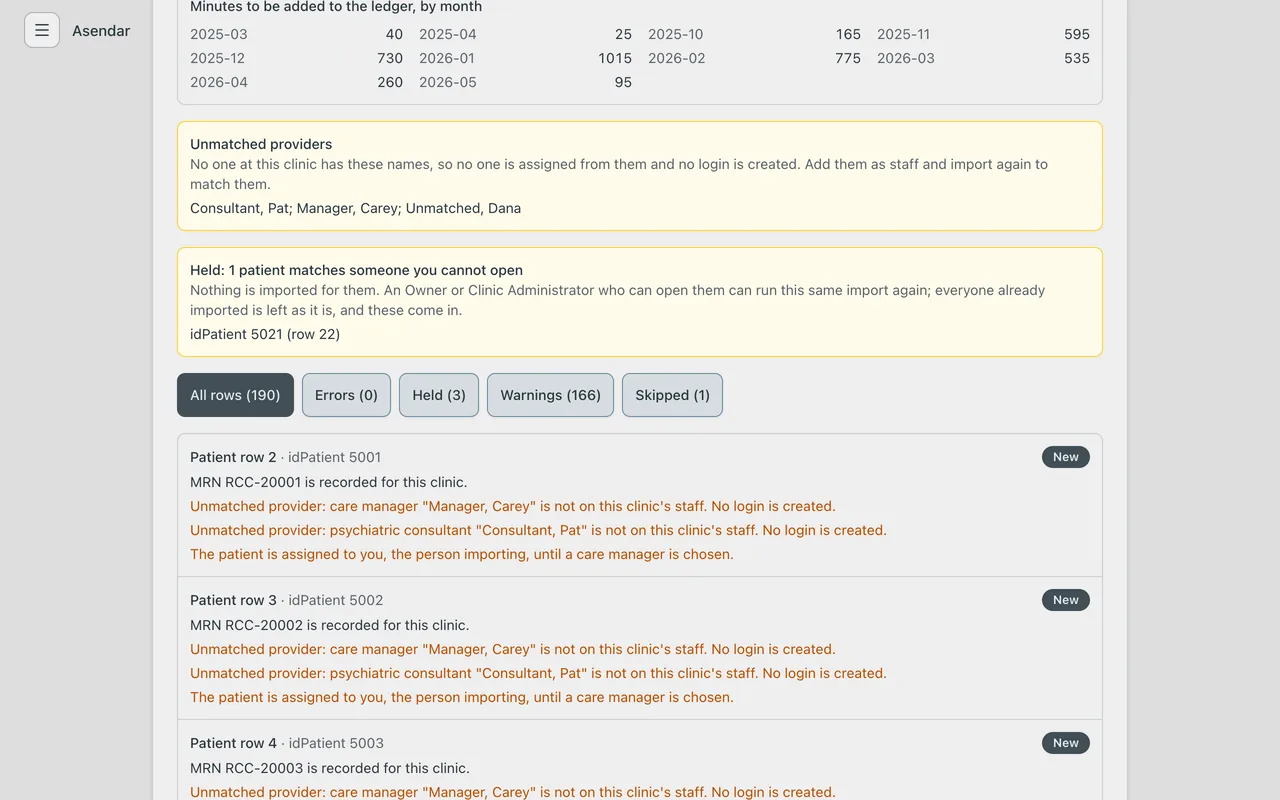
Dry run. Asendar checks every row against your clinic's records and writes nothing. Every row gets a result: new, matches an existing patient, already imported, held, skipped, or an error with its reason.
-
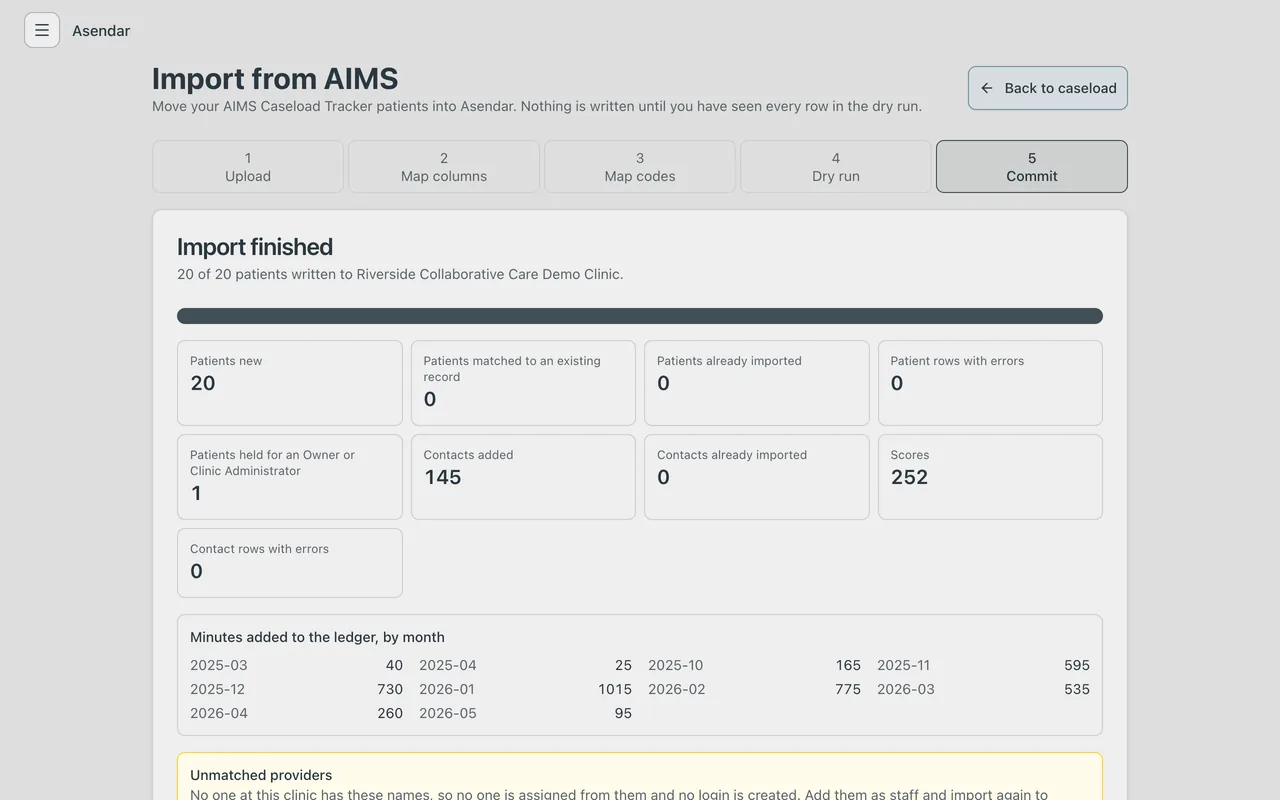
Import. Only after the dry run reads right. Each patient is written whole or not at all, and running the same files again writes nothing twice.
What lands where:
- Patients: name, date of birth, and the MRN in the clinic's MRN field, checked against your clinic's MRN format. An MRN that breaks the format, or that another patient at the clinic holds, refuses that patient with the reason.
- Episodes: each AIMS episode becomes its own Asendar episode of care, with its dates and discharge reason, numbered oldest first. The latest one decides whether the patient is active, in relapse prevention or deactivated. A relapse prevention plan is opened with placeholder text for the care manager to complete.
- Contacts: every contact, with its type, how it was delivered, its minutes and its date. Scores land as ordinary scores dated to their contact, marked as imported from AIMS. A scale your clinic has switched off is not imported (the dry run warns).
- Care team: a new enrollment gets the AIMS care manager as its Care Manager (or the person importing, when the name does not match) and the AIMS psychiatric consultant.
- Providers: matched to your staff by name. An unmatched name is listed; no login is created.
- A row that matches a patient the importer cannot open (for example one carried by another care manager) is held: nothing is written for it, and it is never created a second time. An Owner or Clinic Admin resolves held rows by running the same import.
Imported patients get no email. The months before your switch were billed from AIMS: their minutes now show in Asendar's time tracker and billing packet as a record, but do not bill those months again.
One patient at a time
To carry over a single patient, open their Collaborative Care tab and, on the Moving from AIMS card, select Enter AIMS history. Copy in the AIMS enrollment date, the initial assessment date and baseline scores, the latest follow-up date and scores, and the latest psychiatric consultation, then Save AIMS history. Each date is recorded as a contact with 0 minutes, because those months were billed from AIMS, and each score is marked as imported from AIMS. The follow-up clock and the outcome measures then carry on from the AIMS history instead of starting again.
Day-one checklist
Owner or Clinic Admin
- Sign in. You land on the caseload.
- Business Settings, Business tab: set Caseload flags (red safety flag, your blue flag and its label).
- Same tab, Collaborative Care options: GAD-7, PCL-5, minutes tracking, the race and ethnicity question, and your MRN format.
- Same tab: check Idle sign-out (30 minutes by default).
- Employees: Invite Employee for each person. Care managers get FACILITATOR, psychiatric consultants PRESCRIBER, site managers CLINIC ADMIN.
- Edit each person and set their care team role label (Behavioral Health Care Manager, Psychiatric Consultant, Primary Care Provider, Site Manager or Data Manager).
- Bring the caseload across with Import from AIMS (above). Run the dry run first and read every held row and error.
- On each patient, check the Care team: a Care Manager, the Psychiatric Consultant and the PCP. Add login-less PCPs to the directory. A patient with no Psychiatric Consultant cannot be flagged for a consult.
Care manager
- Sign in. Today is your morning list.
- Open a patient and log one real contact with Log time. Check it appears under Contacts and minutes.
- On your phone, find the round clock button at the bottom left. That is Log time.
Psychiatric consultant
- Sign in and open Flagged for me.
- Open a flagged patient, read the notes, enter the Recommendation, Minutes and Review date, and select Record review. Only you, as the consultant the request names, or an Owner or Clinic Admin can record it.
Biller
- Open Billing packet, pick last month, and read every Do not bill and every missing evidence line before you key the claim.
Billing
Collaborative Care is billed as one claim per patient per month, by the treating physician or advanced practice provider, through your payer's own claims system (for Medicaid, your state Medicaid program). Asendar transmits nothing. The packet is what the claim is keyed from and the record you produce on audit.
1. Log the minutes
Every contact goes through Log time: the activity, how it was delivered, the minutes, the date and who delivered it. Consultant review minutes are added when the review is recorded. A Psych consult contact logged by anyone but the consultant the request names, or an Owner or Clinic Admin, counts its minutes but leaves the consult open. Care team collaboration and contact attempts count too. A contact can be up to 120 minutes.
2. Watch the ring
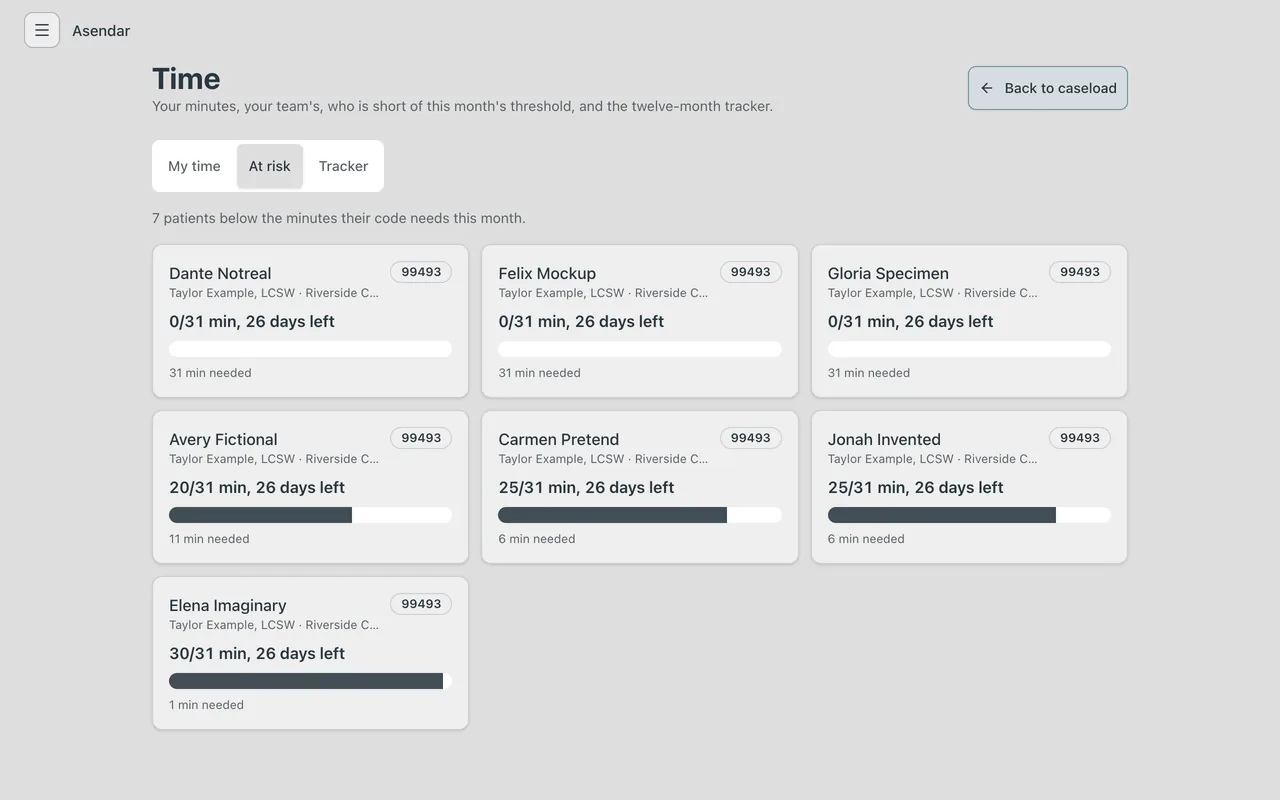
The minutes ring on each card and on the Collaborative Care tab shows the month's minutes and how many more reach the next code. On the Collaborative Care tab it also says what the month already supports, read the way the packet reads it: So far October supports 99493, or Nothing billable in October yet with the 16-minute G2214 floor and the base code's floor. Time, At risk lists every active patient short of the minutes their code needs this month, with the days left.
3. Run the monthly packet
- On the caseload, select Billing packet.
- Choose the Month.
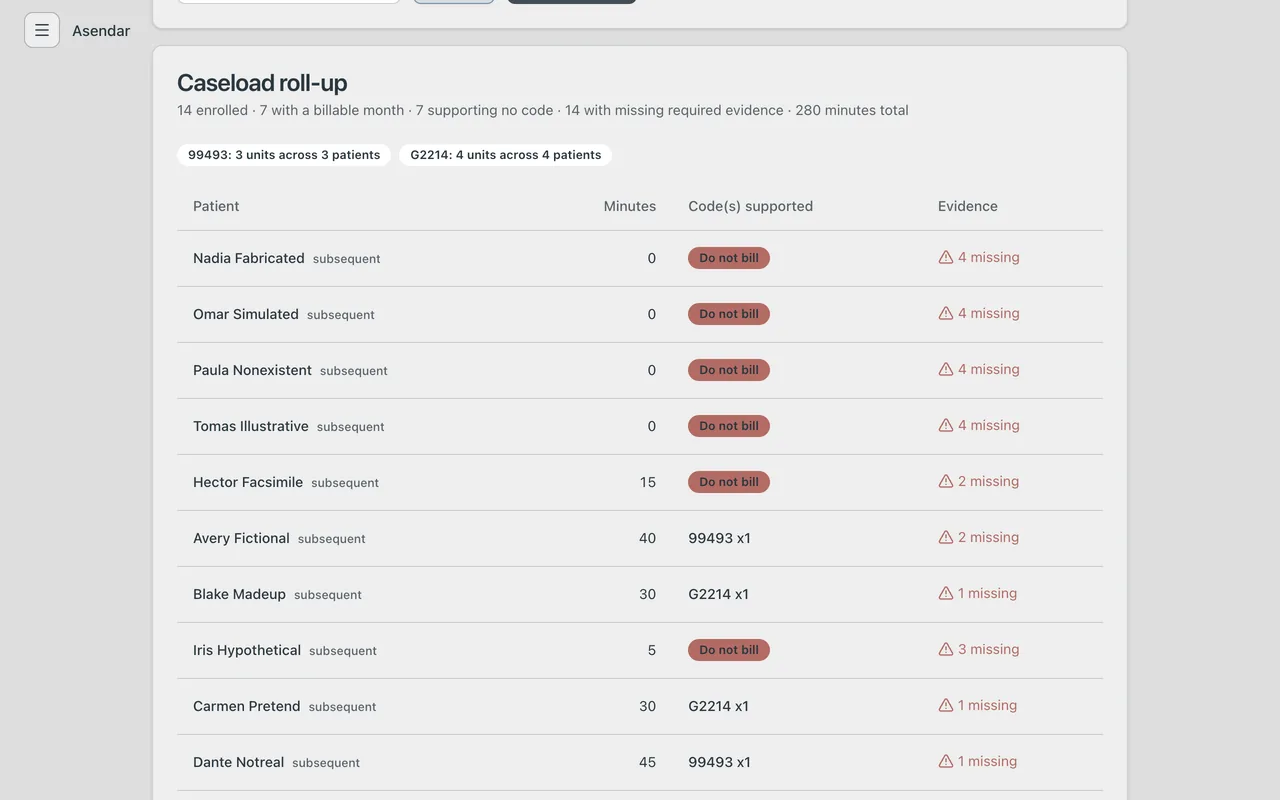
- Read the Caseload roll-up: each patient's minutes, Code(s) supported and Evidence.
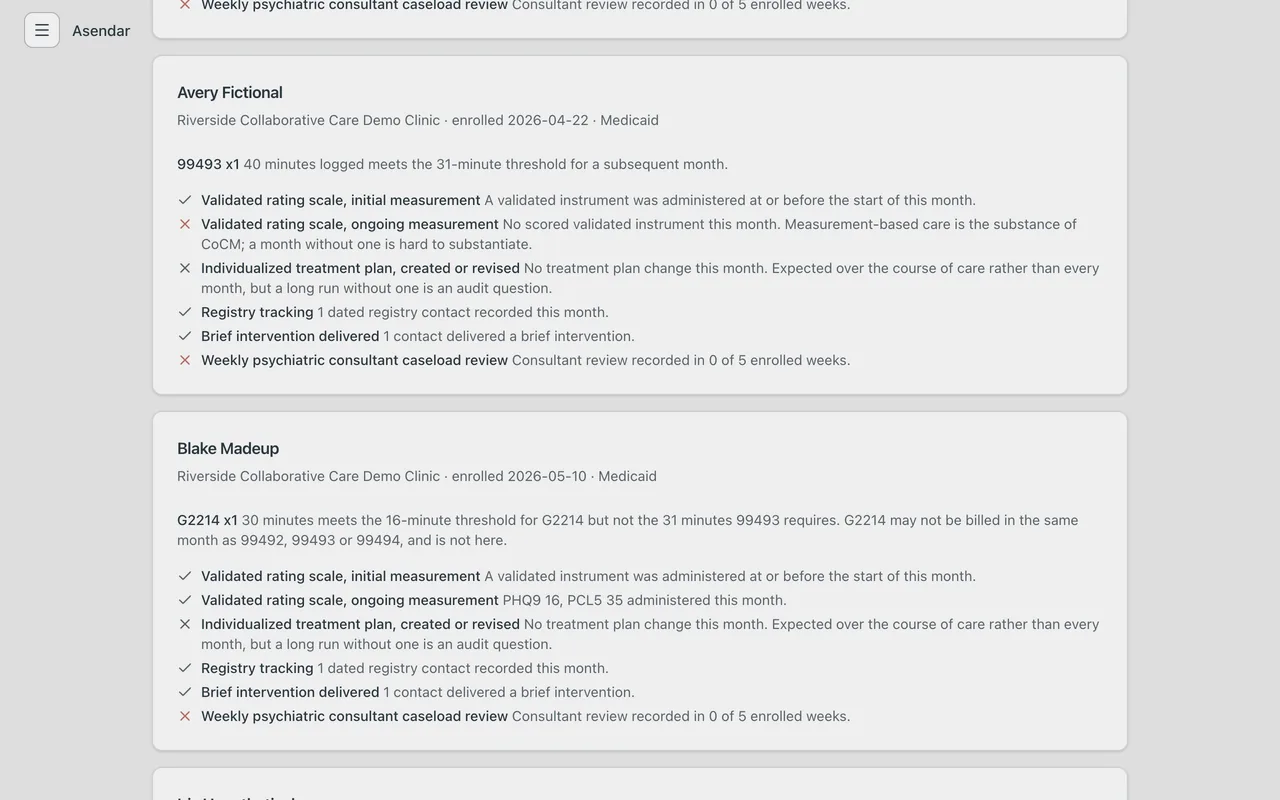
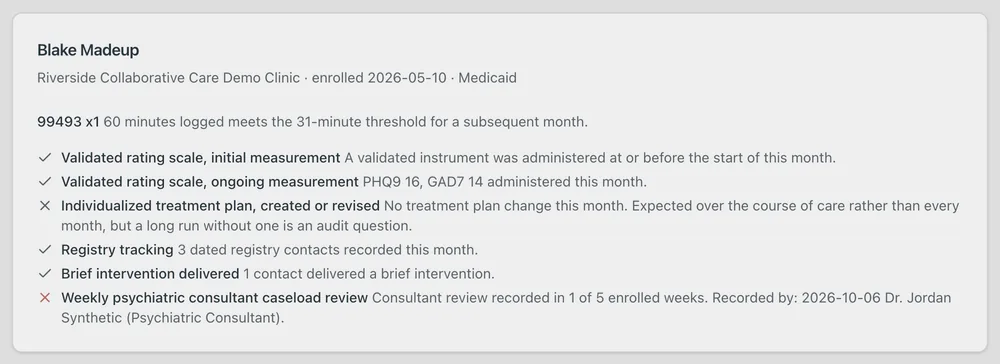
- Read each patient's card for the code decision in plain words and the evidence line by line.
- Download CSV for your billing system and PDF packet for the record. The CSV's last column, Consult reviews recorded by, names who recorded each review that month and in what role.
The codes
Minutes are behavioral health care manager minutes in the calendar month, on the clinic's own clock.
| Month | Base code | First 99494 | Each further 99494 |
|---|---|---|---|
| Initial month (the patient's first billable month) | 99492 from 36 minutes | at 86 minutes | every 30 minutes after that (116, 146) |
| Any later month | 99493 from 31 minutes | at 76 minutes | every 30 minutes after that (106, 136) |
- 99494 is capped at 4 units a month.
- G2214 applies from 16 minutes when the base code is not reached, and is never billed in the same month as 99492, 99493 or 99494. Asendar enforces this.
- Under 16 minutes the month shows Do not bill, with the reason. Every enrolled patient appears, so no month is silently dropped.
- "Initial month" is the patient's first billable month, not the first month on the screen, so 99492 is not billed twice.
- A patient carried at two clinics in a month is billed once, by the primary clinic.
The audit evidence
For each patient-month the packet checks a validated rating scale at or before the month (initial) and inside the month (ongoing), the treatment plan created or revised (expected over the course of care, not every month), registry tracking, a brief intervention delivered, and the weekly psychiatric consultant caseload review. The review line names each review's date, who recorded it and their role (Psychiatric Consultant, Owner or Clinic Administrator), on the page, in the PDF packet and in the CSV. Minutes and evidence are shown separately: a month can meet the minutes and still be one you should not bill.
No dollar figures, by design
The packet reports codes, units, minutes and evidence, never rates. Rates come from your payer's published fee schedule. The header names what the claim needs that Asendar does not hold: the billing and rendering provider NPI, the Medicaid provider number and the taxonomy code.
What is different by design
- The record belongs to the individual. Asendar is built on one health record that belongs to the patient and travels with them. The patient's own details (name, date of birth, health profile) come from their account and show read-only to the clinic, and a patient can withdraw a provider's access.
- Nothing is deleted. A contact logged in error is voided with a reason and stays on record. A clinic deactivates a patient with a reason rather than deleting them. A full deletion request goes to support@asendar.com, which handles it under the data retention policy.
- Every login sees PHI. There are no no-PHI accounts. De-identified data leaves through the de-identified export.
- Exports are run by an Owner or Clinic Admin. The Data Manager label names the person who works with the data, but it does not grant the export.
- Several people per role. A patient can have more than one Care Manager, Psychiatric Consultant or PCP, and the reports count the patient under each.
- A consult names its consultant. Each consult request names one of the patient's Psychiatric Consultants, and only that consultant, or the clinic's Owner or Clinic Admin, records the review. The packet then shows who recorded it and in what role.
- Patients can complete their own scores. A patient can take the PHQ-9, GAD-7 or PCL-5 in their own account, assigned by their care team or started by the patient. The score lands on the Scores card marked Completed by the patient and counts in the caseload, the reports and the billing evidence like any other (User Guide, section 6).
- Turning a scale off never rewrites the past. Scores already recorded on a scale the clinic switches off still count in every report.
- The billing packet is new: AIMS has no equivalent.
- No downtime mode. Keep a paper log and back-enter with the real date (User Guide, section 2).
AIMS coverage at a glance
We checked Asendar against every section of the AIMS Caseload Tracker User Guide and every scene of the AIMS Caseload Tracker demo video.
| AIMS guide topics (57) | AIMS demo scenes (18) | |
|---|---|---|
| Covered: a clinic does the same job in Asendar today | 50 | 18 |
| Partial: Asendar has it, with a gap named below | 3 | 0 |
| Missing | 0 | 0 |
| Not applicable: guide content, or a deliberate difference | 4 | 0 |
The gaps, in plain words:
- No no-PHI account types. AIMS offers Consultant, Data Manager and Account Administrator accounts without PHI, and an aggregate viewer. Asendar does not: every login sees PHI, and de-identified data leaves through the de-identified export.
- Most of the AIMS role matrix is not enforced per role. Who records a psychiatric case review is enforced: only the consultant the request names, or an Owner or Clinic Admin. The rest is not: anyone who can open a patient's chart can enroll and deactivate, log contacts and scores, and flag a consult.
- A clinic cannot add a location itself. Asendar sets clinics up at onboarding; email support@asendar.com to add one.
The pediatric scales some AIMS clinics use (SCARED, SMFQ and Vanderbilt) are not in Asendar yet. The Not applicable topics are the guide's introduction, browser requirements, business continuity (Asendar has no downtime mode; back-entering with the real date is the procedure) and deleting patient data (deactivate with a reason instead; full deletion requests go to support).
Who to call
Asendar support: support@asendar.com.
Screens shown are from a synthetic demo clinic. No real patients appear in this guide. Questions: support@asendar.com.